Help on every page
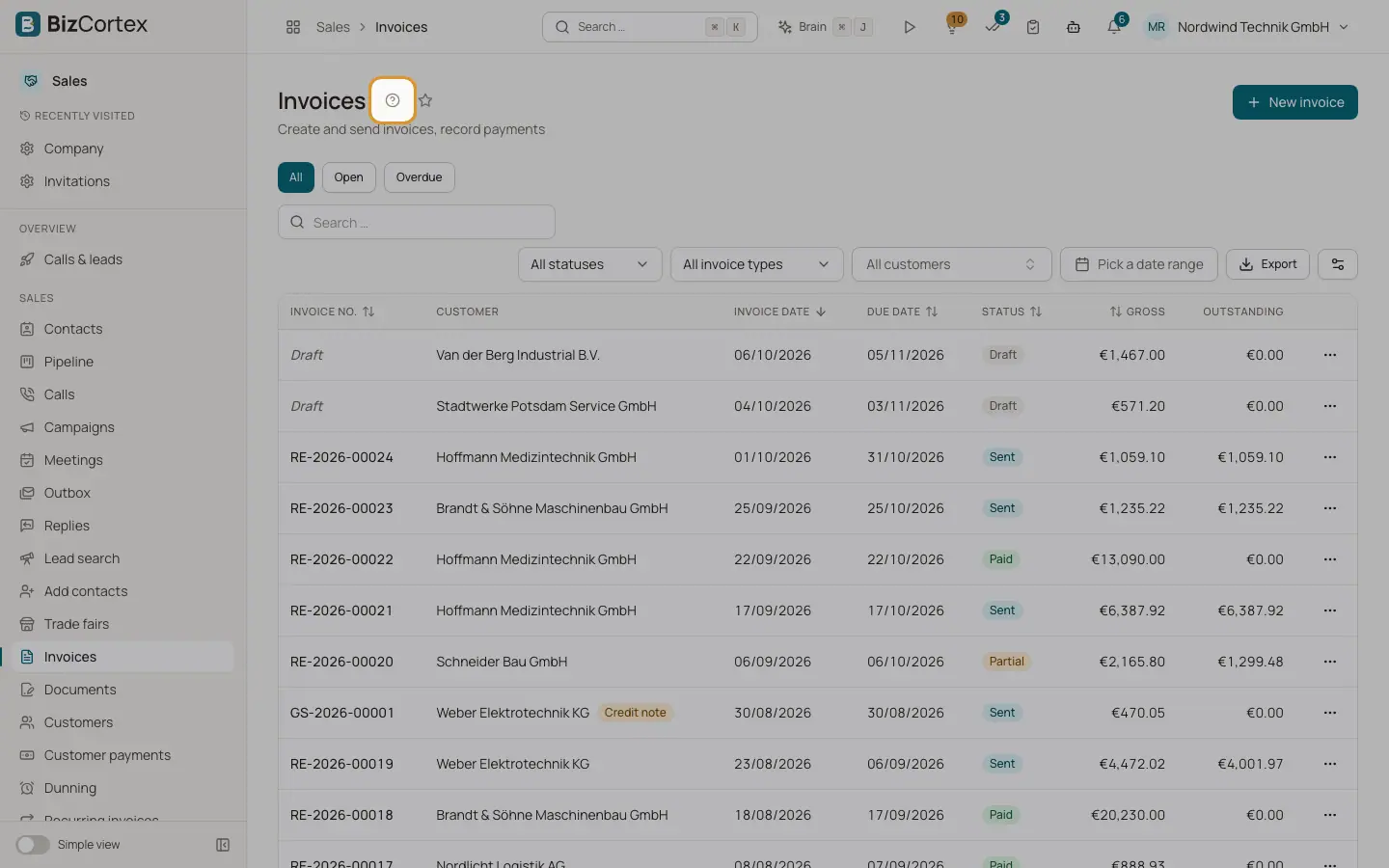
The question mark next to the page title explains the page and suggests next steps.
Every page that appears in the menu has a small question mark next to its title ("Help for this page"). It opens a short help panel, so you never have to leave the page to understand it.
Who can use this
- Everyone
Steps
1. Open the help
Click the question mark next to the page title.
2. Read the description
The top part shows the page name and what the page is for. Technical terms with a dotted underline show a short definition when you point at them.
3. Use the shortcuts
"Common tasks" lists frequent actions for this area. "More pages in this area" lists up to six related pages.
4. Ask Brain
Click "Ask Brain: explain this page". Brain opens and explains what the page is for and typical next steps.
Good to know
- The Brain button is only shown when your company has booked Brain and your role may use it.
Related
- Finding your way: header, apps and sidebar
The parts of the screen: app switcher, breadcrumbs, header buttons, sidebar and app overview pages.
- The onboarding tour
A one minute guided tour of Home, the app switcher, search, Brain and notifications.