The setup checklist ("Getting started")
The list of first steps on Home that guides owners and administrators through the setup of a new company.
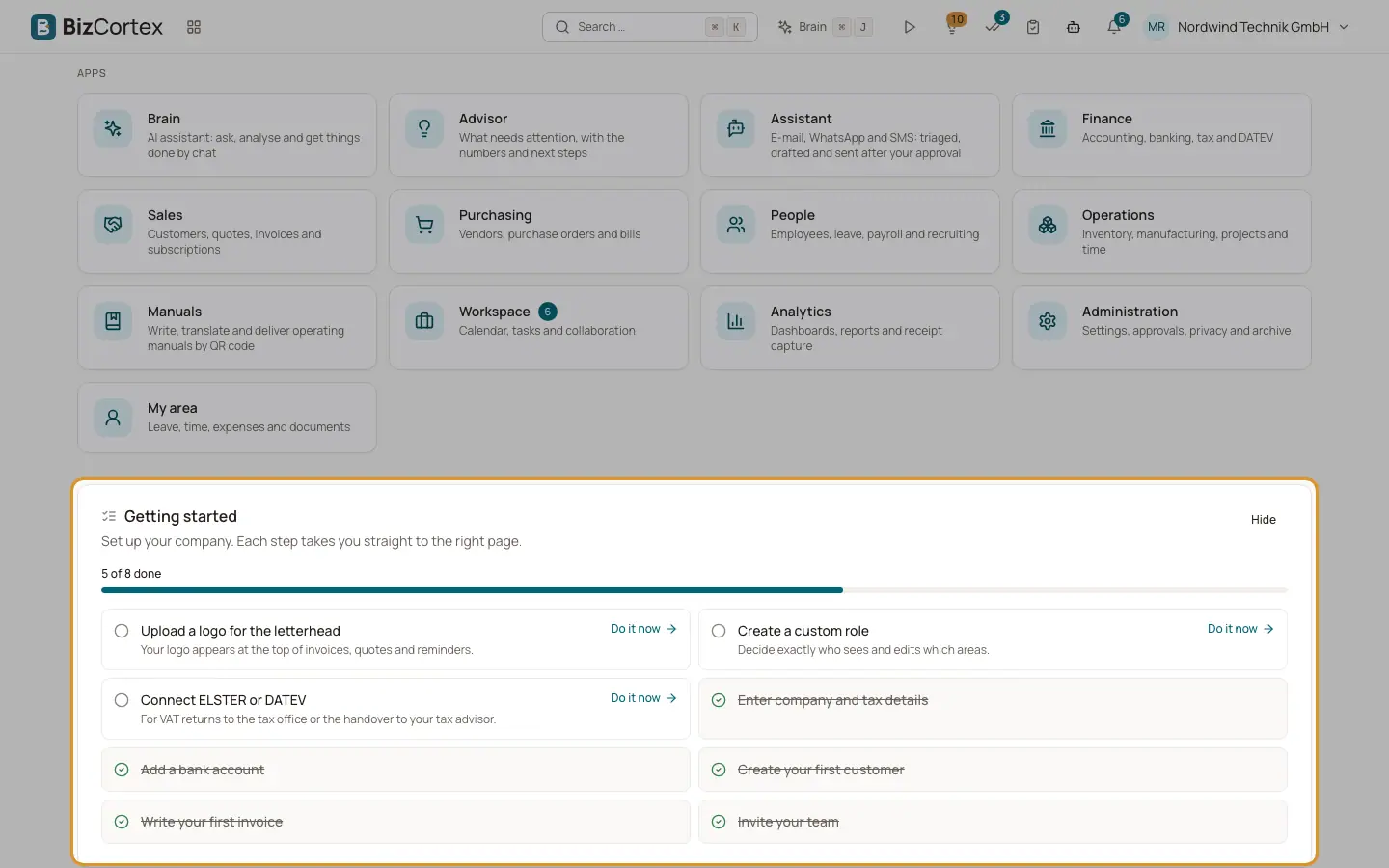
When a company is new, Home shows the card "Getting started" with the text "Set up your company. Each step takes you straight to the right page." The steps are checked against your real data every time you open Home, so a step is ticked as soon as the work is done, wherever you did it.
Open steps are listed first. Done steps are crossed out. A progress bar shows "X of Y done".
Who can use this
- Owner
- Administrator
Steps
1. Enter company and tax details
Name, address and tax number or VAT ID appear on your invoices. The step is done when legal name, street, postal code, city and a tax number or VAT ID are filled in under Settings, Company.
2. Upload a logo for the letterhead
Your logo appears at the top of invoices, quotes and reminders. The step is done once a logo is stored for the company.
3. Add a bank account
So customers know where to pay and payments are matched automatically. The step is done when a bank account exists in Banking or an IBAN is entered in the company details.
4. Create your first customer
You need customers for quotes and invoices. Done as soon as one customer exists.
5. Write your first invoice
BizCortex sets the invoice number, tax and mandatory details for you. Done as soon as one invoice exists.
6. Invite your team
Invite colleagues and choose their role. Done as soon as the company has more than one member.
7. Create a custom role
Decide exactly who sees and edits which areas. Done as soon as one company role exists.
8. The country step
One extra step depends on the country of the company. Germany: "Connect ELSTER or DATEV". Austria: "Connect FinanzOnline" with your web service user. Spain: "Add your VERI*FACTU certificate". Switzerland: "Enter your QR IBAN". Sweden: "Confirm F skatt". France: "Enter your SIREN". Norway: "Enter your organisation number". Denmark: "Enter your CVR number".
Fields and options
- Do it now
Link next to each open step. It opens the page where you complete the step. It is only shown if your role may use that page.
- Hide
Hides the checklist for you. BizCortex then says "The checklist is hidden. You can still find every step in the settings."
- Progress
Shows how many steps are done out of all steps.
Tips
- The checklist disappears by itself when every step is done.
- You can add the checklist back to Home later: click "Customise", then "Add widget" and choose "Getting started".
Good to know
- The Company tab in Settings has no logo upload yet. This is not available yet in the web app, so the logo step can stay open.
Related
- Company master data
Legal name, address, tax numbers, register entry and bank details that appear on your invoices.
- Country settings
Settings that only apply in your country, such as payment references, register numbers, filings and payroll.
- How country packs work
The country of a company is chosen once and decides its accounts, taxes, files, payroll and deadlines.
- Entering the company details
The company master data that appears on invoices and other documents.
- Invitations: joining a company and inviting your team
How new people get access, what the invitation statuses mean and how to resend or revoke an invitation.
- Company roles (custom roles)
Create your own roles that decide exactly who sees, edits and approves which areas.