Invitations: joining a company and inviting your team
How new people get access, what the invitation statuses mean and how to resend or revoke an invitation.
People join a company by invitation. An owner or administrator chooses the email address and the role. The identity service then sends the invitation email. The person signs up or signs in there and joins the company with the chosen role.
There are two ways to add people in Settings: the Invitations tab (an invitation with status tracking) and the Users tab ("Invite user", which adds the person as a member right away and also sends an invitation email).
Who can use this
- Owner
- Administrator
Steps
1. Open the Invitations tab
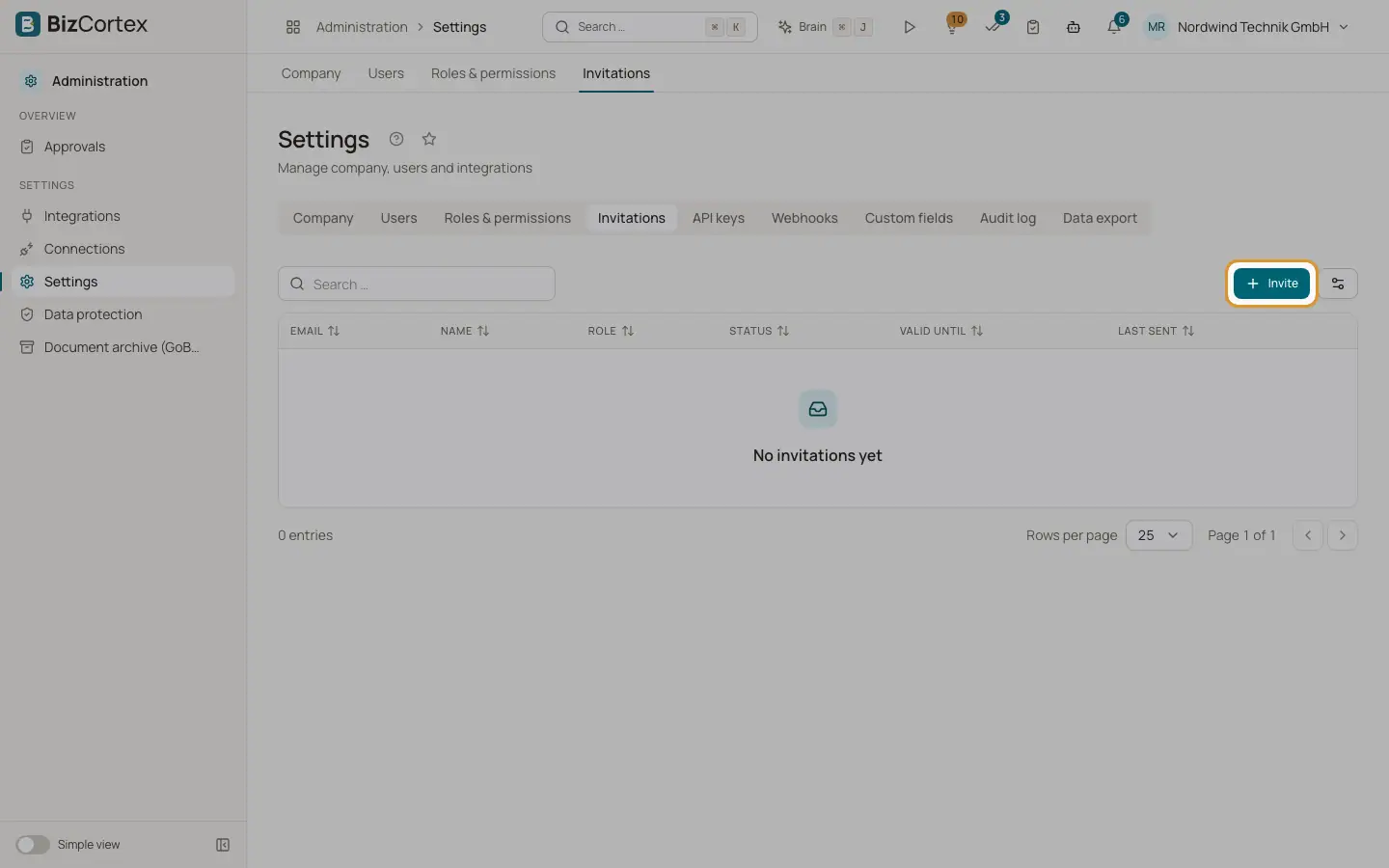
Open the app launcher, choose Administration, then Settings, and the tab "Invitations". You can also use the common task "Invite a team member".
2. Click "Invite"
A dialog opens. Its hint explains that the invitation is sent by email and that the person joins this company with the chosen role after signing up or signing in.
3. Fill in the form
Enter the Email, optionally the Name, choose the Role and, if you like, a Personal message. Company roles that you created yourself appear in the role list too.
4. Click "Send invitation"
The invitation appears in the list with the status Open. BizCortex shows "Invitation sent".
5. Follow up
Use the row actions to "Resend" an invitation (for example if the email was lost) or to "Revoke" it. A revoked invitation can no longer be accepted.
Fields and options
The address the invitation is sent to. The person must sign in with this address.
- Name
Optional. Shown in the list until the person has signed in.
- Role
The built in role or company role the person gets after joining.
- Personal message
Optional text that is added to the invitation.
- Status
Open (not accepted yet), Accepted, Expired (the validity has ended) or Revoked.
- Valid until
The date until which the invitation can be accepted.
- Last sent
Date and time the invitation email was last sent.
Tips
- Resending an invitation revokes the old one and sends a new one, so only the newest link works.
- In the Users tab, a member who has not signed in yet is marked "Not signed in yet".
- Only owners can make someone an owner. Administrators can assign every other role.
Good to know
- The first owner of a new company is set up by the operator of BizCortex when the company is created.
Related
- Invitations
Invite new people by email and manage invitations that are still open.
- Emails to your team
Invitations, reminders, calendar invitations, approvals, automations and scheduled reports.
- Roles and permissions
How roles decide what each member may see and do.
- The setup checklist ("Getting started")
The list of first steps on Home that guides owners and administrators through the setup of a new company.