Finding your way: header, apps and sidebar
The parts of the screen: app switcher, breadcrumbs, header buttons, sidebar and app overview pages.
BizCortex is organised in apps. Each app (for example Finance, Sales or People) has its own short sidebar, so you only see the pages that belong together. Home shows all apps as tiles.
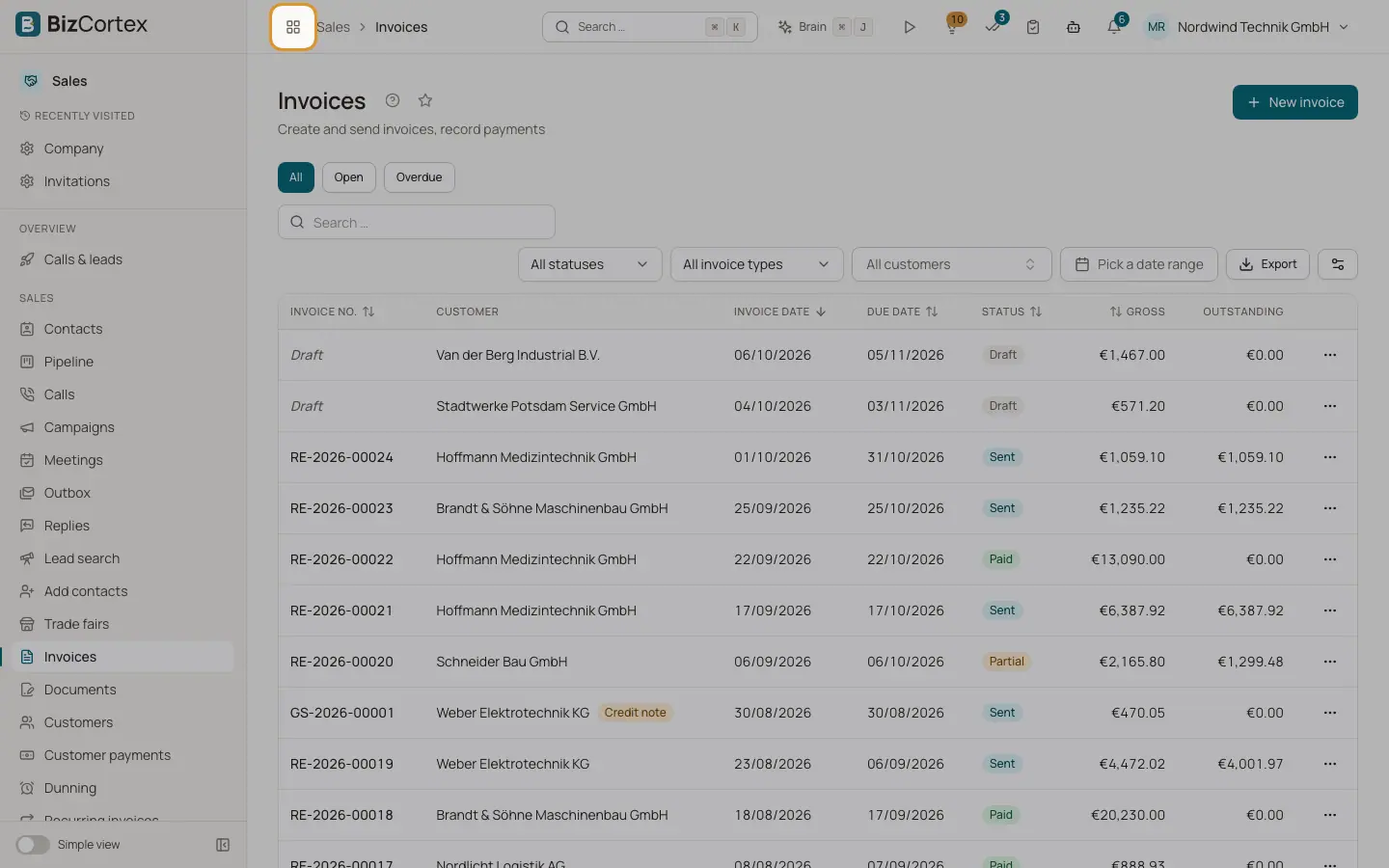
The header at the top is the same on every page. The sidebar on the left changes with the app you are in.
Who can use this
- Everyone
Steps
1. Switch apps with the grid icon
The grid icon at the top left opens a small panel with all apps you may open. The current app is highlighted. Click an app to open it.
2. Read the breadcrumbs
Next to the grid icon you see where you are, for example the app and the page. Click a part of the breadcrumbs to go back up.
3. Use the header buttons
On the right you find, depending on your packages and role: the search ("Search …"), the Brain button, a timer, approval badges, the notifications bell and your user menu.
4. Use the sidebar
The sidebar shows the name of the current app and its pages, grouped in sections such as Overview, Finance or Settings. Hover a page to see a short description. Click the star next to a page to make it a favourite.
5. Open the app overview
Click the app name at the top of the sidebar to open the app overview. It shows every area of the app as a card with a one line explanation, its sub pages and the common tasks of the app.
6. Collapse the sidebar
Click the panel button at the bottom of the sidebar ("Collapse sidebar") to reduce it to an icon rail. Click it again ("Expand sidebar") to open it. Your choice is remembered in this browser.
Fields and options
- Common tasks
On an app overview page, up to eight buttons for frequent actions, such as creating an invoice.
- Areas
Cards for each area of the app. Each card lists up to five sub pages; more are shown as "+N more pages".
- For specialists
In the simple view, specialist areas are listed separately at the end of the overview with the button "Show all functions in the sidebar".
Tips
- On a phone or small screen, the sidebar is replaced by a menu button at the top left.
- If you open an app that is not available to you, the overview shows "This app is not enabled for you." with a button "Back to home".
Related
- Global search (Ctrl K or Cmd K)
Find customers, invoices, products, employees and pages from anywhere.
- Favourites and recently visited pages
Pin the pages you use most to the top of the sidebar and get back to the pages you visited last.
- Simple view and all functions
Hide specialist pages from the sidebar, or show every function.
- Apps
BizCortex is organised in apps; each app groups related areas and has its own sidebar.