Entering the company details
The company master data that appears on invoices and other documents.
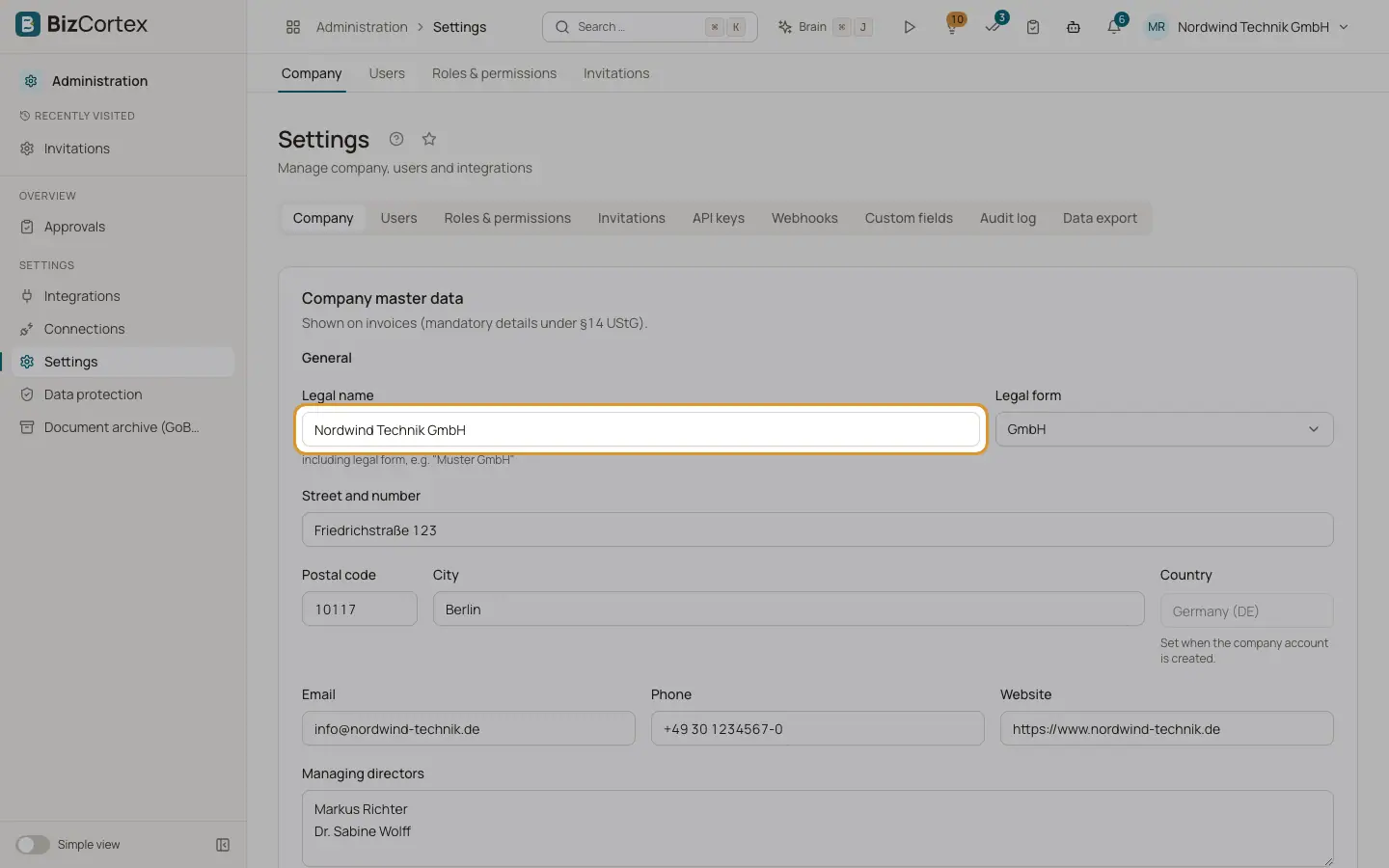
The company master data is shown on invoices, quotes and reminders and is used for tax returns. You find it under Administration, Settings, tab "Company" (title "Company master data"). Every member can view it; owners, administrators and accountants can change it.
Who can use this
- Owner
- Administrator
- Accountant
Steps
1. Open Settings, Company
Open the app launcher, choose Administration and then Settings. The tab "Company" opens. You can also use the common task "Complete the company details".
2. Fill in the General section
Enter the legal name including the legal form (for example "Muster GmbH"), the address, the managing directors (one per line) and the website.
3. Fill in the Tax section
Enter the tax number, the VAT ID, the tax office, the VAT return period (Monthly, Quarterly or Yearly where offered) and the VAT accounting method. Small businesses can tick the small business option; invoices are then issued without VAT.
4. Fill in the Commercial register and Bank account sections
Enter the register court and register number, and the bank details that customers should pay to.
5. Save
Click "Save". The data is used from now on for new documents.
Fields and options
- Country
Shown with the note "Set when the company account is created." It cannot be changed afterwards.
- Fiscal year starts in
The month in which your fiscal year begins.
- Country specific fields
Depending on the country you see extra identifiers, for example SIREN in France, CVR in Denmark or the organisation number in Norway. A wrong format shows "The format is not valid."
Good to know
- The exact tax fields depend on the country pack of your company.
Related
- Company master data
Legal name, address, tax numbers, register entry and bank details that appear on your invoices.
- The setup checklist ("Getting started")
The list of first steps on Home that guides owners and administrators through the setup of a new company.
- Country packs
How BizCortex adapts accounting, tax and invoicing to the country of your company.