What is BizCortex?
A modular business software for accounting, sales, purchasing, people, operations and more, in one place.
BizCortex is a modular ERP (business software) for small and medium companies. It brings accounting, banking and tax, sales and invoicing, purchasing, people and payroll, inventory and projects, calendar and documents, analytics and an AI assistant together in one web application.
Everything you see depends on three things: the packages your company has booked, the role you have in the company, and the country of the company. A package switches whole areas on or off. Your role decides what you may see and change inside the booked areas. The country pack adapts charts of accounts, tax returns, invoice rules and electronic invoice formats to local law.
Steps
1. Sign in
Open the BizCortex web address and click "Sign in". You sign in on a secure sign in page and come back to BizCortex. See the page "Signing in".
2. Look at Home
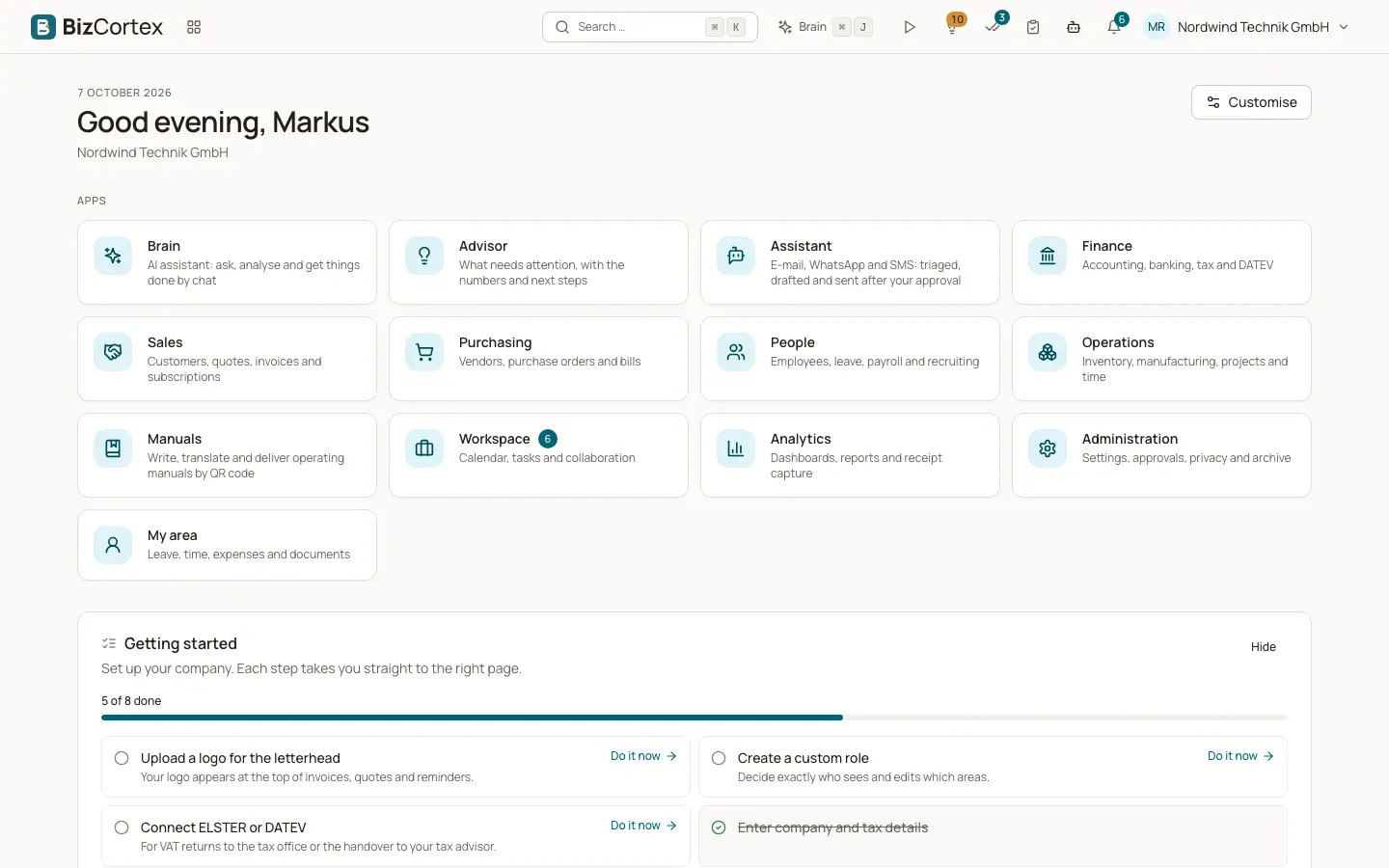
After sign in you land on Home. It greets you, shows one tile per app you may open and a set of widgets such as key figures, your approvals and recent activity.
3. Open an app
Click an app tile, for example Finance or Sales. Most apps first show an overview page that explains each area of the app. The sidebar on the left then lists only the pages of that app.
4. Find anything
Press Ctrl K (Windows and Linux) or Cmd K (Mac) to open the global search. Type at least two characters to find customers, invoices, employees, pages and more.
5. Get help on every page
Click the question mark next to a page title to see what the page is for, common tasks and related pages. With Brain booked, you can also ask Brain to explain the page.
Tips
- If a menu entry or app you expect is missing, your company may not have booked the package, or your role may not include it. Ask your administrator.
- Each company in BizCortex is completely separate. If you work for several companies, you switch between them in the user menu.
Related
- Signing in and signing out
How the sign in works, what happens with passwords and two factor sign in, and how you sign out.
- The setup checklist ("Getting started")
The list of first steps on Home that guides owners and administrators through the setup of a new company.
- Finding your way: header, apps and sidebar
The parts of the screen: app switcher, breadcrumbs, header buttons, sidebar and app overview pages.