Setting a Home layout for a role
Owners and administrators can save a Home layout as the default for everyone with a role.
You can prepare Home for a whole team. The layout you save as a role default is shown to every member with that role who has not customised Home themselves.
Who can use this
- Owner
- Administrator
Steps
1. Arrange Home
Click "Customise" and arrange tiles and widgets as the team should see them.
2. Choose the role
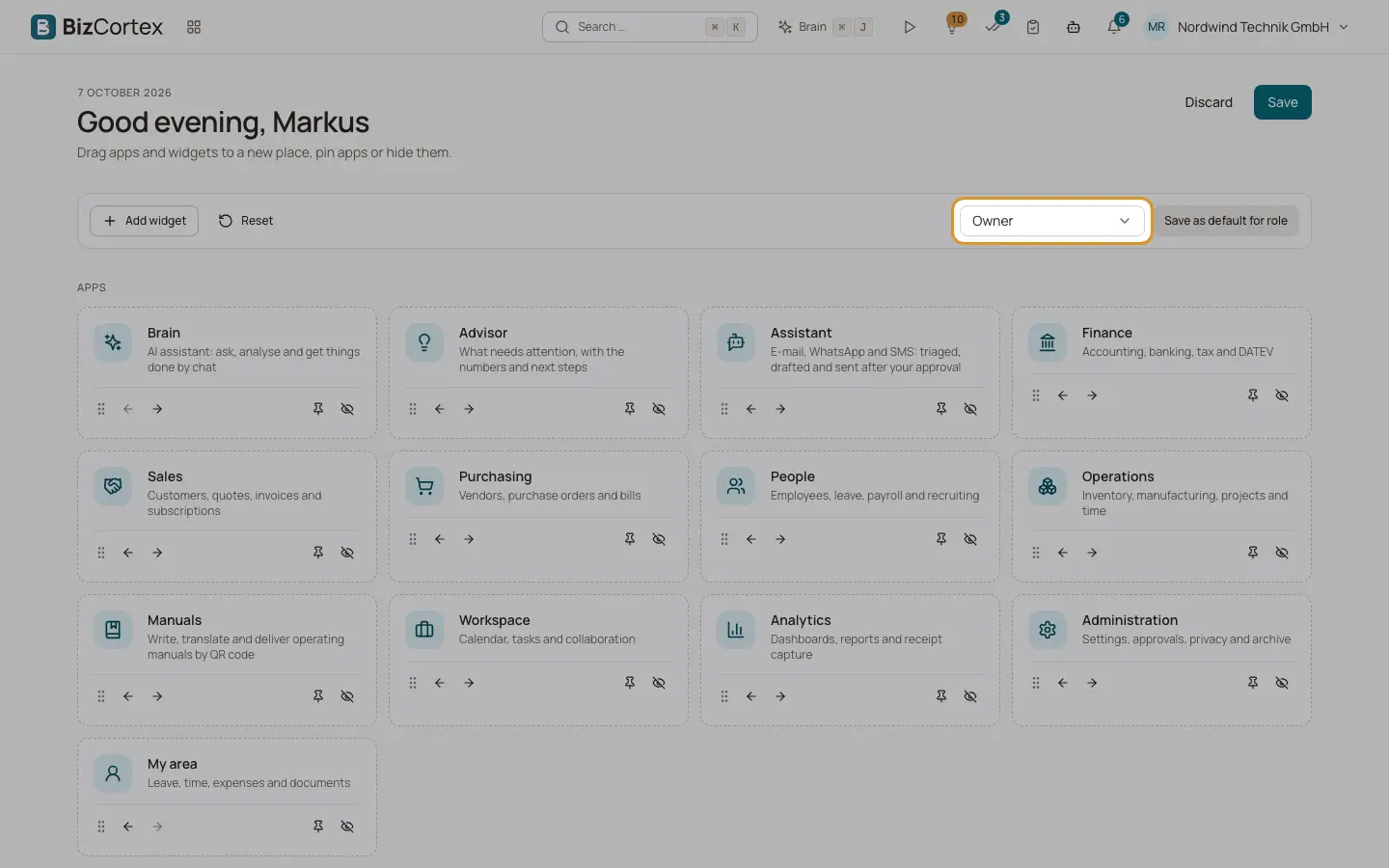
On the right side of the edit bar, choose the role in the list "Default for role". All nine built in roles are offered.
3. Save as default
Click "Save as default for role". BizCortex confirms: "Everyone who has not customised their home page now sees this layout."
4. Keep or discard your own layout
Saving a role default does not save your own layout. Click "Save" if you want to keep it for yourself too, or "Discard".
Tips
- A member who already has an own layout can click "Reset" to switch to the role default.
Related
- Customising Home
Pin, hide and reorder app tiles and choose, move and resize widgets.