Handwritten signature and initials
Draw or upload your signature and initials for documents and electronic signatures.
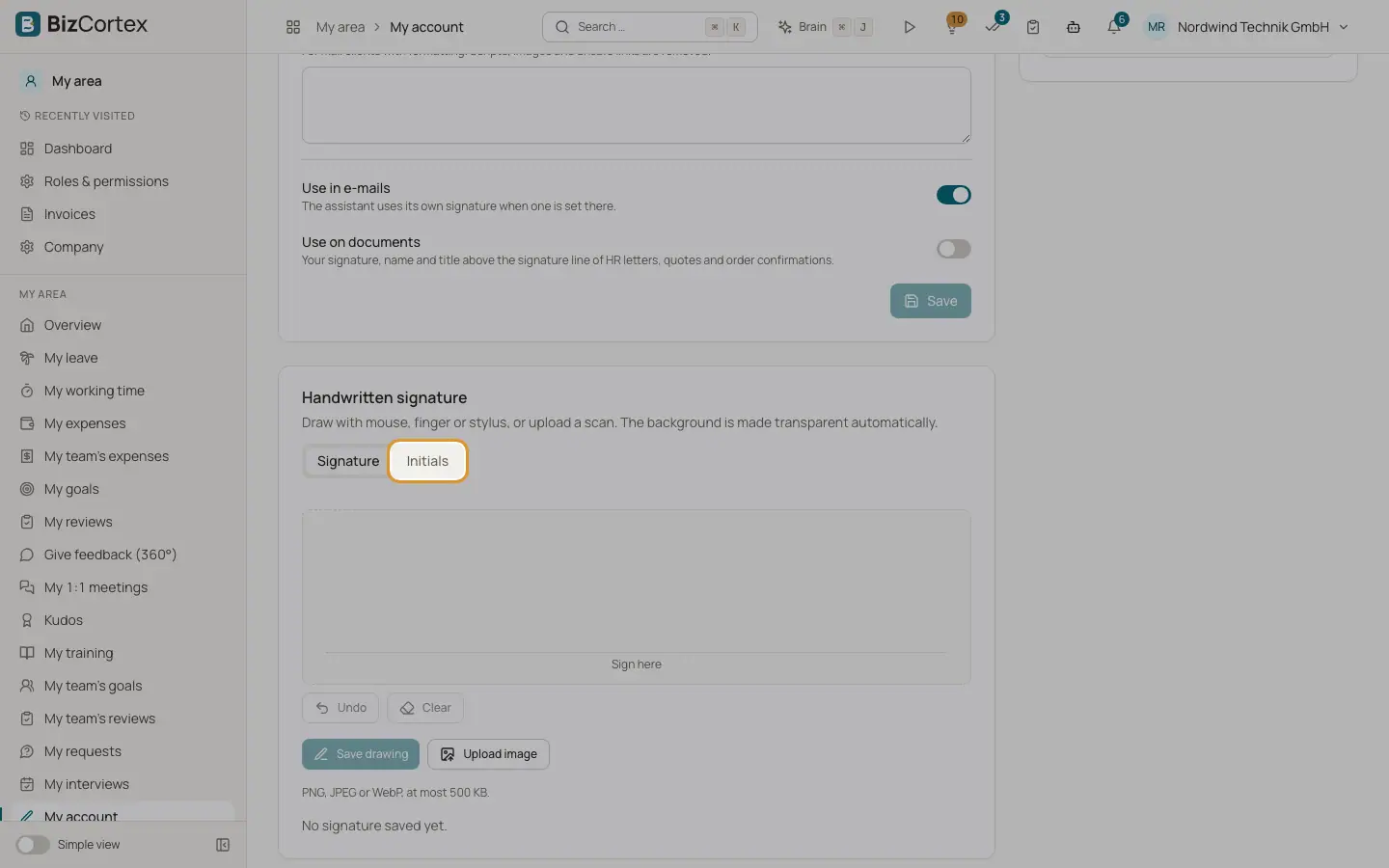
The card "Handwritten signature" stores an image of your signature and of your initials. Draw with mouse, finger or stylus, or upload a scan. The background is made transparent automatically, so the signature looks natural on any document.
Who can use this
- Everyone
Steps
1. Choose Signature or Initials
Use the tabs "Signature" and "Initials" in the card.
2. Draw
Sign in the pad ("Sign here"). Use "Undo" to remove the last stroke or "Clear" to start again.
3. Save the drawing
Click "Save drawing". The button is only active after you drew something. BizCortex shows "Signature saved" and empties the pad.
4. Or upload an image
Click "Upload image" and choose a PNG, JPEG or WebP file of at most 500 KB.
5. Check or remove
The saved image is shown below the pad. Click "Remove" to delete it. Without an image you see "No signature saved yet." or "No initials saved yet."
Fields and options
- File types
PNG, JPEG or WebP. Other types show "Please choose a PNG, JPEG or WebP image."
- File size
At most 500 KB. Larger files show "The image is larger than 500 KB."
- Processing
Light backgrounds become transparent, the empty border is trimmed and the image is scaled down to at most 1200 by 600 pixels. It is stored as PNG.
Tips
- For a clean result, sign with dark ink on white paper before you scan it.
Good to know
- An empty image or a damaged file is refused.
Related
- Email signature and title
The text below emails you send from BizCortex, your position, and the "Use in emails" and "Use on documents" switches.
- Where your signature is used
Which emails and documents use your signature, and who can see it.