Customising Home
Pin, hide and reorder app tiles and choose, move and resize widgets.
Every member can arrange Home to fit the way they work. The layout is saved for you in the current company. Until you save your own layout, you see the default of your role (if an administrator set one) or the built in layout.
Who can use this
- Everyone
Steps
1. Start editing
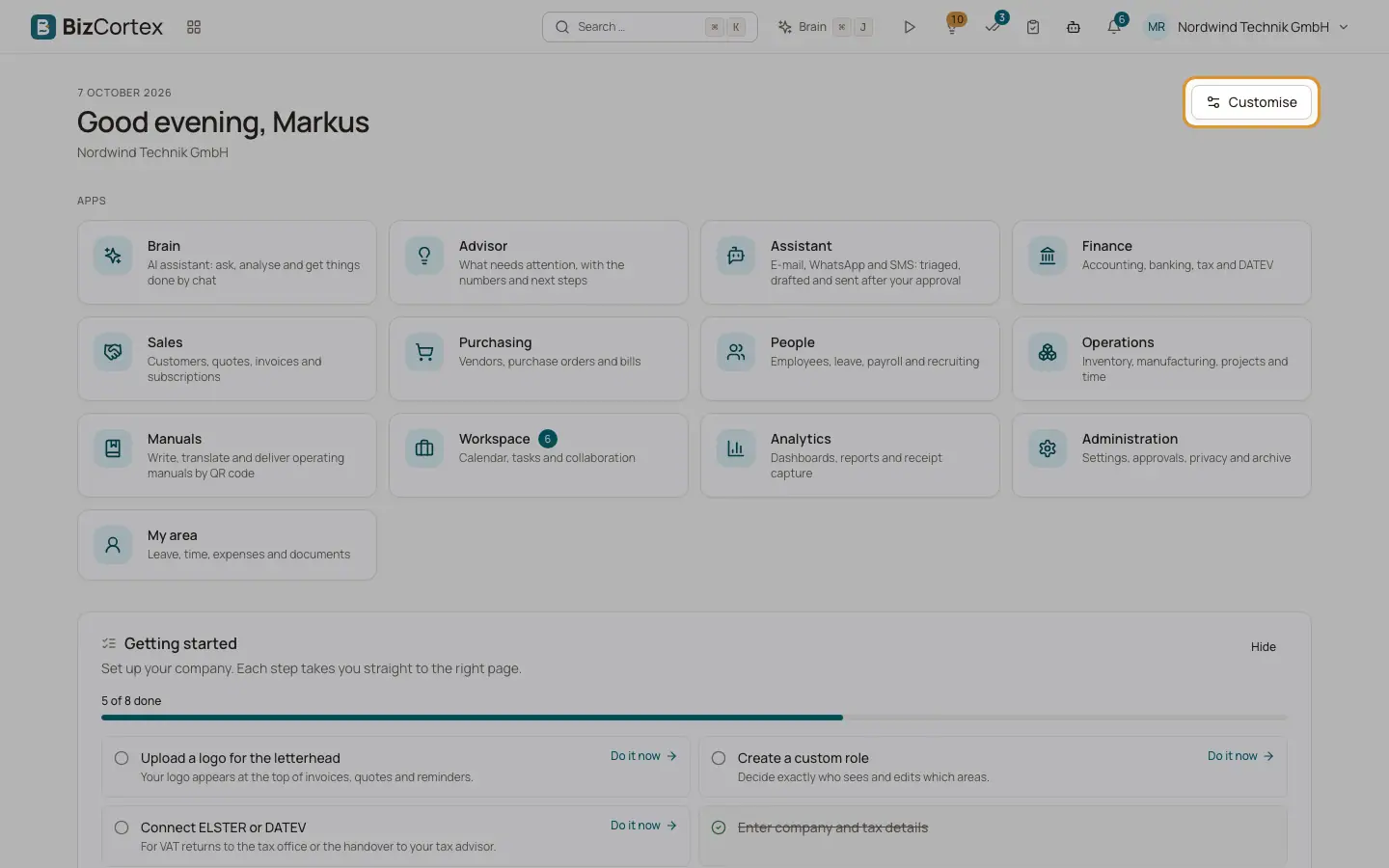
Click "Customise" at the top right of Home. The hint "Drag apps and widgets to a new place, pin apps or hide them." appears, and an edit bar is shown.
2. Arrange the app tiles
Drag a tile to a new place, or use the arrows to move it left or right. Use "Pin" to pin an app (pinned apps come first) and "Hide" to hide an app. Hidden apps stay in the edit view, so you can click "Show" to bring them back.
3. Add a widget
Click "Add widget". The catalog has two parts: "Home page" (the Home widgets) and "Key figures, charts and lists" (the same widgets as on the KPI dashboard). Click "Add" next to a widget. Widgets that are already on Home are marked "Already on the home page".
4. Arrange the widgets
Each widget shows a small toolbar with its name. Use "Move up" and "Move down" to change the order, "Change width" to switch between one third, half, two thirds and full width, and "Remove" to take it off Home.
5. Save or discard
Click "Save" to keep the layout ("Home page saved"), or "Discard" to leave without changes.
6. Go back to the default
In the edit bar, click "Reset". Your own layout is deleted and the default applies again ("Home page reset").
Good to know
- Widgets you are not allowed to see are never shown, even if they are part of a saved layout.
- On small screens all widgets use the full width.
- When a row of widgets does not fill the whole width, its last widget is widened to the end of the row, and widgets side by side get the same height. While you customise Home, every widget shows its own width.
Related
- Home widgets
Every widget you can place on Home and what it shows.
- Setting a Home layout for a role
Owners and administrators can save a Home layout as the default for everyone with a role.