Invoices, quotes and other sales documents
The emails that carry invoices, credit notes, quotes, order confirmations, delivery notes and statements.
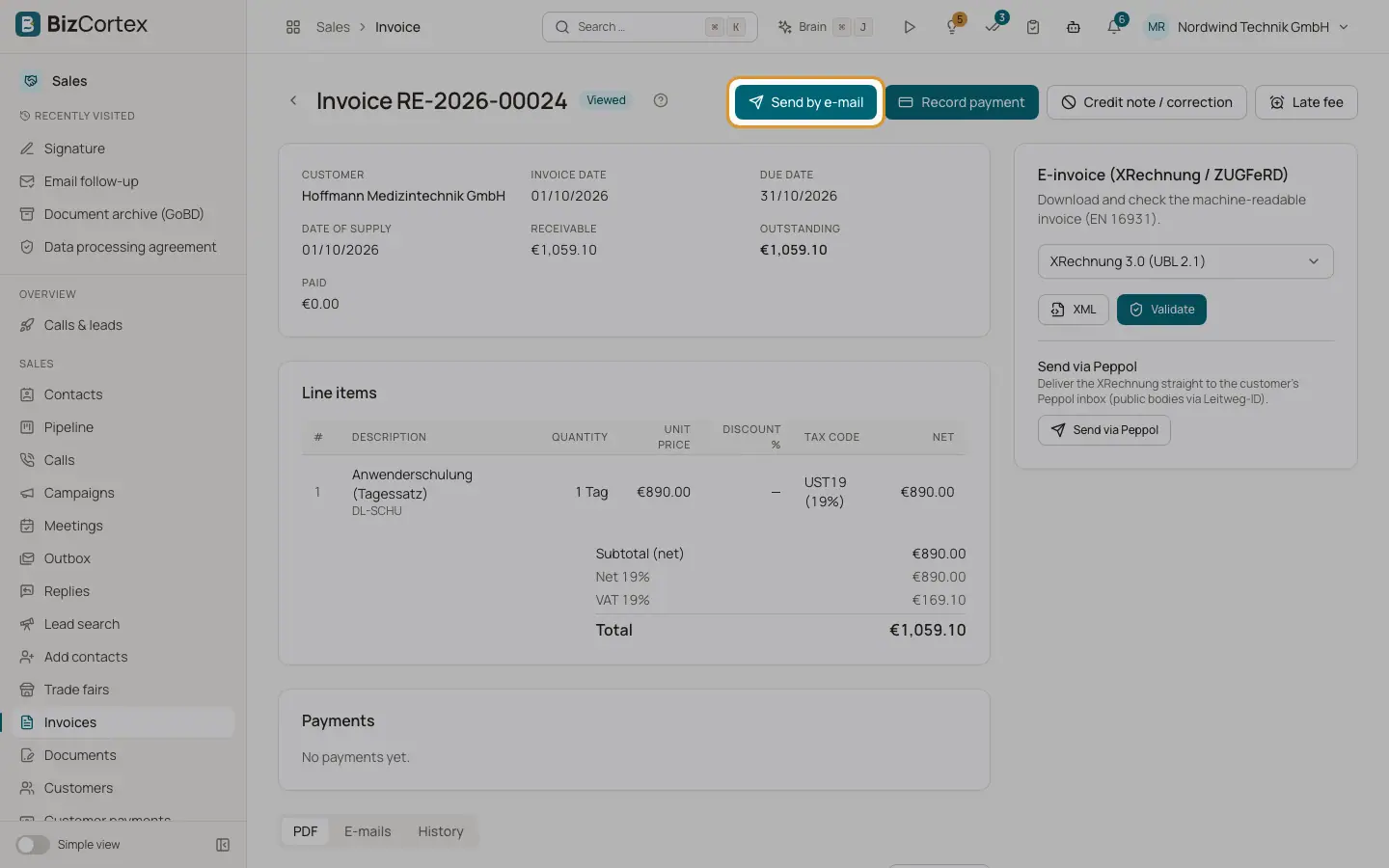
In the Sales app you can email each document to the customer. BizCortex fills subject and text from the email template of the document type and the document language, attaches the PDF and adds a link to the public document page.
Who can use this
- Owner
- Admin
- Accountant
- Sales
Steps
1. Invoice and credit note
Sent when you finalize an invoice with the option "Email to customer" ("PDF to" the customer address, with an optional "Message"), or later with "Send by email" on the invoice. Contains the number, the amount, the due date, the link "View and pay online" when a public link exists, the closing "Kind regards" and your signature. Attachments: the PDF and, if chosen, the electronic invoice. A credit note uses the credit note template.
2. Quote
Sent with "Send by email" on the quote. Contains the number, the amount, the "valid until" date and the link "You can accept the quote online". The customer can accept or decline on the public page. Attachment: the PDF.
3. Order confirmation and delivery note
Sent with "Send by email" on the document. A short text with the number, the closing and your signature. Attachment: the PDF. Delivery notes show no prices.
4. Statement of account
Sent from the customer with "Send by email" on the statement. Contains the closing balance. Attachment: the statement PDF.
5. Recurring invoices
A recurring invoice plan with "Send by email automatically" switched on emails each new invoice right after it is created, with the invoice template and the PDF.
Fields and options
- Recipients
Optional. Several addresses separated by commas. When empty, BizCortex uses the email of the contact person of the document, and if there is none, the email of the customer. If neither exists, sending is refused with "The customer has no email address."
- Copy (CC)
Optional additional recipients in copy.
- Subject and Message
Optional. "Empty = subject and text from the email template". A text you type here replaces the template completely, including the signature.
- Attach eInvoice (XRechnung / ZUGFeRD)
Invoices only. Attaches the electronic invoice file in the format set for the customer or in the default format of the sales settings.
- Emails list
Every document shows the emails sent for it with the status Queued, Sent or Failed, or "No emails sent yet."
Tips
- The BCC address from the sales settings receives a copy of every document email.
- Check the "Email log" tab when a customer says they did not receive a document.
Good to know
- The PDF is attached only when the PDF service is available. If it is not, the email goes out without the PDF but with the public link.
- A sent invoice cannot be changed. Corrections go through a credit note, which you send the same way.
- Your personal signature is added through the {{ signature }} placeholder. Customized templates without this placeholder show no signature.
Related
- Email templates for sales documents
Change the subject and text of document emails per document type and language.
- Email log
See every document email that was sent from Sales, with its status.
- Your email signature and handwritten signature
Set up your text signature for emails and your drawn signature for letters, quotes and order confirmations.