Your email signature and handwritten signature
Set up your text signature for emails and your drawn signature for letters, quotes and order confirmations.
Every person has one signature profile per company. Open the app "My area", then "My account" and the "Signature" tab. The profile has two parts: an email signature (text) and a handwritten signature (image). Both apply to this company only. If you work for two companies, set up the signature in each one.
Every change to your signature is recorded in the audit log. The audit log stores only fingerprints of the text, never the text itself. The text and HTML signature are stored encrypted.
Who can use this
- Every member of a company (each person edits only their own signature)
Steps
1. Write your text signature
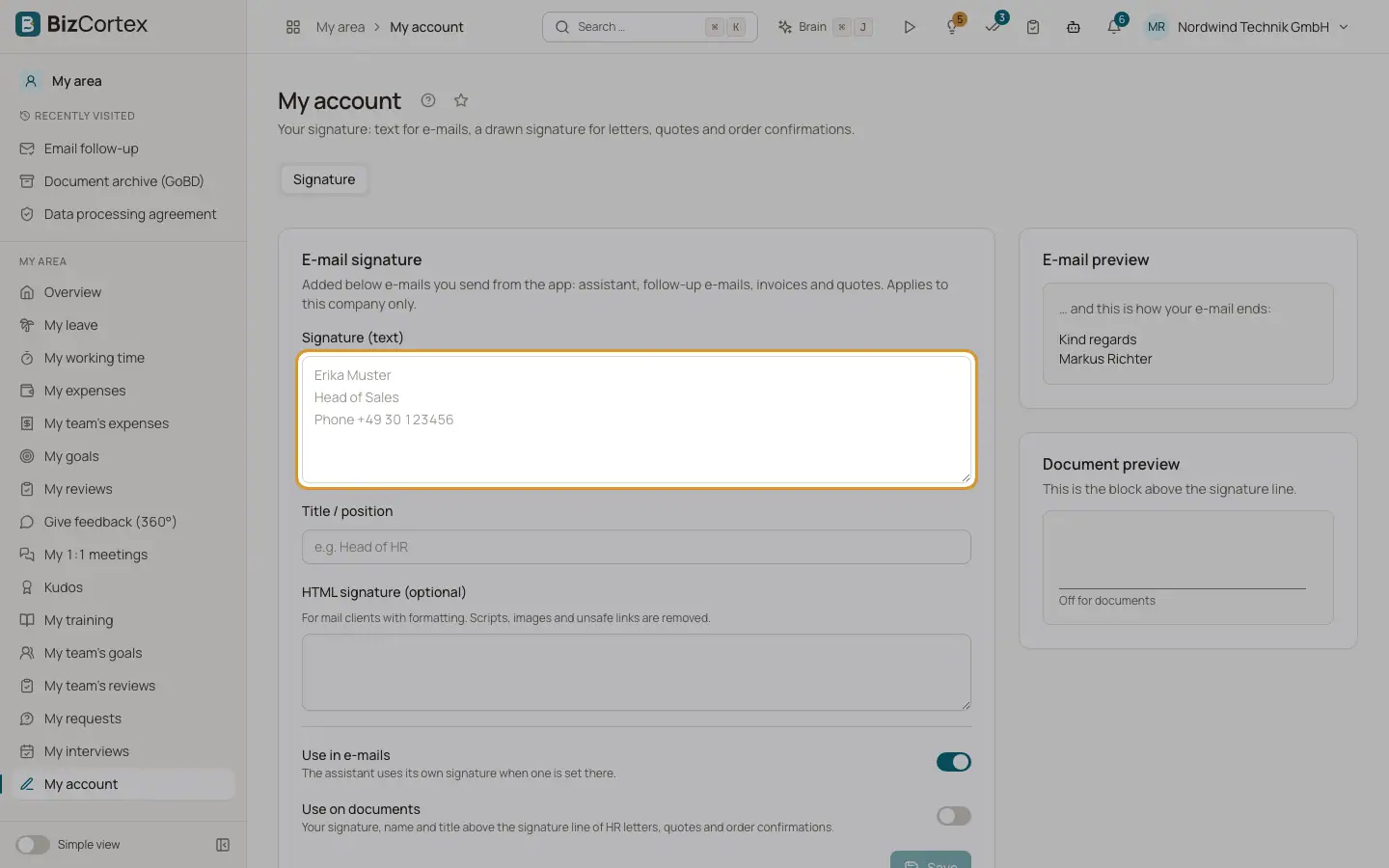
Type your signature into "Signature (text)", for example your name, position and phone number on separate lines. Click "Save".
2. Draw or upload your handwritten signature
Choose "Signature" or "Initials", sign on the pad and click "Save drawing". Or click "Upload image" and choose a PNG, JPEG or WebP file of at most 500 KB. BizCortex makes the light background transparent, trims the image to the ink and stores it as PNG.
3. Decide where it is used
Switch "Use in emails" and "Use on documents" on or off and click "Save". Check the previews.
Fields and options
- Signature (text)
Card "Email signature". The lines added below emails you send from BizCortex, for example your name, position and phone number.
- Title / position
Your job title, for example "Head of HR". It is printed below your name in the signature block of documents.
- HTML signature (optional)
A formatted version for mail clients. Scripts, images and unsafe links are removed when you save. Allowed are simple formatting, links (web, mailto and tel), tables and lines.
- Use in emails
Switch, on by default. When on, your text signature is added to the emails described below. When off, emails show only your name or the company name.
- Use on documents
Switch, off by default. When on, your drawn signature, your name and your title appear above the signature line of HR letters, quotes and order confirmations.
- Handwritten signature
Card "Handwritten signature" with the two kinds "Signature" and "Initials". Draw with mouse, finger or stylus on the pad and click "Save drawing", or click "Upload image". Use "Undo" and "Clear" while drawing and "Remove" to delete a saved image.
- Email preview and Document preview
Show how the end of an email and the block above the signature line will look with your current settings.
Tips
- Scan your paper signature on white paper. The white background is removed automatically.
- Administrators and HR managers can preview the signature of a member, for example before HR letters are printed.
Good to know
- Where the text signature is used: emails the Assistant drafts for you (unless the Assistant profile has its own signature), answers to calendar invitations by the Assistant, follow up emails (unless the follow up settings have their own signature), and every Sales document email through the placeholder {{ signature }} (invoices, credit notes, quotes, order confirmations, delivery notes, statements).
- Where the text signature is not used: dunning notices, portal sign in links, purchase orders, requests for quotation, signature requests, calendar invitations, reminders and all internal notices.
- If no signature is set or "Use in emails" is off, Sales emails end with the legal name of your company instead.
- The HTML signature is stored, but emails are currently sent as plain text, so the text signature is the one that appears.
- The drawn signature on quotes and order confirmations also needs the company setting "show signature on documents" in the sales settings. This setting has no switch in the Sales settings page yet and is off by default.
- Signatures are personal. They are not available for API keys.
Related
- Email signature and title
The text below emails you send from BizCortex, your position, and the "Use in emails" and "Use on documents" switches.
- Handwritten signature and initials
Draw or upload your signature and initials for documents and electronic signatures.
- Invoices, quotes and other sales documents
The emails that carry invoices, credit notes, quotes, order confirmations, delivery notes and statements.
- Electronic signature emails
Invitations, codes, reminders and results of signature requests.