Filters in reports
Every filter operator of the report builder and how to enter values.
Filters limit the rows of a report. Each filter has a field, an operator and usually a value. All filters of a report apply at the same time.
Who can use this
- Owner
- Admin
- Accountant
- Sales
- Purchase
- HR manager
Steps
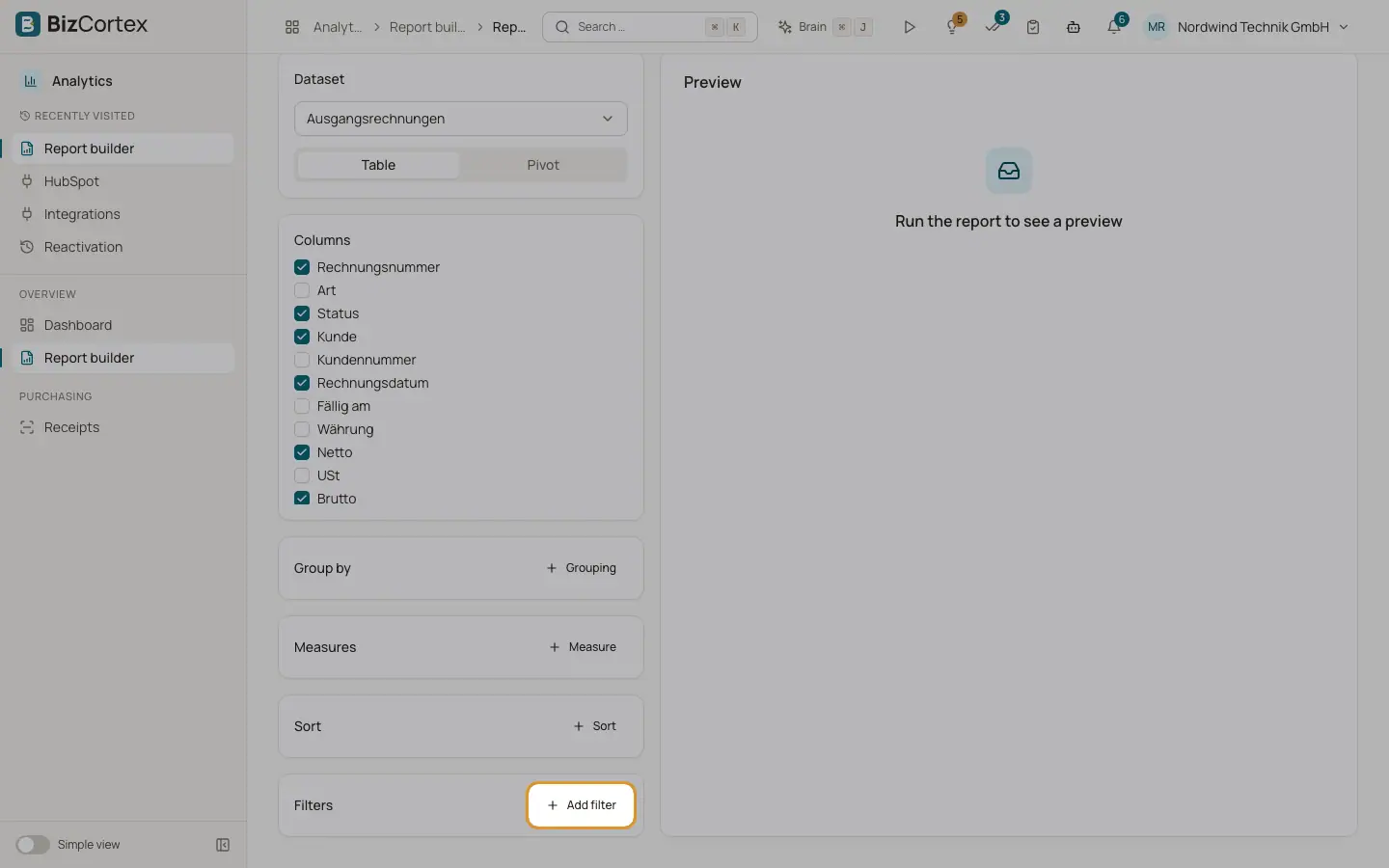
1. Add a filter
In the report builder, under "Filters", click "Add filter". A new filter row appears with the first field preselected.
2. Choose field and operator
Choose the field in the first list and the operator in the second list.
3. Enter the value
For date fields, a date picker appears. For status fields with fixed values and the operators = or ≠, you choose the value from a list. For "is one of", "is none of" and "between", type several values separated by commas, for example "DRAFT, SENT" or "1 January 2026, 30 June 2026" as dates in the date format of the field.
4. Run again
Click "Run" to apply the changed filters to the preview.
Fields and options
- = and ≠
Equal to and not equal to the value.
- >, ≥, <, ≤
Greater than, greater than or equal, less than, less than or equal. Useful for amounts and dates.
- is one of
The field matches one of several comma separated values.
- is none of
The field matches none of the comma separated values.
- contains
The text contains the value.
- starts with
The text starts with the value.
- between
The value lies between two comma separated limits, both included.
- is empty and is not empty
The field has no value, or has a value. No value input is needed.
- yes and no
For yes or no fields such as Billable or Active. No value input is needed.
Tips
- To report on one half year, add a filter on the date field with "between" and enter the first and the last day.