Uploading receipts
Upload photos or PDFs of receipts and let BizCortex read merchant, date, amounts and items.
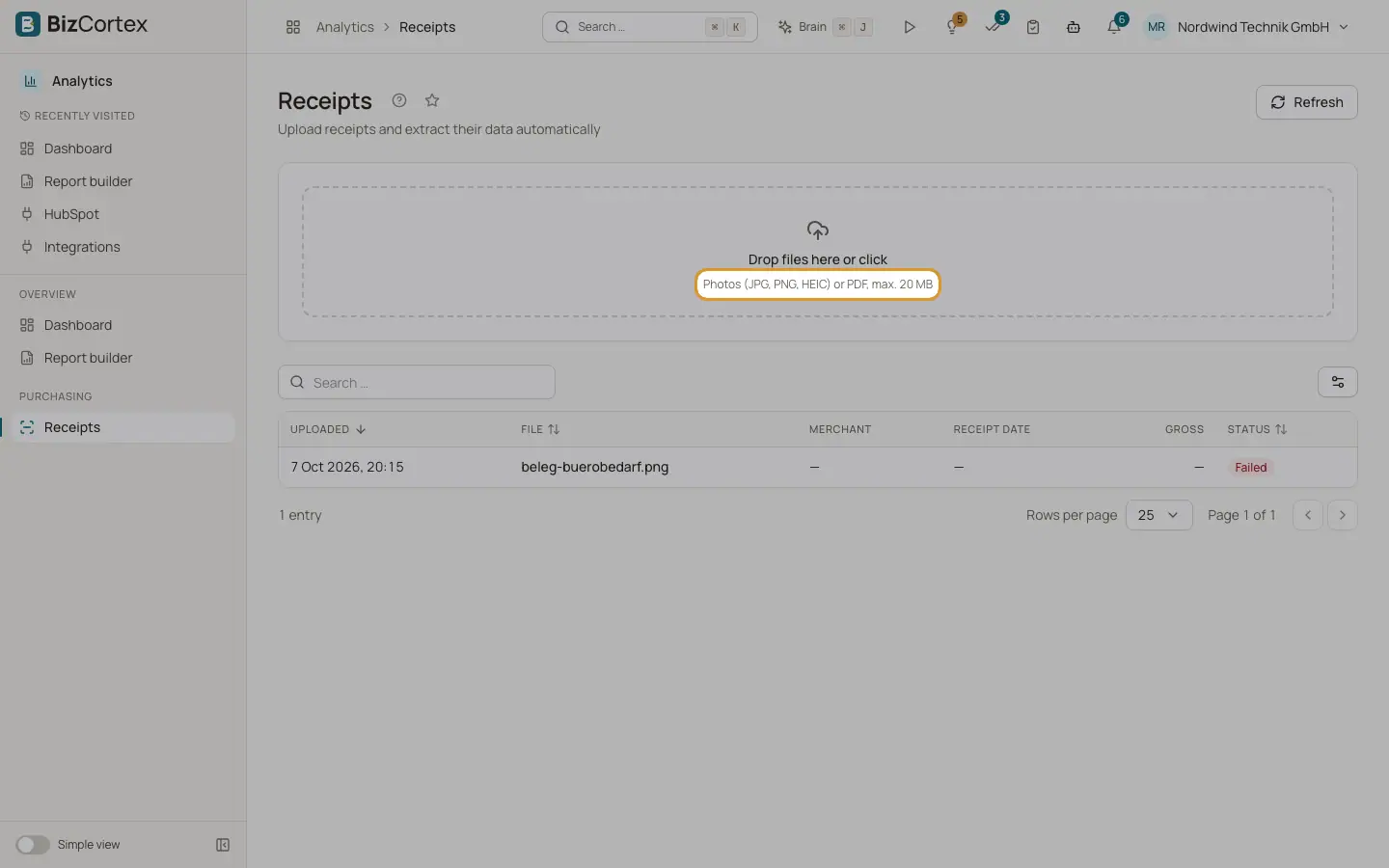
Open Analytics, "Receipts" (in the sidebar under Purchasing). Upload photos or PDFs of receipts. BizCortex reads merchant, date, amount and tax automatically, including the individual line items.
The page shows an upload area at the top and the list of all receipts below.
Who can use this
- Owner
- Admin
- Accountant
- Purchase
- Employee
- Viewer (read only)
Steps
1. Upload
Drag one or more files into the upload area, or click it to choose files. Accepted are photos (JPG, PNG, HEIC, WEBP) and PDF files. A message confirms how many files were uploaded.
2. Wait for processing
Each receipt starts with the status "Uploaded" and moves to "Parsing". When the data is read, the status becomes "Parsed". If reading fails, the status becomes "Failed".
3. Refresh the list
Click "Refresh" to update the list and see the latest status.
4. Open a receipt
Click a row to open the receipt with all extracted data.
Fields and options
- Uploaded
Date and time of the upload. The list is sorted by this column, newest first.
- File
The file name of the uploaded receipt.
- Merchant
The shop or company read from the receipt.
- Receipt date
The date printed on the receipt.
- Gross
The total amount of the receipt.
- Status
Uploaded, Parsing, Parsed or Failed.
Tips
- Take photos in good light, flat and straight. The whole receipt should be visible.
- You can upload several receipts in one go.
Good to know
- The upload area allows files up to 20 MB each. Empty files are rejected.
- Only users with write access to receipts see the upload area. Viewers only see the list.
- The list cannot be exported.
- Uploading a receipt does not create a booking or a bill. Record the expense or bill separately in Purchasing.
- If your operator has switched automatic receipt processing off, receipts stay in the status "Uploaded".
Related
- Receipt details
Check the extracted data and line items of a receipt, open the original, read it again or delete it.
- How receipt recognition works
What happens behind the scenes after you upload a receipt, and what the statuses mean.