Saved reports
The list of your own and shared reports, with dataset, sharing and schedule at a glance.
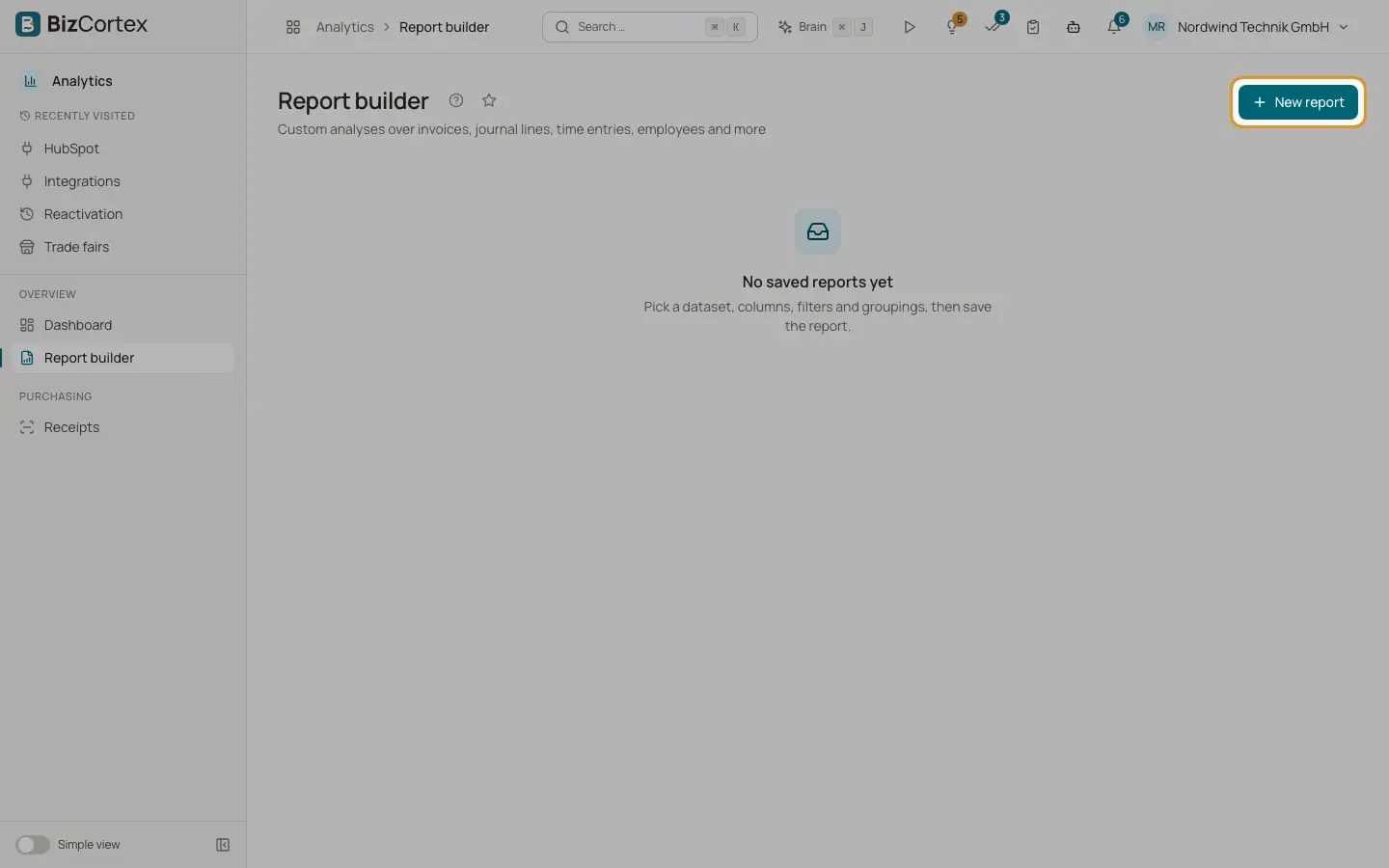
Open Analytics, "Report builder". The page lists every saved report you may see as a card. You see your own reports and every report another user has shared, as long as you are allowed to read the data of its dataset. Reports on a dataset you may not read are hidden, even when they are shared.
Who can use this
- Owner
- Admin
- Accountant
- Sales
- Purchase
- HR manager
- Viewer (open and export only)
Steps
1. Open a report
Click the name of a report card. The report opens in the builder, where you can run, export or change it.
2. Create a new report
Click "New report". The builder opens empty and asks you to "Choose a dataset".
3. Delete a report
Click the trash icon on the card. Confirm "Delete report?". Only the owner of a report sees the trash icon and can delete it.
Fields and options
- Name
The name you gave the report when saving it.
- Dataset
The data source of the report, for example Invoices or Journal lines.
- Description
The optional description entered when saving.
- Shared
Badge shown when the report is shared with everyone allowed to see the data.
- Scheduled
Badge shown when the report is sent regularly by email. The badge also shows the schedule expression.
- Last sent
Date and time of the last email delivery of this report.
Tips
- Give reports clear names. Shared reports appear for many colleagues, sorted alphabetically by name.
Good to know
- When there are no reports yet, the page says "No saved reports yet" and explains: pick a dataset, columns, filters and groupings, then save the report.
- Users with the Viewer role can open, run and export saved reports, but cannot create or change reports.
- The Employee role has no access to the report builder.
Related
- Building a report
Choose a dataset, columns, groupings, measures and sorting, then run the report to see a preview.
- Save, share and schedule reports
Save a report, share it with colleagues and send it automatically by email.