Pivot view
Turn a dataset into a cross table with row groups, a column field and one value.
The pivot view shows a cross table. One or two fields form the rows, one field forms the columns, and every cell contains one measure. Rows, columns and the whole table get totals.
Who can use this
- Owner
- Admin
- Accountant
- Sales
- Purchase
- HR manager
Steps
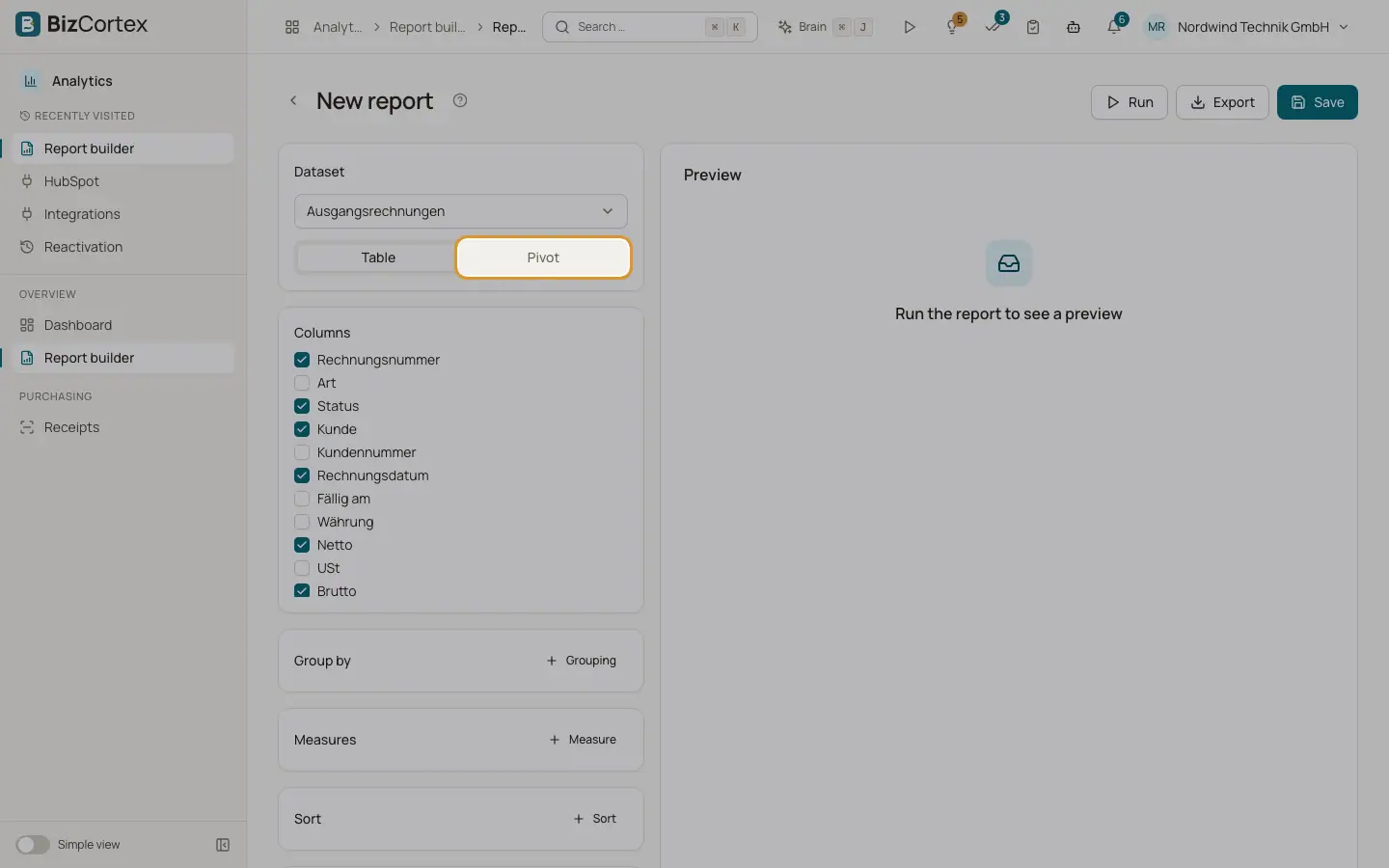
1. Switch to pivot
In the report builder, under "View", choose "Pivot".
2. Set the rows
Under "Rows", choose the field for the row groups. Click "Grouping" to add a second row level. Date fields can be bucketed by Day, Week, Month, Quarter or Year.
3. Set the column
Under "Columns", choose the field whose values become the columns, for example Issue date (Month).
4. Set the value
Under "Value", choose the function (Sum, Count, Average, Minimum, Maximum) and the field. For Count you can choose "All rows (count)".
5. Run
Click "Run". The preview shows the cross table with a "Total" column, a "Total" row and the grand total.
Tips
- Example: Journal lines, rows Account, column Posting date (Month), value Sum of Balance (Dr minus Cr) gives a monthly account overview.
Good to know
- In the pivot view, filters still apply. The columns list, groupings and measures of the table view are not used.
Related
- Building a report
Choose a dataset, columns, groupings, measures and sorting, then run the report to see a preview.