Receipt details
Check the extracted data and line items of a receipt, open the original, read it again or delete it.
The receipt page shows the file name as title, the status badge, the extracted data on the left and the line items on the right. While a receipt is still being processed, the page shows "Processing receipt …" and updates itself every few seconds.
Who can use this
- Owner
- Admin
- Accountant
- Purchase
- Employee
- Viewer (read only)
Steps
1. Open the original
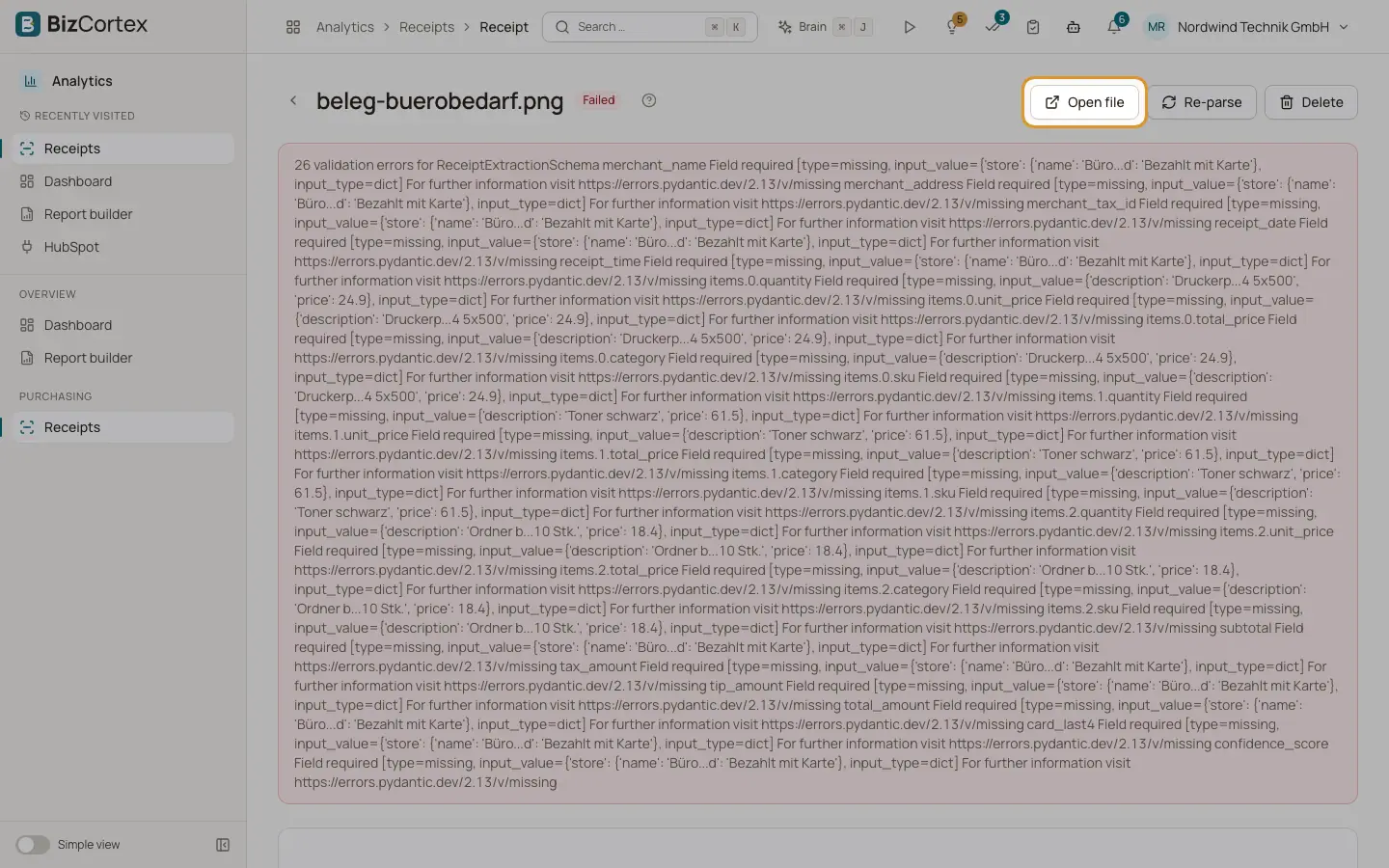
Click "Open file". The uploaded photo or PDF opens in a new browser tab.
2. Read the receipt again
Click the Reparse button (circular arrow icon). The message "Receipt is being re parsed" confirms the start. The status goes back to "Uploaded" and the receipt is processed again.
3. Delete
Click "Delete" and confirm. The receipt and the stored file are removed. You return to the list.
Fields and options
- Merchant
Name of the shop or company.
- Address
Address of the merchant, if printed.
- Tax number / VAT ID
Tax number or VAT ID of the merchant, if printed.
- Receipt date
Date of the purchase.
- Net
Subtotal before tax, if printed.
- Tax
Tax amount, if printed.
- Gross
Total amount.
- Payment method
For example cash or card, with the last four digits of the card when printed.
- Confidence
How sure the automatic reading is, in percent. Check receipts with a low value carefully.
- Line items
Description, Category, Quantity, Unit price and Total of each item.
Good to know
- If processing failed, a red box shows the error message at the top of the page.
- When a receipt has no extracted data, the page says "No extracted data".
- Amounts are shown in the base currency of your company.
- Extracted values cannot be edited by hand on this page.
- Only users with write access to receipts see the Reparse and "Delete" buttons. Uploads and deletions are written to the audit log.
Related
- Uploading receipts
Upload photos or PDFs of receipts and let BizCortex read merchant, date, amounts and items.
- How receipt recognition works
What happens behind the scenes after you upload a receipt, and what the statuses mean.