Building a report
Choose a dataset, columns, groupings, measures and sorting, then run the report to see a preview.
The report builder lets you create your own analyses without technical knowledge. A report always starts from one dataset, for example Invoices, Journal lines or Time entries. You then decide which columns to show, how to filter, how to group and which totals to calculate.
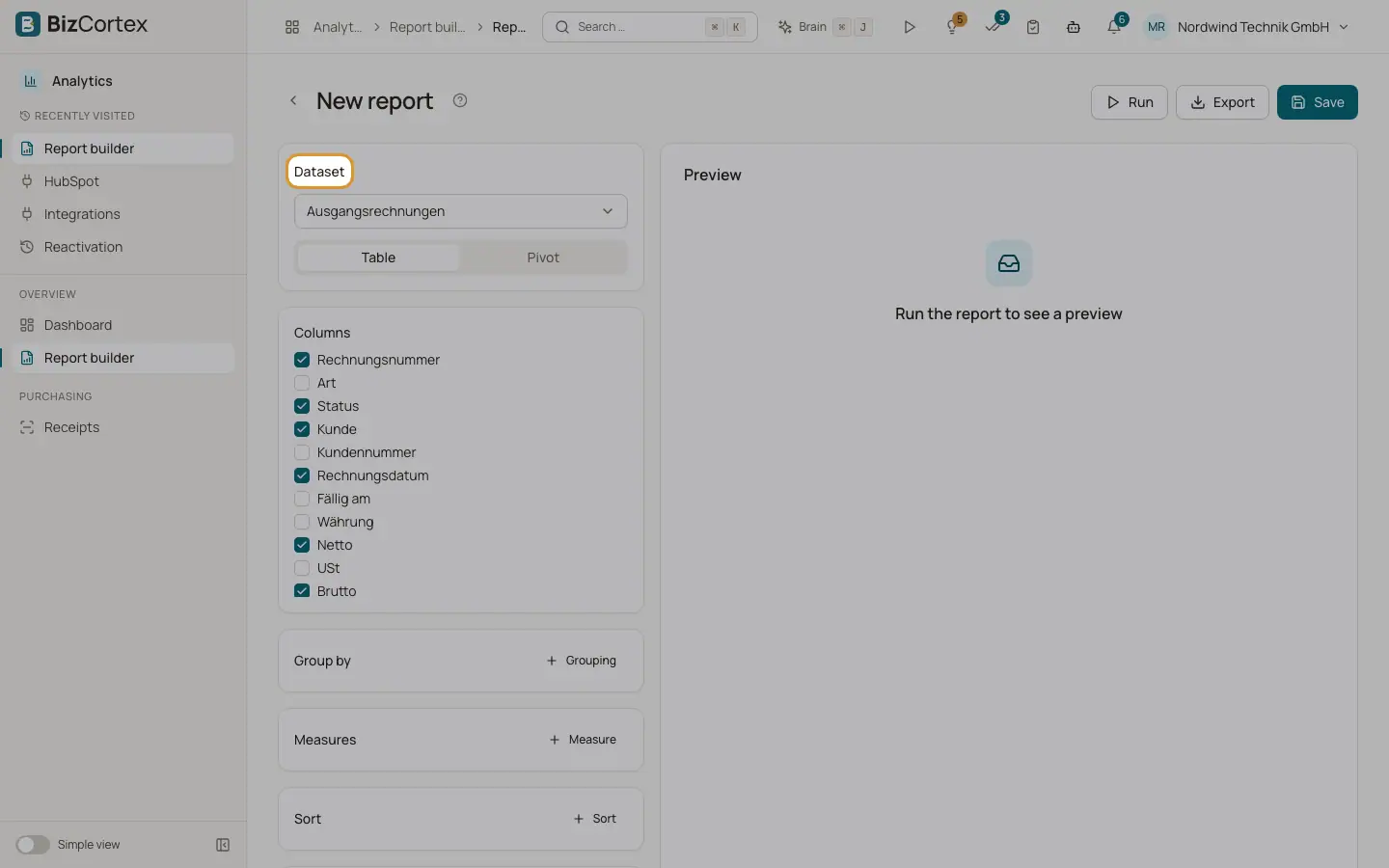
The page has a settings panel on the left and a "Preview" on the right. At the top you find the buttons "Run", "Export", "Send now" (only for saved reports with recipients) and "Save".
Who can use this
- Owner
- Admin
- Accountant
- Sales
- Purchase
- HR manager
Steps
1. Choose a dataset
Open Analytics, "Report builder" and click "New report". In the "Dataset" list, pick a dataset. Datasets are grouped by area: Finance, Sales, Purchasing, HR, Operations. You only see datasets your role may read.
2. Pick a view
Under "View", choose "Table" for a normal list or "Pivot" for a cross table. This page describes the table view. See "Pivot view" for the cross table.
3. Select columns
Under "Columns", tick the fields you want to see. This list is only shown while the report has no grouping and no measure. As soon as you group or add a measure, the result shows the grouping fields and the measures instead.
4. Group rows
Under "Group by", click "Grouping" and choose a field. For date fields, you also choose a bucket: Day, Week, Month, Quarter or Year. For example, group invoices by Customer and by Issue date (Month).
5. Add measures
Under "Measures", click "Measure". Choose a function (Sum, Count, Average, Minimum, Maximum) and a field. For Count you can choose "All rows (count)" to count records.
6. Add filters
Under "Filters", click "Add filter". Choose the field, the operator and the value. See the page "Filters in reports" for every operator.
7. Sort
Under "Sort", click "Sort", choose a field or a measure and choose ascending or descending.
8. Run
Click "Run". The "Preview" shows the result with a totals row and the number of rows, for example "125 rows". Before the first run, the preview says "Run the report to see a preview".
Fields and options
- Dataset
The data source. Changing it resets the report.
- View
Table or Pivot.
- Columns
Fields shown as columns in the table view without grouping. Up to 40 columns.
- Group by
Up to 5 groupings. Date fields can be bucketed by Day, Week, Month, Quarter or Year.
- Measures
Up to 10 calculations: Sum, Count, Average, Minimum or Maximum of a field.
- Filters
Up to 30 conditions. All filters must match (they are combined with "and").
- Sort
Up to 5 sort rules, each ascending or descending.
Tips
- Start small: one grouping and one measure. Then add more.
- To see revenue per month, use the Invoices dataset, group by Issue date (Month) and add the measure Sum of Net.
- Remove a grouping, measure, filter or sort rule with the remove button (cross icon) on its row.
Good to know
- You can only combine data within one dataset. Reports cannot join two datasets and cannot contain computed columns.
- Each dataset and some sensitive fields (for example salary) need their own read permission. Fields you may not read are not offered.
Related
- Filters in reports
Every filter operator of the report builder and how to enter values.
- Pivot view
Turn a dataset into a cross table with row groups, a column field and one value.
- Preview and export
How many rows the preview shows and how to export a report as CSV, XLSX or PDF.
- Report datasets
Every dataset of the report builder, its fields and the permission it needs.