Save, share and schedule reports
Save a report, share it with colleagues and send it automatically by email.
Saving keeps the whole setup of a report: dataset, columns, filters, groupings, measures, sorting and view. A saved report can be shared and sent by email on a schedule. The saved result is not frozen: every time you open or send a report, it is calculated with the current data.
Who can use this
- Owner
- Admin
- Accountant
- Sales
- Purchase
- HR manager
Steps
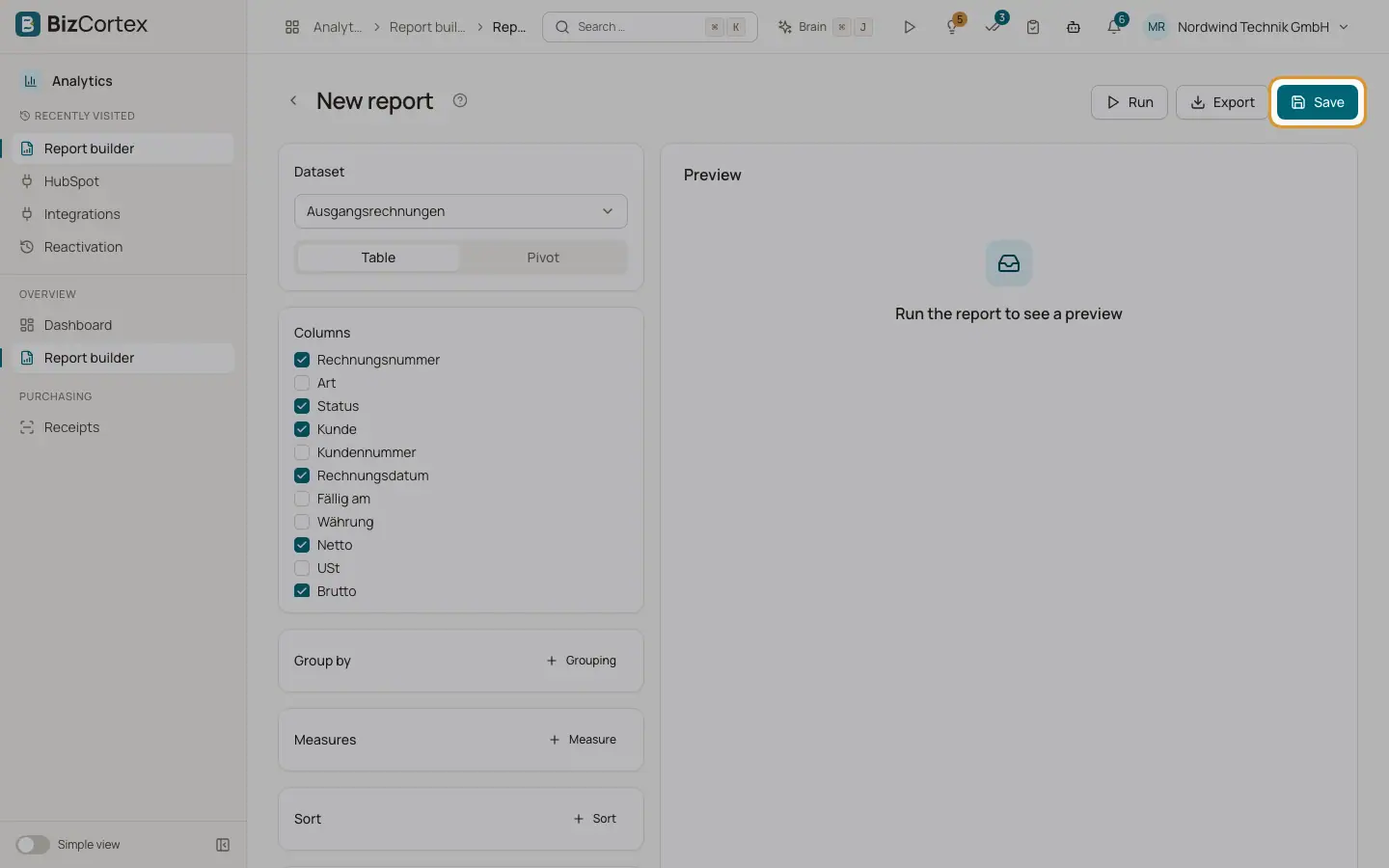
1. Open the save dialog
In the report builder, click "Save". The dialog "Save report" opens.
2. Name and describe
Enter a "Name" (required) and an optional "Description".
3. Share
Tick "Share with everyone allowed to see the data" to make the report visible for all colleagues who may read the dataset.
4. Schedule
Tick "Send regularly by email". Enter the schedule as a cron expression, for example "0 7 * * mon" for Mondays at 7 am. Enter the "Recipients (email, comma separated)" and choose the "Format": XLSX, CSV or PDF.
5. Confirm
Click "Save". The report now appears in the list of saved reports.
6. Send now
In a saved report with recipients, click "Send now". The report is calculated and sent at once. A message confirms "Report sent to 3 recipient(s)".
Fields and options
- Name
Required, up to 255 characters.
- Description
Optional text shown on the report card.
- Share with everyone allowed to see the data
Off by default. When on, the report is visible to every colleague with read access to its dataset.
- Send regularly by email
Turns the schedule on or off.
- Schedule (cron)
Five parts: minute, hour, day of month, month, weekday. "0 7 * * mon" means every Monday at 7:00. Times are German time (Europe/Berlin). Invalid expressions are rejected when saving.
- Recipients
Up to 20 email addresses, separated by commas. Each address is checked.
- Format
XLSX (default), CSV or PDF. The file is attached to the email.
Tips
- Common schedules: "0 8 * * *" every day at 8:00, "0 7 1 * *" on the first day of every month at 7:00.
- Recipients do not need a BizCortex account. Make sure they are allowed to see the data you send.
Good to know
- Only the owner can change, delete or "Send now" a report. Other users can open, run and export shared reports.
- Scheduled reports are checked every 5 minutes, so a delivery can arrive a few minutes after the scheduled time.
- Scheduled reports are calculated with the current permissions of the owner. If the owner leaves the company, the report is no longer sent.
- The email subject and body of scheduled reports are written in German ("Bericht: name of the report"). The attachment contains all rows, up to 50,000.
- New saved reports are written to the audit log.
Related
- Saved reports
The list of your own and shared reports, with dataset, sharing and schedule at a glance.
- Preview and export
How many rows the preview shows and how to export a report as CSV, XLSX or PDF.