Versions tab: page history
See every saved state of a page, compare changes and restore an older version.
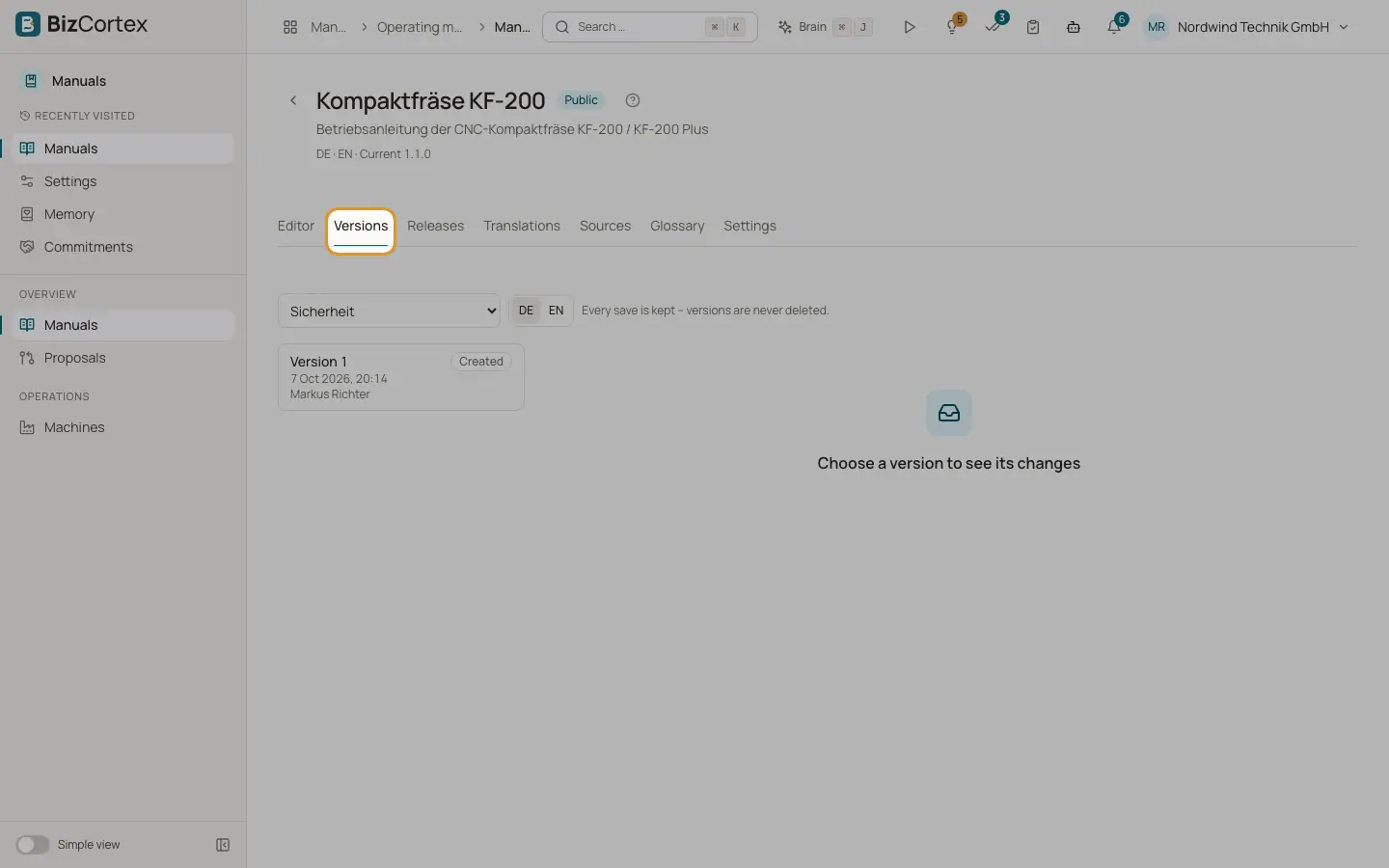
Every save of a page is kept, per language. Versions are never deleted. The Versions tab shows the history of the page and language selected in the editor.
Who can use this
- Everyone with the Manuals read permission can view
- Owner, Admin, Employee to restore
Steps
1. Choose a page
Open the Versions tab and pick the page with "Choose a page". The list shows all versions with number, kind, author and time.
2. See the changes
Click a version. Choose "Compare with" and then "Previous version" or "Current state". The changes appear with a count of added and removed lines. Switch the view between "Inline" and "Side by side".
3. Restore
Click "Restore" and confirm "Restore version" with its number. The current state is kept as a version of its own, so nothing is lost.
Fields and options
- Created
The page was created.
- Edited
A normal edit in the editor. Several saves by the same author within 5 minutes are combined into one version; the list shows how many saves it contains.
- Restored
An older version was restored.
- Proposal
A change proposal was applied.
- Translation
An AI translation wrote the text.
- Import
The text came from an import.
Good to know
- Restoring is not possible in an archived manual.
Related
- Editor tab: writing pages
Build the page tree of a manual and write the content with automatic saving.
- Releases tab: publishing a version
Freeze the manual as a numbered version, run the checks and publish the PDFs.