Editor tab: writing pages
Build the page tree of a manual and write the content with automatic saving.
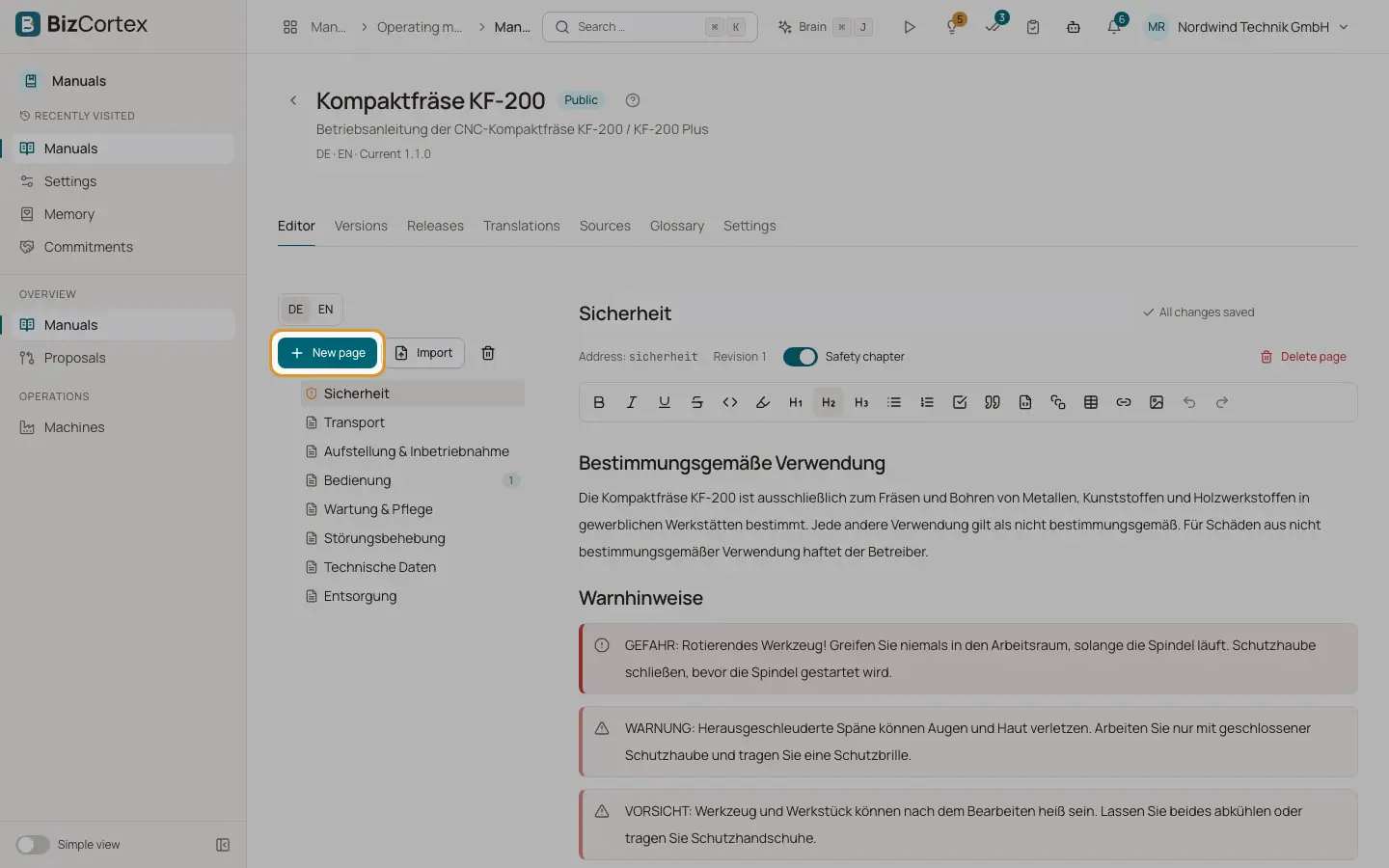
Every manual opens in a workspace with the tabs Editor, Versions, Releases, Translations, Sources, Glossary and Settings. You only see the tabs your role allows. The header shows the name, the access, the languages and the current version.
The Editor tab has the page tree on the left and the page content on the right. Pages can have subpages. The tree is the same for all languages; titles and text are stored per language. The selected page and language stay selected when you switch tabs.
Who can use this
- Owner
- Admin
- Employee (source language pages and translations)
Steps
1. Create a page
Click "New page" above the tree, enter the page title and decide whether it is a safety chapter. Click "Create". To add a subpage, use "Add subpage" on a page in the tree; the dialog is then called "New subpage".
2. Reorder pages
Drag a page in the tree. Drop it on the upper or lower edge of another page to place it before or after that page. Drop it in the middle of a page to make it a subpage. Use "Collapse" and "Expand" to show or hide subpages.
3. Choose the language
Use the language switch to choose which language you edit. In a translation without text you see the hint that there is no text in this language yet; you can write it directly or start an AI translation under Translations.
4. Write the content
Type the page title at the top and the content below. Type "/" in the text to open the command menu with headings, lists, tables, callouts and more. Use "Insert image" to add pictures.
5. Let BizCortex save
Changes are saved automatically about one second after you stop typing. The indicator shows "Unsaved changes", "Saving …", "Saved at" with the time, or "All changes saved". If saving fails, it shows "Saving failed" and tries again with your next edit.
6. Mark a safety chapter
Switch on "Safety chapter" below the title. Safety chapters also go into the separate safety essentials PDF of every release.
7. Delete and restore a page
Click "Delete page" and confirm. The page and its subpages go to the trash; published versions stay unchanged. Open the trash with the trash button above the tree and click "Restore" to bring back the page with its whole subtree.
Fields and options
- Page title
The title of the page in the selected language. Shown in the tree, the reader and the PDF.
- Address
The fixed address (slug) of the page, used in reader links. It does not change when you rename the page.
- Revision
The current revision number of the text in this language. It goes up with every saved change.
- Translation badge
In a translation, the state of this page: Missing, Draft, AI draft, In review, Reviewed or Outdated.
- Safety chapter
Marks the page as safety information. It is shown with a warning icon in the reader and goes into the safety essentials PDF.
- Open proposals
The tree shows how many open change proposals exist for a page.
- Insert image
Opens the image library of the manual. Upload PNG, JPG, SVG or WebP files up to 25 MB. Images are stored once per manual and used in the PDF and the online reader.
Tips
- Use clear headings inside a page. Headings keep a fixed internal anchor, so links from chat answers and proposals keep pointing to the right section even after you change the text.
- Start a warning paragraph with a signal word (DANGER, WARNING, CAUTION, NOTICE or the German GEFAHR, WARNUNG, VORSICHT, HINWEIS). It is styled as a safety notice in the PDF.
- Changing the text in the source language marks all translations of that page as Outdated.
Good to know
- If someone else changed the same page in the meantime, the indicator shows "Conflict" and the editor stops. Click "Reload" to load the newer text before you continue writing. Nothing is overwritten.
- Only the source language can delete pages. In an archived manual the editor is read only.
- Writing pages in the source language needs the Manuals page write permission; writing a translation needs the Manuals translation write permission.
Related
- Importing an existing manual
Turn an existing PDF, Word, Markdown or text manual into pages.
- Versions tab: page history
See every saved state of a page, compare changes and restore an older version.
- Translations tab: AI translation and review
See the translation state of every page, translate with AI and review translations before release.