Machines and models
Register machine types and serial numbers, place machines on the market and pin them to a manual version.
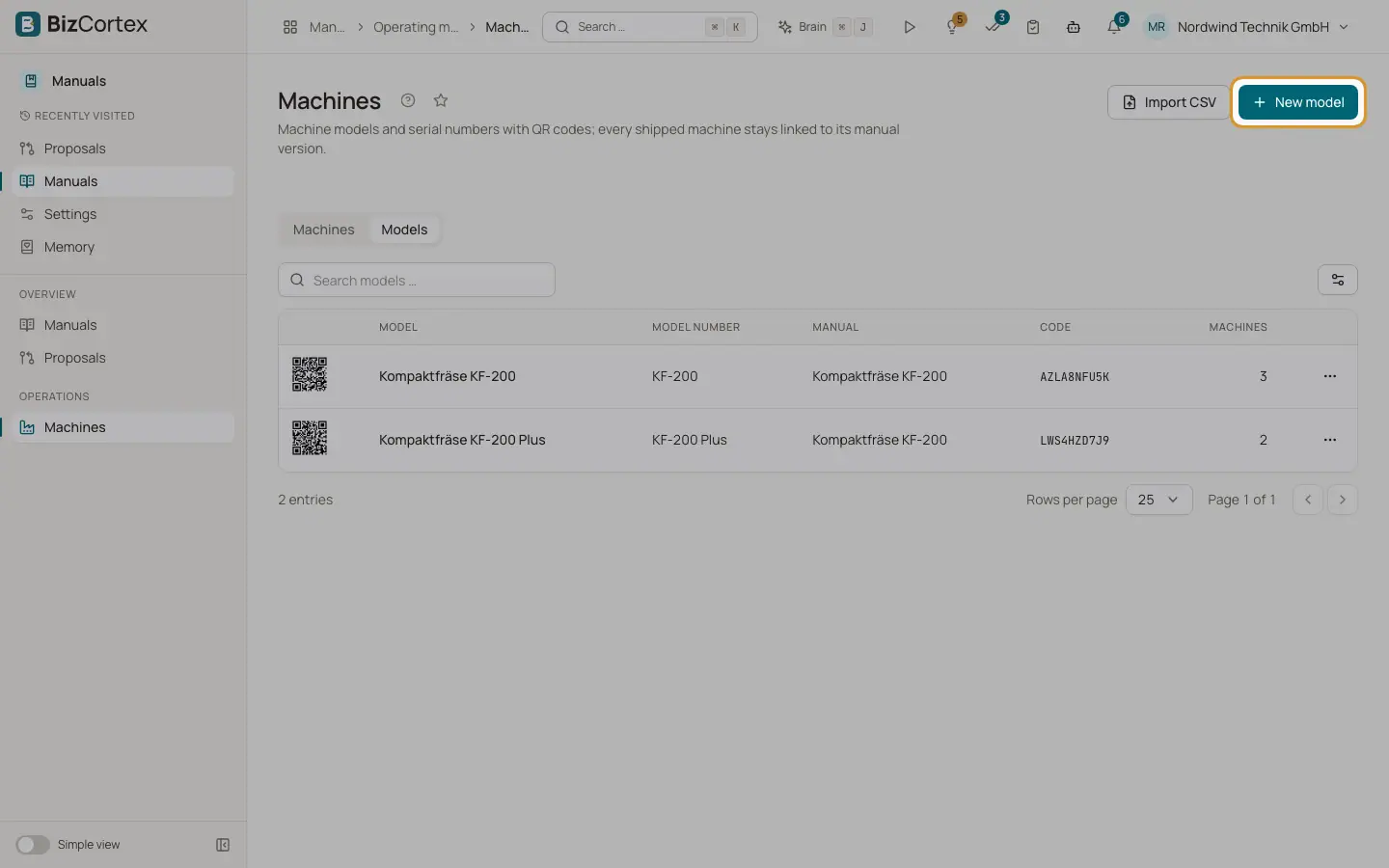
The Machines page has two tabs: Machines and Models. A model is a machine type linked to one manual; it gets a short, permanent QR code. A machine is one serial number of a model. When a machine is placed on the market, it is pinned to the newest published version of its manual. That pin is what the reader sees when they scan the QR code of that machine, even years later.
Who can use this
- Owner, Admin, Sales to create, import and place machines
- Owner, Admin to change the version, set access codes and delete
Steps
1. Create a model
Open Machines in the sidebar, switch to the Models tab and click "New model". Choose the manual, enter the model name, the model number and an optional description. Save.
2. Add a machine
On the Machines tab click "New machine". Choose the model, enter the serial number, optionally the year of construction (1950 to 2100), the customer and notes. Save.
3. Place a machine on the market
Open the row menu of the machine and click "Place on the market". Enter the date and optionally the customer. The machine is pinned to the newest published version, once, and the step is logged.
4. Change the version in exceptional cases
Click "Change version" in the row menu, choose a published or withdrawn version and give a reason of at least 5 characters, for example after a retrofit. The reason is logged.
5. Give a machine its own access code
Click "Access code". BizCortex suggests a random 8 character code without look alike characters; you can change it. Click "Save code". The code is shown only now. Leave the field empty to remove the machine code; the code of the manual then applies again.
6. Import machines from CSV
Click "Import CSV" and drop a UTF 8 CSV file (up to 5 MB). Use one line per machine with columns separated by semicolons: model_number;serial_number;year_of_construction;placed_on_market_at;client_number;lot. BizCortex shows how many machines were created, updated and skipped, and lists errors by line.
Fields and options
- Model
The machine type and, in the Models tab, its manual.
- Model number
Unique per manual.
- Code
The public code of the model or machine. It has 10 characters, never changes and is part of the QR link.
- Serial number
Unique per model.
- Customer
The customer who owns the machine. Used for the "Customers only" access, the watermark on downloaded PDFs and the analytics by customer.
- Placed on the market
The date the machine was shipped, or "Not shipped yet".
- Version
The manual version the machine is pinned to.
- Access
"Own code" when the machine has its own access code, otherwise "Same as manual".
- Machines (Models tab)
How many machines exist for the model.
Tips
- In the CSV, dates can be written as day.month.year (for example 10.01.2027), day/month/year, or in ISO format with the year first. The customer is matched by its customer number; you can also use a client_name column. A notes column is accepted too.
- A CSV line with an existing serial number updates that machine instead of creating a new one.
Good to know
- A machine can only be placed on the market when its manual has a published release.
- A machine that is on the market cannot be deleted. A model with machines on the market cannot be deleted either, because its QR code must keep working.
- Search the machine list by serial number with "Search serial numbers …" and the model list with "Search models …".
Related
- QR codes and labels
Show the QR code of a model or machine and print label sheets as PDF.
- Reader access: public, customers only or access code
Control who can open a published manual after scanning the QR code.
- Release details: PDFs, archive, compare and withdraw
Download the PDFs of a version, see the archive copies, compare versions and withdraw a version.