Importing an existing manual
Turn an existing PDF, Word, Markdown or text manual into pages.
If you already have a manual, you do not have to type it again. The import reads the file and creates pages and subpages from its headings.
Who can use this
- Owner
- Admin
- Employee
Steps
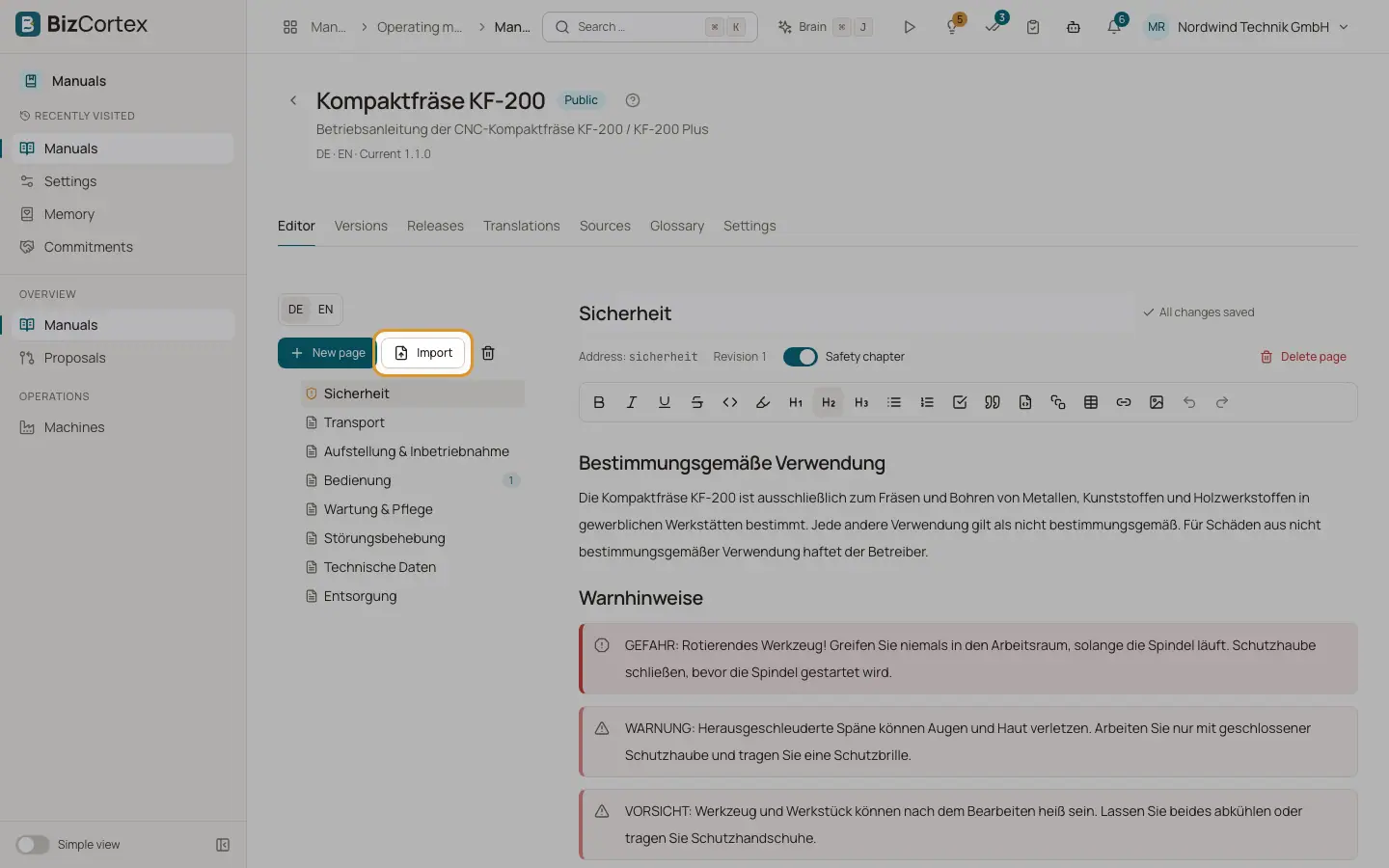
1. Open the import
In the Editor tab click "Import". The dialog "Import an existing manual" opens.
2. Choose the file
Drop the file into the dialog or select it. Accepted are PDF with a text layer, DOCX, Markdown or plain text, up to 50 MB.
3. Check the result
BizCortex shows how many pages were imported, for example "12 pages imported". Check the tree and fix titles or order where needed.
Fields and options
- Top two heading levels
Become pages and subpages. Deeper headings stay headings inside the page.
- Text before the first heading
Becomes a page named after the file.
- Warnings
Paragraphs that start with a signal word become safety callouts.
- Safety titles
Pages with titles such as "Safety" or "Sicherheit" are marked as safety chapters.
- Plain text
Numbered lines (for example "2.1 Maintenance") or lines in capital letters are treated as headings. Table of contents lines with dot leaders and running headers and footers are removed, and wrapped lines are joined.
Good to know
- Scanned PDFs without a text layer cannot be imported. Run text recognition first.
- An import can create up to 300 pages.
- Word documents keep their heading and list styles and their tables.
Related
- Editor tab: writing pages
Build the page tree of a manual and write the content with automatic saving.