QR codes and labels
Show the QR code of a model or machine and print label sheets as PDF.
Every model and every machine has its own QR code. The model code opens the newest published version. The machine code opens the version the machine was shipped with. The QR link uses a fixed web address of your company, so printed labels keep working for 10 years and more.
Who can use this
- Everyone with the Manuals machine read permission can view QR codes
- Owner, Admin, Sales to print label sheets
Steps
1. Show a QR code
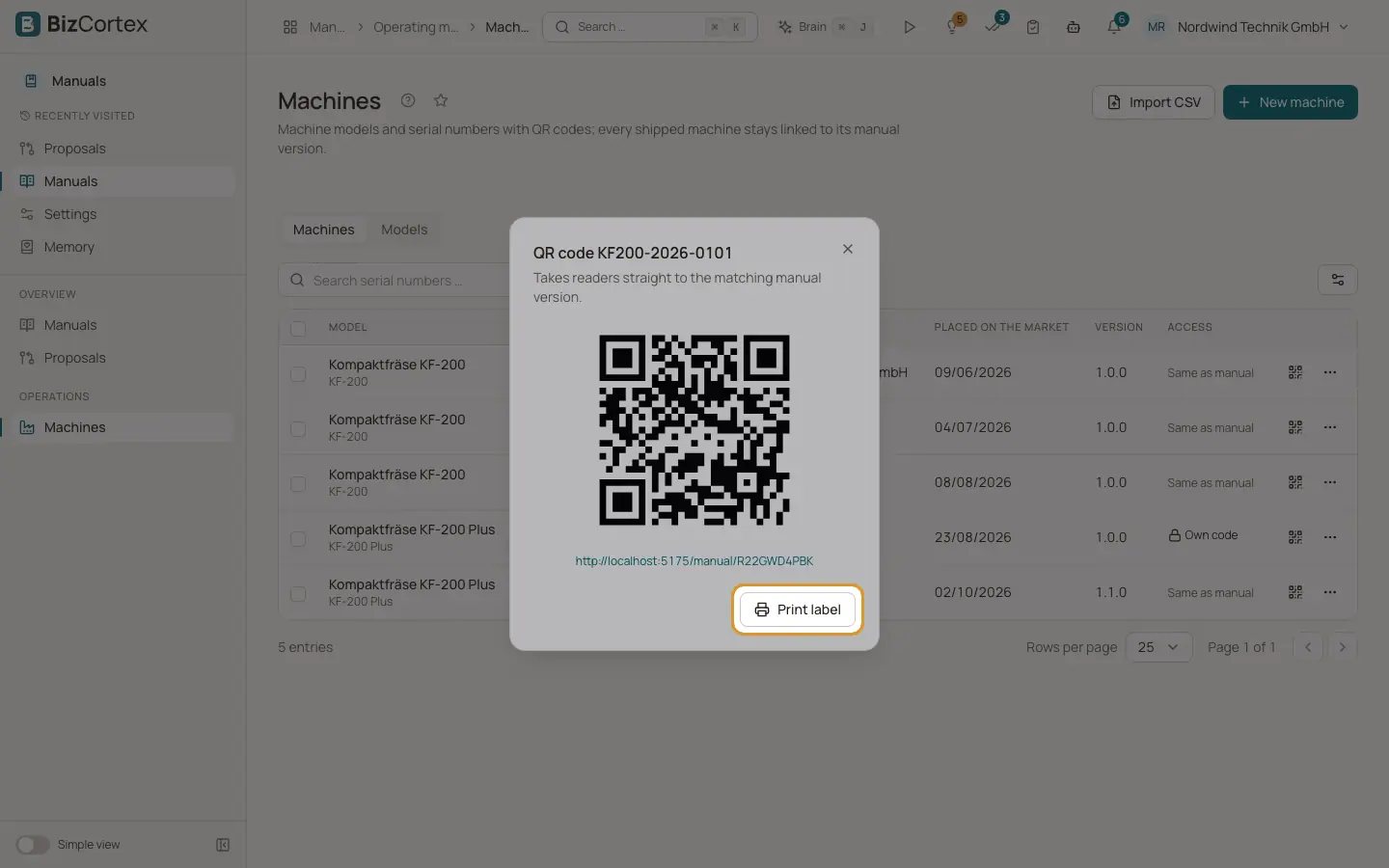
On the Machines tab click the QR button in a row. On the Models tab click the small QR image. The dialog shows the code; it takes readers straight to the matching manual version.
2. Print one label
In the QR dialog click "Print label" to download a PDF label.
3. Print a label sheet for several machines
On the Machines tab select the machines with the checkboxes, choose the "Label format" and click "Labels (PDF)".
4. Print labels for a model
On the Models tab open the row menu and click "Labels (PDF)".
Fields and options
- A4, 3 × 8
24 labels of 70 × 37 mm per A4 page.
- A4, 2 × 5
10 labels of 105 × 57 mm per A4 page.
- Single label 50 × 30 mm
One label per page, for label printers.
- Label content
The QR code, the model, the serial number, a short link, the note that the instructions are digital and a paper copy is available on request, and the manufacturer name.
Good to know
- At most 1000 labels per sheet.
- Label sheets need PDF rendering on the server. Without it, printing fails with an error message.
Related
- Machines and models
Register machine types and serial numbers, place machines on the market and pin them to a manual version.
- The public reader: what readers see after scanning
What an anonymous person sees when they scan the QR code on a machine.