Proposals: reviewing suggested changes
Review the evidence and the changes of each proposal, edit it, and apply or reject it.
Proposals are suggested changes to manual pages. They come from your sources (documents, software releases, support tickets) and from reader questions the manual could not answer. Each proposal shows the evidence it is based on and the exact text changes. A proposal is never applied automatically.
Who can use this
- Owner, Admin, Employee to view, edit and update proposals
- Owner, Admin to apply or reject
Steps
1. Open the list
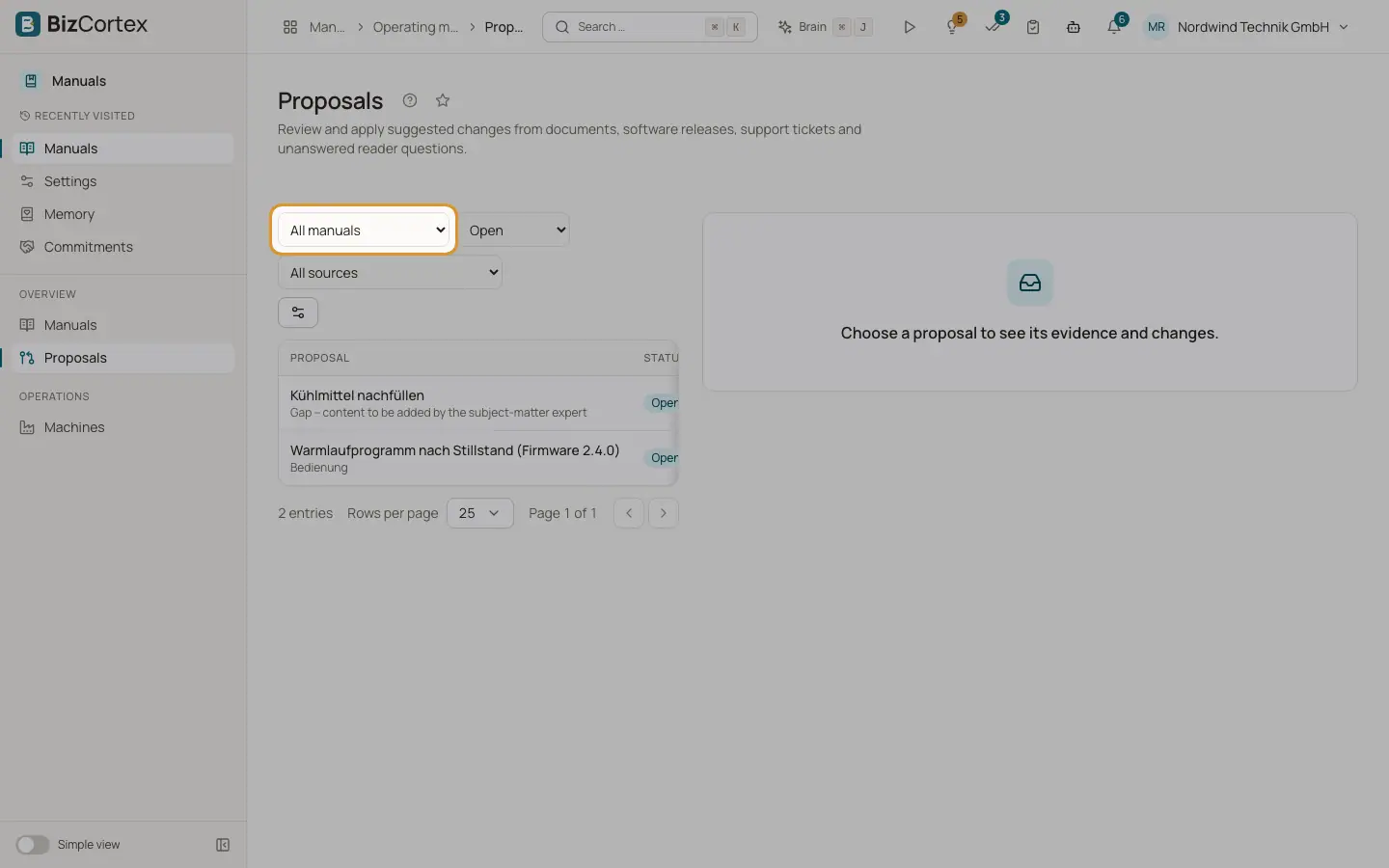
Click Proposals in the sidebar. By default you see open proposals. Filter by manual ("All manuals"), status ("All statuses") and source ("All sources").
2. Open a proposal
Click a row. The detail shows the page and language, the confidence in percent, the evidence with links to the source ("Open source") and the changes with added and removed lines. Switch between "Inline" and "Side by side".
3. Edit the content
Click "Edit" to change the proposed text. Your changes replace the proposal; the evidence is kept.
4. Update an outdated proposal
If the page changed after the proposal was made, the proposal becomes Outdated. Click "Update to current state". BizCortex applies the change to the current text again, or drafts it again from the stored evidence.
5. Apply or reject
Click "Apply" and confirm. The page gets a new version and its translations are marked outdated. Or click "Reject" and give a reason; the reason helps to avoid similar proposals in future.
Fields and options
- Open
Waiting for a decision.
- Applied
The change was applied to the page.
- Rejected
The change was rejected. A rejected change is not proposed again.
- Superseded
A newer proposal for the same section replaced this one, combining both pieces of evidence.
- Outdated
The page changed after the proposal was made, or the page was deleted.
- New page
The proposal creates a new page instead of changing an existing one.
- Gap
Shown with a Gap label: content to be added by the subject matter expert.The proposal contains only an outline with the heading, the grouped reader questions and related sections. Add the content with "Edit" before you apply it.
- Confidence
How sure the AI is that the evidence supports the change, in percent.
- Note
The decision note of an applied or rejected proposal.
Tips
- AI drafts keep signal words and never remove a warning unless the evidence says so.
- If the same change arrives again, the evidence is added to the existing open proposal instead of creating a duplicate.
Good to know
- A gap proposal cannot be applied until someone has written its content.
- Editing by hand and then using "Update to current state" can replace your hand edits with a new draft.
Related
- Sources tab: where updates come from
Connect documents, software releases, support tickets and reader questions as sources for change proposals.
- Analytics and paper copy requests
See how manuals are used, which questions stay unanswered and handle paper copy requests.
- Versions tab: page history
See every saved state of a page, compare changes and restore an older version.