Releases tab: publishing a version
Freeze the manual as a numbered version, run the checks and publish the PDFs.
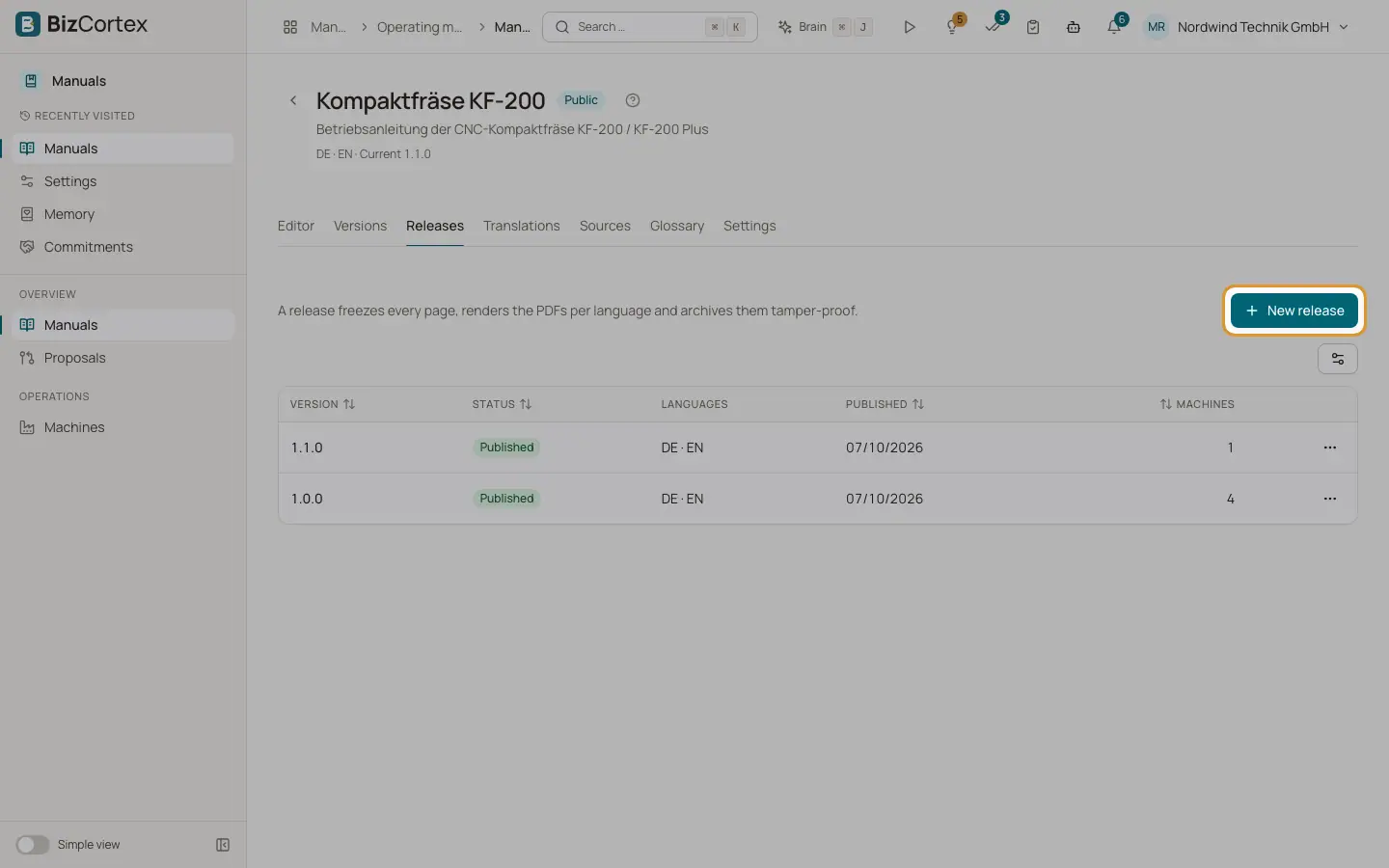
A release freezes every page, renders the PDFs per language and archives them tamper proof. Readers and machines only ever see published releases, never the working copy. Version numbers follow the pattern major.minor.patch, for example 1.2.0.
Who can use this
- Owner, Admin to create, publish and withdraw releases
- Everyone with the Manuals release read permission can view
Steps
1. Create a draft
Click "New release". BizCortex suggests a version number with a reason, for example 1.1.0 because 2 pages were added. Check the version number, choose the languages and write release notes. The checks are shown while you fill in the dialog. Click "Create draft".
2. Check the preflight list
Under "Checks before publishing" every issue is shown as Blocker or Warning. Blockers must be fixed before you can publish. When everything is fine, you see "All set" and no blockers.
3. Publish
Click "Publish" in the row of the draft. The dialog repeats the checks. Click "Publish now". BizCortex freezes the pages, renders the PDFs and archives them. This can take a few seconds.
4. Delete a draft
A draft that you no longer need can be removed with "Delete draft" in the row menu. Published versions cannot be deleted.
Fields and options
- Version number
Format major.minor.patch, for example 1.2.0. It must be higher than the last released version and unique within the manual.
- Suggested version
The first release is 1.0.0. After that, BizCortex suggests a minor step when pages were added or removed and a patch step for text changes. A major step is always your own choice.
- Languages
The languages that go into the release. The source language is always included. Choose at least one.
- Release notes
Optional text up to 5000 characters, shown in the release details.
- Status
Draft, Published or Withdrawn.
- Machines
How many machines are pinned to this release.
- Blockers
No pages, a page without text, a translation that is missing, outdated or not reviewed, an image that refers to a missing file, or a language that is unknown or disabled.
- Warnings
An empty page, no page marked as safety chapter, an incomplete manufacturer name and address, or change proposals that are still open.
Tips
- Fill in the manufacturer block in Settings before the first release. It appears on the cover of every PDF.
- Decide on open proposals before you publish, so the release contains the newest knowledge.
Good to know
- After publishing, the content and PDFs of this version are immutable and archived for at least 10 years.
- If PDF rendering is not available on the server, publishing fails and the release stays a draft.
- Creating a release is not possible in an archived manual.
Related
- Release details: PDFs, archive, compare and withdraw
Download the PDFs of a version, see the archive copies, compare versions and withdraw a version.
- Translations tab: AI translation and review
See the translation state of every page, translate with AI and review translations before release.
- Settings tab: manual settings
Name, access, retention, branding, manufacturer, reader chat, access code and languages of a manual.