The public reader: what readers see after scanning
What an anonymous person sees when they scan the QR code on a machine.
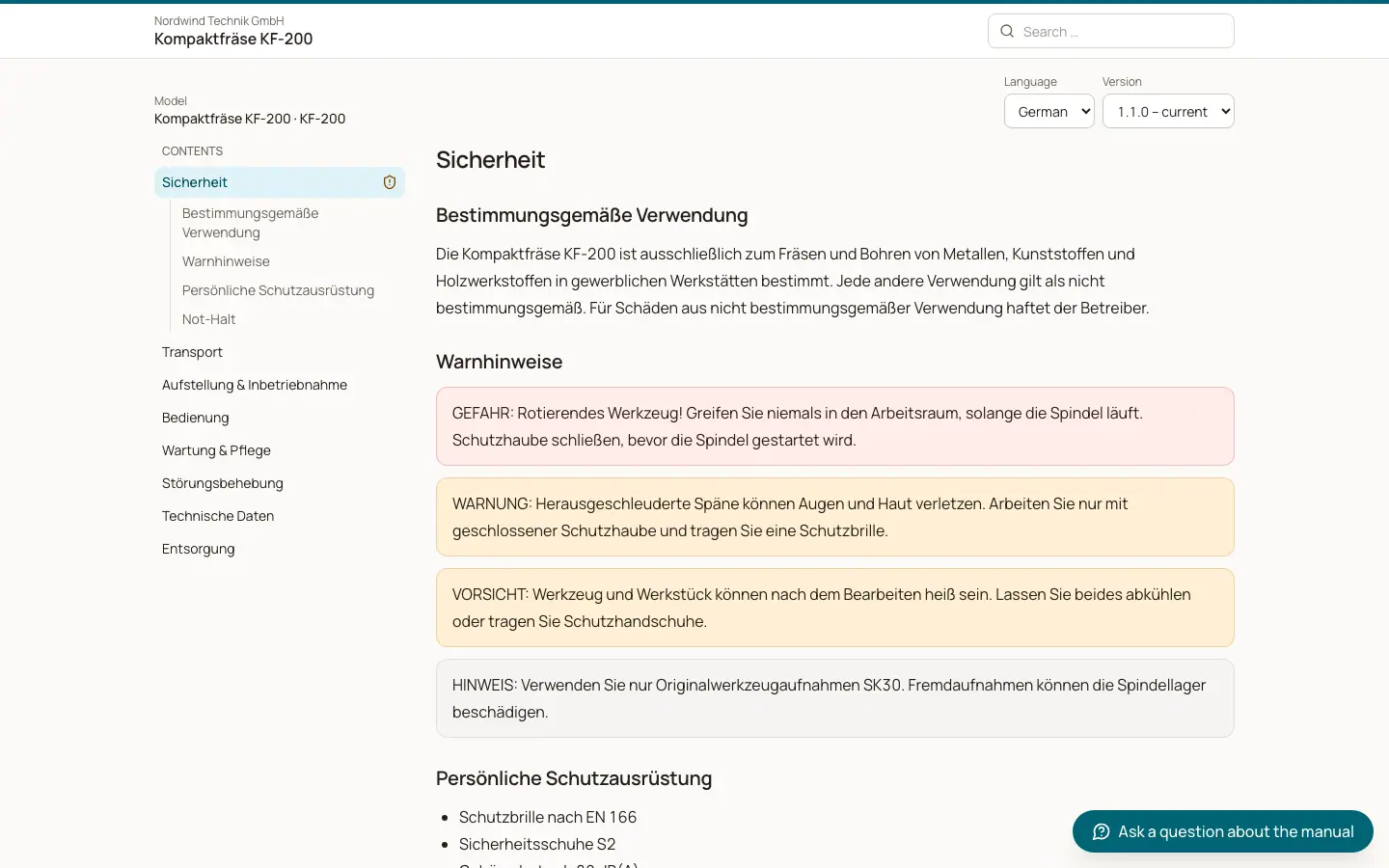
The QR code opens a standalone web page, the public reader. It does not need a BizCortex account. It always shows a published release, never the working copy. Search engines are told not to index it. The reader interface is in German for German browsers and in English for all other browsers; the manual text itself comes in the languages of the release.
Who can use this
- Anyone with the QR code or link (subject to the reader access of the manual)
Steps
1. Scan the code
The reader scans the QR code. If the code is unknown, they see "This manual was not found. Please check the QR code or contact the manufacturer."
2. Unlock if needed
For a public manual the content opens at once. For a protected manual the reader sees "Protected manual" with the manufacturer name. With an access code they enter the code and click "Open". With customer access they enter their email address and click "Request link", then open the link from the email.
3. Read
The reader sees the manual name, the model, the serial number (for a machine code) and the version. The contents list on the side shows all pages; safety chapters have a warning icon. "Previous" and "Next" move between pages. On small screens "Open contents" shows the list.
4. Change language or version
The language picker shows the languages of the release. The version picker shows all published versions plus the version at delivery. If a newer version exists, a banner says "A newer version of this manual is available" with "Show newer version". When viewing another version, "Back to the version at delivery" returns.
5. Search
The search field "Search the manual" finds text in the current version and language and shows up to 20 results with highlighted snippets.
6. Download and print
Click "Download PDF" for the full manual and "Safety information (PDF)" for the safety essentials.
7. Request a paper copy
Click "Request a paper copy", enter name, optional company, email, optional phone and the delivery address, and click "Send". The request appears in Analytics with a due date 14 days later.
Fields and options
- Version at delivery
For a machine code, the version the machine was pinned to when it was placed on the market. A model code and a machine not yet placed show the newest published version.
- Withdrawn version
If the version at delivery was withdrawn, it stays readable with a notice that it was withdrawn and which version is current.
- Watermark
For protected manuals, the downloaded full PDF carries the customer name, the serial number and the date on every page. The safety essentials PDF is never watermarked, so safety information stays easy to get.
- Branding
The accent colour and manufacturer details of the manual are shown, also on the unlock screen.
Good to know
- If a language is missing in a release, the reader falls back to the source language.
- If no version has been published yet, the reader sees "No manual has been published for this machine yet."
- Requests are limited to protect the server: for example 10 PDF downloads per hour and 5 paper copy requests per hour per network and code. When the limit is reached, the reader sees "Too many requests".
- Every open, download and paper request is logged without the raw IP address. Only a daily changing anonymous hash is stored, and the log is deleted after 12 months.
Related
- Operating manual reader
The public reader that opens when someone scans the QR code of a machine.
- Reader access: public, customers only or access code
Control who can open a published manual after scanning the QR code.
- Reader chat: questions about the manual
Let readers ask questions that are answered only from the released manual, with sources.
- Analytics and paper copy requests
See how manuals are used, which questions stay unanswered and handle paper copy requests.