Customer portal sign in
How customer contacts get into the customer portal with an email link.
The customer portal has no passwords. A contact signs in with a link that BizCortex emails to them. Only contacts of a customer whose "Portal access" is switched on can sign in. Staff switch it on by clicking "Invite to the customer portal" on the contact; this also sends the first link.
Who can use this
- Customer contacts with "Portal access"
Steps
1. Request a link
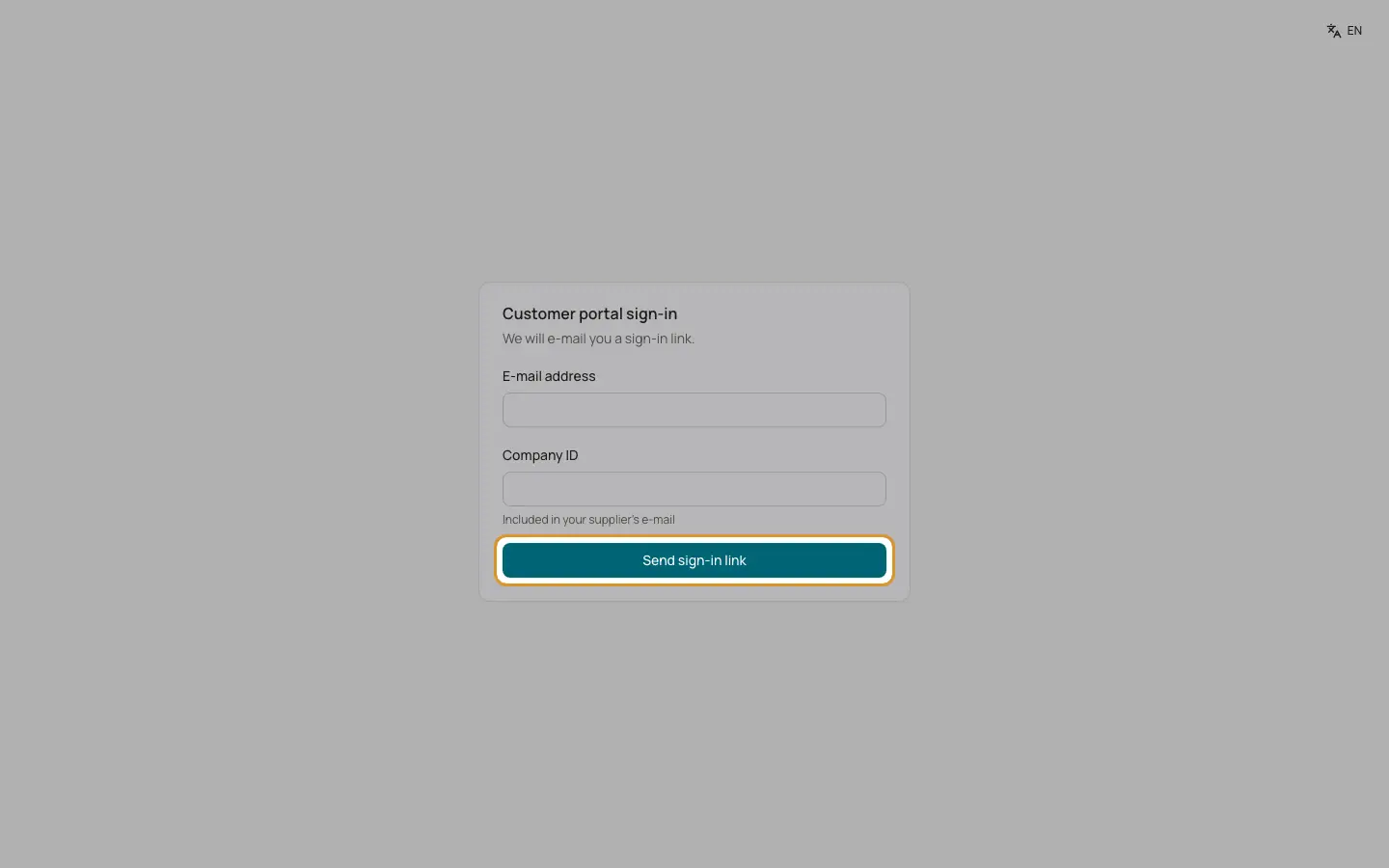
Open the page "Customer portal sign in". Enter the "Email address" and the "Company ID" (included in the email from your supplier) and click "Send sign in link". The page always answers: "If this address is enabled for the customer portal, we have sent you a sign in link." It never reveals whether an address is known.
2. Open the link
Click the link in the email. The page shows "Checking your sign in …" and opens the portal. The link is valid for 30 minutes and works only once.
3. If the link is invalid
The page shows "The sign in link is invalid or has expired." Click "Request a new link".
Good to know
- A portal session lasts 12 hours. "Logout" ends it at once.
- One email address can be enabled for several customers; a link is sent for each.
Related
- Customer portal
What customers see and do in the portal: invoices, quotes, payments, statement and billing address.