Commitments
What you promised and what others owe you, with due dates and evidence.
The Assistant spots promises in your sent mail, received mail, meetings and chat. A promise is only stored if the exact sentence appears in the source, so it can never invent one. Each commitment shows its evidence quote.
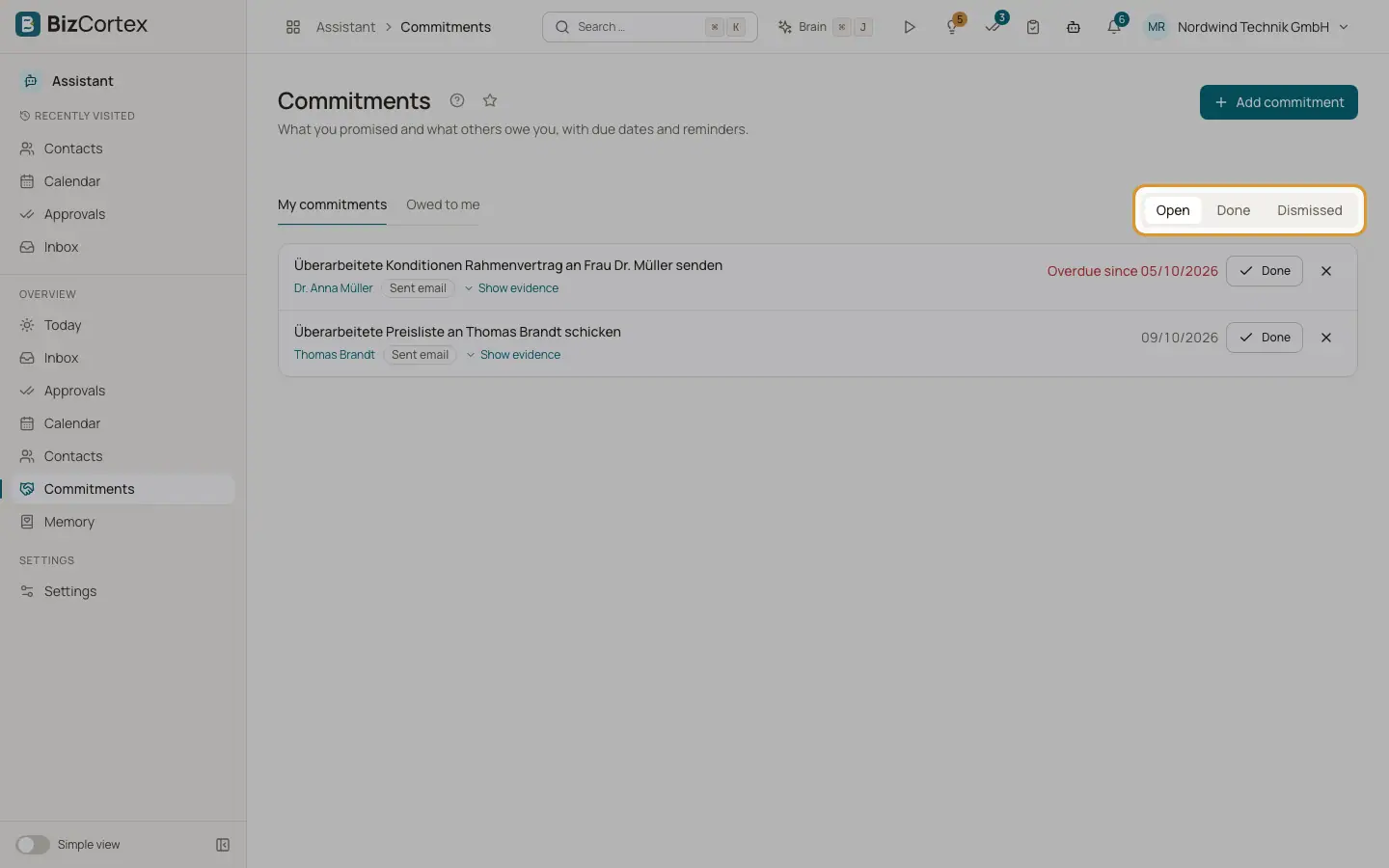
The page has two tabs: "My commitments" and "Owed to me".
Who can use this
- Owner
- Admin
- Sales
- Accountant
Steps
1. Filter
Choose a tab and use the "Status" filter: Open, Done or Dismissed.
2. Check the evidence
Click "Show evidence" to see the quote from the mail or meeting. Click "Hide evidence" to close it.
3. Close or reopen
Click "Done" or "Dismiss". On a closed commitment click "Reopen".
4. Add one by hand
Click "Add commitment". Choose "Who promised?" (I promised, or Someone promised me), enter "What was promised?", optionally a Contact and "Due on", then click "Add".
Fields and options
- Sources
Sent email, Received email, Meeting, Chat, Manual.
- Due date
Read from phrases like "by Friday" in your time zone. Shows "Overdue since" when late, or "No due date".
Good to know
- Mail with sensitive personal data (special categories) or with manipulation flags is skipped.
- A promise quoted again in a later mail is not stored twice.
Related
- Hints and reminders
Every check the Assistant runs on your data, and when it reminds you.
- Contacts
The people you correspond with: salutation, form of address, relationship and timeline.