What the Assistant does
A personal assistant that reads, sorts and drafts for you, and sends only what you approve.
The Assistant is a personal executive assistant for each member of your company. It connects to your own Microsoft 365 (Outlook) mailbox and calendar. It can also reach you over WhatsApp and SMS.
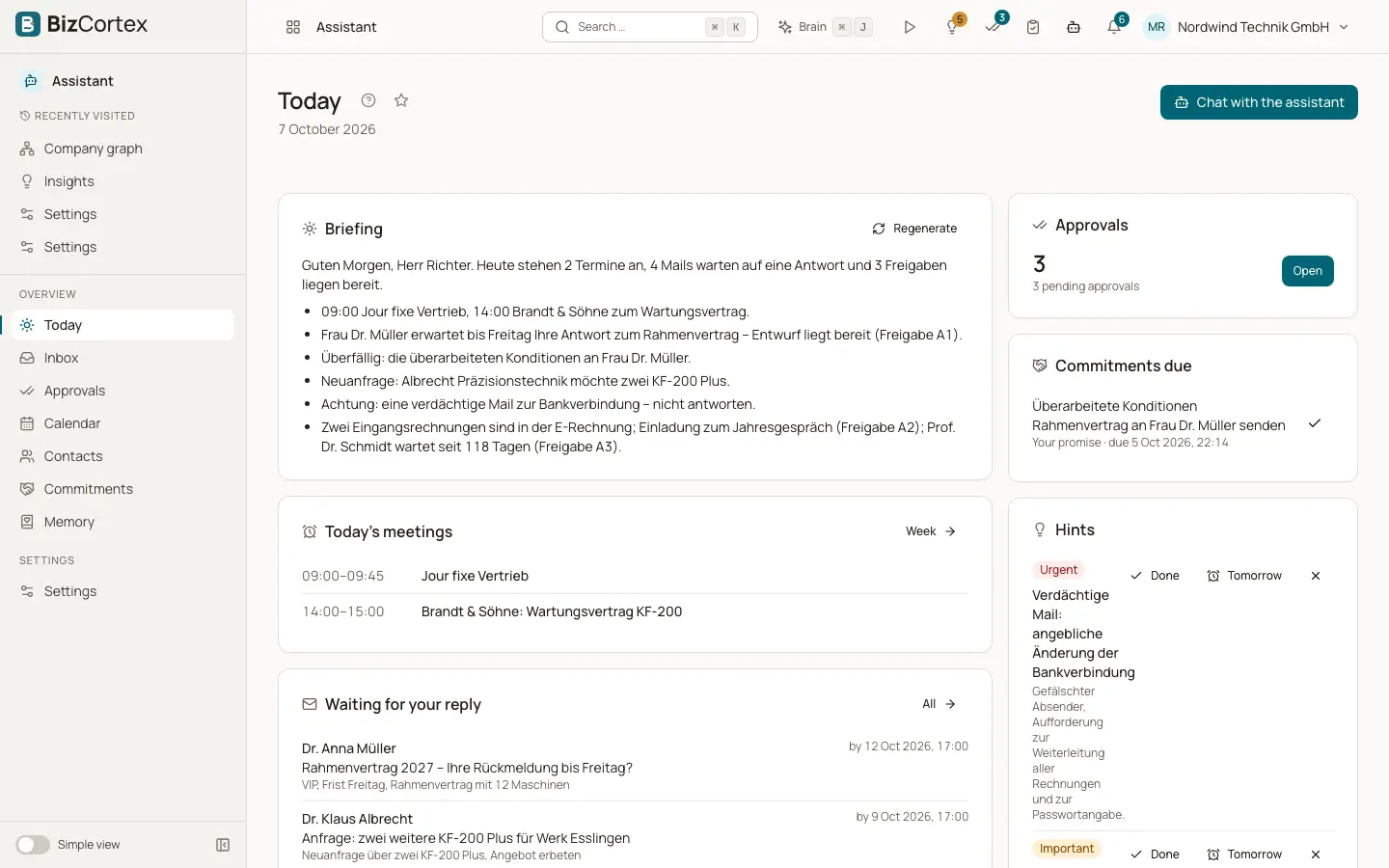
On its own, the Assistant reads and sorts your mail, prepares reply drafts, finds promises in your mail, watches your calendar for conflicts, prepares you for meetings and writes a morning briefing. Every outbound message (email, reply, meeting answer, new meeting, WhatsApp, SMS or a change in BizCortex) is first placed in Approvals. Nothing leaves without your decision.
Everything the Assistant stores belongs to you alone. Not even the Owner or an Admin can see your mail, chat, memory, contacts or drafts.
Who can use this
- Owner
- Admin
- Sales
- Accountant
- Anyone with the Assistant read permission (your own data only)
Steps
1. Open the Assistant
Open the app launcher and choose Assistant. The sidebar shows Today, Inbox, Approvals, Calendar, Contacts, Commitments, Memory and Settings.
2. Connect your mailbox
Go to Settings, Connections tab and click "Connect" next to Microsoft 365 (Outlook). Sign in with your own work account. The first sync starts right away.
3. Set up your profile
On the Profile tab, set your working hours, federal state, briefing time, default form of address and signature.
4. Optionally link your phone
On the Channels tab, link WhatsApp or SMS to get briefings, reminders and approval requests on your phone.
5. Work from Today and Approvals
Start your day on Today. Review and approve drafts in Approvals, or approve low risk drafts directly from the chat or WhatsApp.
Fields and options
- Today
Your day at a glance: briefing, meetings, mail awaiting a reply, commitments due, hints and approvals.
- Inbox
Your email, sorted into tabs: Needs reply, Meetings, Invoices, FYI and Newsletters.
- Approvals
Everything the Assistant wants to send waits here. Review, edit, approve or reject.
- Calendar
Your Outlook week with conflicts, unanswered invitations and meeting preparation.
- Contacts
The people you write to, with salutation, form of address, last contact and relationship strength.
- Commitments
What you promised and what others owe you, with due dates.
- Memory
What the Assistant remembers about your preferences and routines.
- Settings
Profile, Connections, Channels, Approvals, Delegation, Privacy and (for administrators) Company.
- Header badge
A badge in the top bar shows how many approvals are pending. Click it to open Approvals.
- Chat button
A button in the top bar opens the Assistant chat as a panel on the right side of any page.
- Home widget
A compact Today card on your BizCortex home page with approvals, replies, commitments due and hints.
Tips
- The Assistant writes in German or English. Salutation, closing and signature are always added by code, never by the AI model.
- Start with a few days of observing: read the drafts in Approvals before you rely on quick approvals by phone.
Good to know
- The Assistant is a paid add on package. It is included in Enterprise or can be booked on its own. It is not part of Starter or Pro.
- The Viewer role never sees the Assistant. Compliance and Employee roles do not get it either.
- Only Microsoft 365 (Outlook) is supported as a mailbox. Google Workspace (Gmail and Google Calendar) is not available yet.
Related
- Getting started
Connect your mailbox, link your phone and tune your profile in a few minutes.
- Approval risk rules
Which actions are high risk and where each kind of action can be approved.
- Privacy and your data
Who sees your Assistant data, how long it is kept, and how to export or delete it.