Chatting with the Assistant
Ask questions and give instructions in the app, on WhatsApp or by SMS.
The chat is one conversation that continues across the app and WhatsApp. Ask for example "What's on today?" or "Tell Ms Müller I'll attend". The Assistant can search your mail, read threads, list your meetings, find free slots, look up a contact, search its memory and list commitments and approvals.
When you ask it to write something, it creates a draft and shows it as a card in the chat. The Assistant has no way to approve on its own. Only you decide.
Who can use this
- Owner
- Admin
- Sales
- Accountant
Steps
1. Open the chat
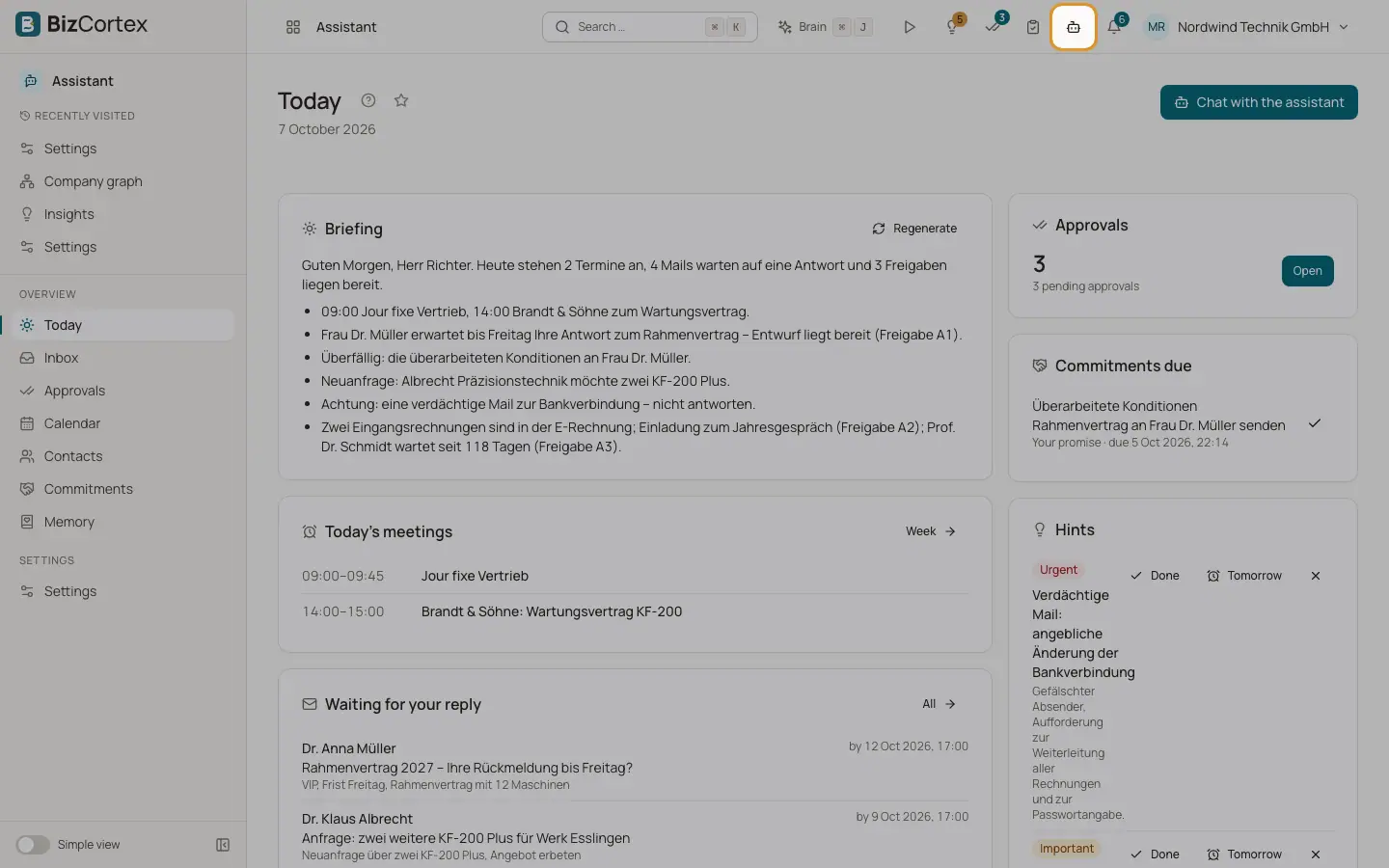
Click the Assistant chat button in the top bar on any page, or "Chat with the assistant" on Today. The chat opens as a panel on the right. Click "Close" to hide it.
2. Write a message
Type in the field "Message the assistant" and press Enter to send. Shift+Enter adds a new line.
3. Act on a draft card
A draft card shows the recipient ("To") and the text. Click "Approve", "Reject" or "Edit", or "Review in approvals" to see the full draft. High risk drafts are marked "High risk" and must be approved in Approvals.
4. Ask for changes
Tell the Assistant what to change, for example "make it shorter". It saves a new version of the draft. An older version can no longer be approved.
Fields and options
- Things it can draft
New emails, replies, answers to meeting invitations and new meeting proposals. With a delegation, also changes in BizCortex.
- Things it can do directly
Add a commitment, set a reminder, remember or forget something, set a contact preference, snooze a mail and mark something as done. These touch only your own Assistant data.
- Recipients
Recipients are set by code. A reply goes to the original sender. An address that came from text the Assistant read (not typed by you) makes the draft high risk.
- Channel label
Each message shows where it was written: App, WhatsApp or SMS.
Good to know
- When your daily AI allowance is used up, the field shows "Daily limit reached, back tomorrow." It resets the next day.
- If no AI model is configured, the chat shows "Assistant unavailable".
- Over SMS there is no free chat, because an SMS sender cannot be verified. Use the app or WhatsApp.
- Text from mail and other outside content is treated as untrusted data, never as instructions.
Related
- Approvals
Review, edit, approve or reject everything the Assistant wants to send.
- Using WhatsApp and SMS
Commands, short codes and what works on each channel.
- Memory
What the Assistant remembers about your preferences and routines, and how to correct it.