Settings: Channels
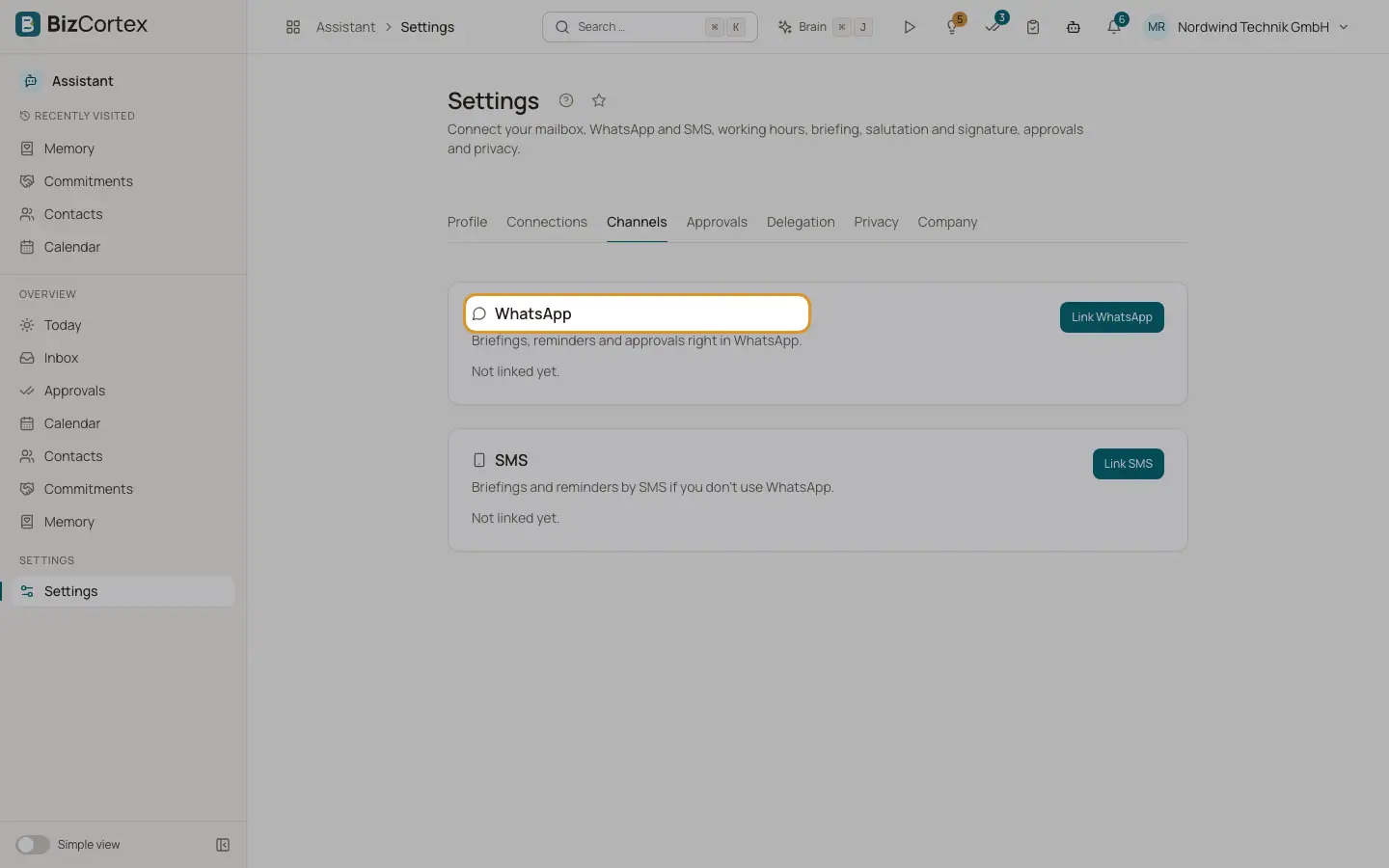
Link WhatsApp or SMS for briefings, reminders and approvals on your phone.
WhatsApp gives you briefings, reminders and approvals right in WhatsApp. SMS gives you briefings and reminders if you do not use WhatsApp. Each channel can be linked only if your administrator allows it on the Company tab.
Who can use this
- Owner
- Admin
- Sales
- Accountant
Steps
1. Start linking
Click "Link WhatsApp" or "Link SMS". A dialog shows "Your code", the number to send it to and a QR code.
2. Send the code
For WhatsApp, scan the QR code or click "Open in WhatsApp" and just send the prepared message. For SMS, text the code to the shown number ("Open SMS app"). The dialog shows "Waiting for your message" until it arrives.
3. Finish
When the code arrives, you see "Linked". Click "Done". If the code did not arrive, click "Request a new code".
4. Choose what the channel gets
Switch "Approvals via WhatsApp", "Briefing via" and "Reminders via" on or off for each channel. Use "Pause" to stop messages for now.
5. Unlink
Click "Unlink" and confirm. The Assistant stops writing to this number. You can link it again at any time.
Fields and options
- Status
Waiting for code, Linked, Paused, Unlinked.
- Code
8 characters, valid for 10 minutes. After 5 wrong attempts the code is voided.
- Pause
No messages for now. Replying STOP pauses as well.
Good to know
- A phone number can be linked to only one member.
- SMS can never approve actions, even if approvals are switched on.
- WhatsApp can send free messages only within 24 hours after your last message. Outside that window, the Assistant uses fixed WhatsApp templates.
Related
- Using WhatsApp and SMS
Commands, short codes and what works on each channel.
- Approval risk rules
Which actions are high risk and where each kind of action can be approved.