Settings: Connections
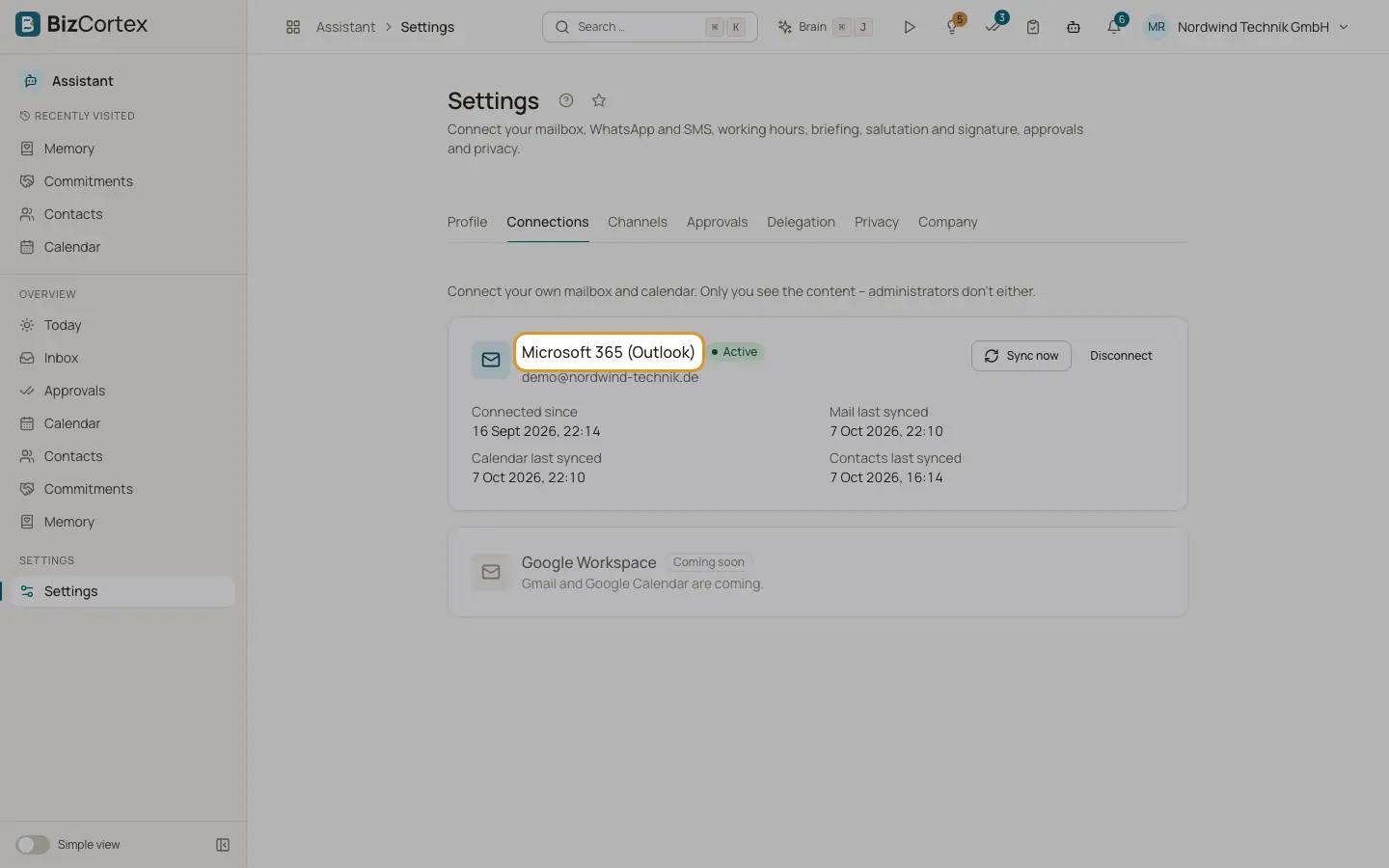
Connect, sync, reconnect or disconnect your Microsoft 365 mailbox and calendar.
Connect your own mailbox and calendar here. Only you see the content. Administrators do not either.
Who can use this
- Owner
- Admin
- Sales
- Accountant
Steps
1. Connect
Click "Connect" on Microsoft 365 (Outlook) and sign in with your own account.
2. Sync now
Click "Sync now" to fetch new mail, events and contacts right away. Syncing also runs automatically.
3. Reconnect
If the status is "Reconnect needed", the sign in expired or was revoked. Click "Reconnect".
4. Disconnect
Click "Disconnect" and confirm. The Assistant stops reading mail and events. Data already synced is kept until its retention period ends.
Fields and options
- Status
Setting up, Active, Syncing, IT approval needed, Reconnect needed, Error, Disconnected.
- Connected since, Mail last synced, Calendar last synced, Contacts last synced
Times of the last successful steps, or Never.
- Last error
The latest error message, if any.
- IT approval
Note for IT: a Global or Application Administrator opens the link and confirms consent on behalf of the organisation. Only delegated permissions are requested (read and send mail, calendar, contacts). Each person then connects only their own mailbox.
Good to know
- Google Workspace (Gmail and Google Calendar) is shown as "Coming soon". This is not available yet.
Related
- Getting started
Connect your mailbox, link your phone and tune your profile in a few minutes.