Today and the morning briefing
Your day at a glance: briefing, meetings, replies, commitments, hints and approvals.
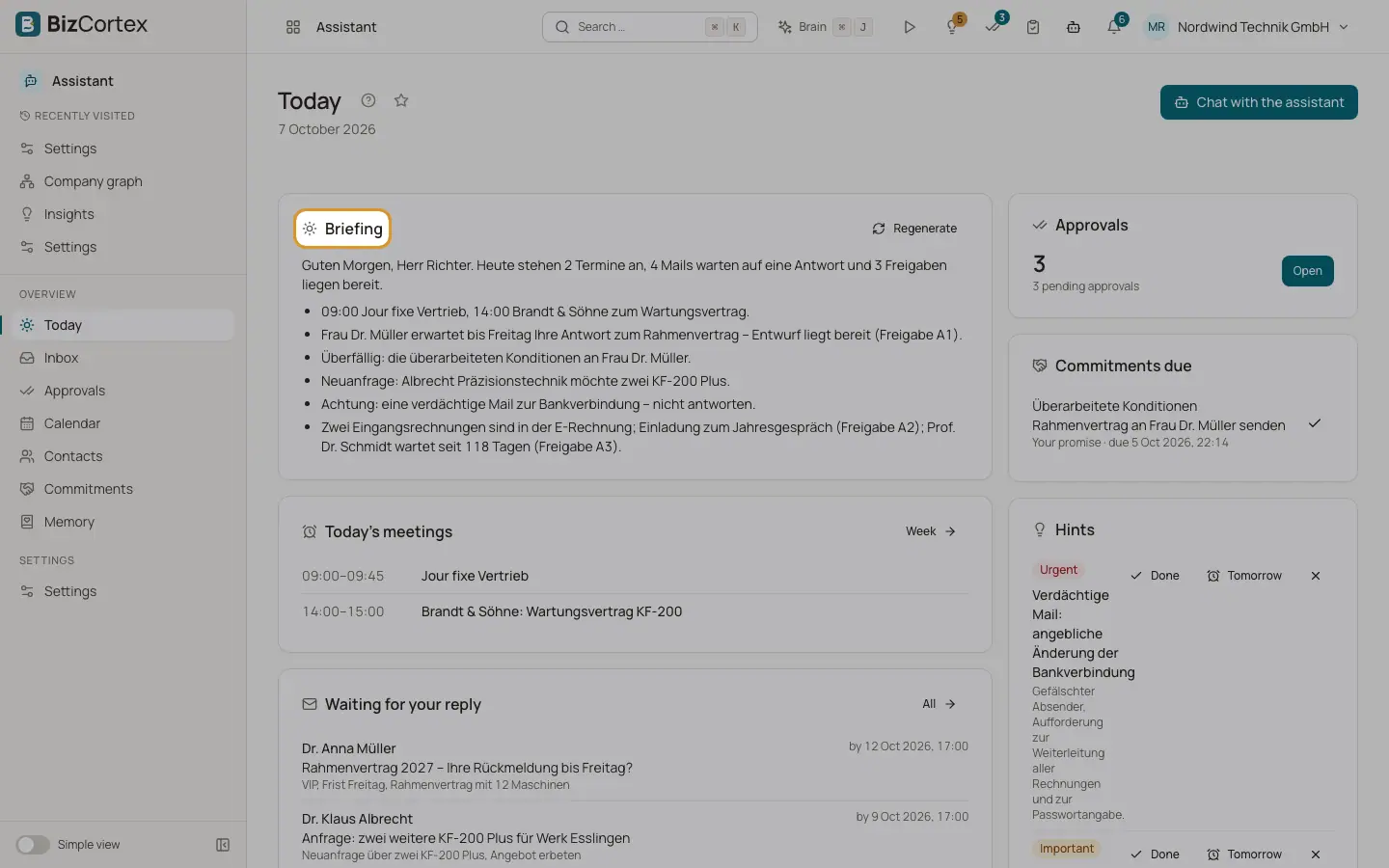
Today is the start page of the Assistant. It collects everything that needs you today in a few cards. The button "Chat with the assistant" at the top opens the chat panel.
The morning briefing is a short overview of your day. It is created automatically on working days at your chosen time. The facts in it (meetings, mails, approvals, commitments, contacts, Advisor insights) are taken from your data by code. The AI model only writes a short intro and one line per item, and every line is checked against the facts. If a line does not match, the plain template text is used instead.
Who can use this
- Owner
- Admin
- Sales
- Accountant
Steps
1. Read the briefing
The Briefing card shows today's briefing. If there is none yet, it says "There is no briefing for today yet." Click "Create briefing" to make one now. Click "Regenerate" to replace it with a fresh version.
2. Check your meetings
The card "Today's meetings" lists today's events with their issues (for example a conflict). Click "Week" to open the Calendar.
3. Answer waiting mail
The card "Waiting for your reply" lists mail that needs an answer, with the reply date when known. A shield icon marks suspicious mail. Click "All" to open the Inbox.
4. Handle commitments due
The card "Commitments due" shows promises due today, marked "Your promise" or "Owed to you". Click the check button ("Mark as done") to close one.
5. Work through hints
The card "Hints" shows what the Assistant noticed, with a severity of Info, Important or Urgent. Click "Done", "Tomorrow" to snooze it, or "Dismiss".
6. Open approvals
The Approvals card shows how many approvals are pending and how many of them are high risk. Click "Open" to go to Approvals.
Fields and options
- Briefing time
Default 07:30 in your time zone. Change it in Settings, Profile tab.
- Briefing content
Today's agenda and its calendar issues, the top 5 mails that need a reply, pending approvals, your own commitments due today or overdue, overdue promises owed to you, relationship hints (contacts gone cold, birthdays) and the top 3 Advisor insights.
- Briefing delivery
Always in the app. Optionally also by email, WhatsApp or SMS (Profile tab, "Send briefing via").
- Skip days
By default no briefing on weekends and on public holidays of your federal state.
Tips
- On WhatsApp or SMS, send the word "Briefing" to get today's briefing on your phone at any time.
- The compact Today widget on your BizCortex home page shows the same counts and links to this page.
Good to know
- There is one briefing per day. Regenerating replaces it.
- If the server misses the exact time, the briefing is still sent within 90 minutes.
- Advisor insights appear only if your company has booked the Brain package, and only those the Advisor feed would show you.
- Without an AI model, or when your daily AI limit is used up, the briefing uses plain template text.
Related
- Hints and reminders
Every check the Assistant runs on your data, and when it reminds you.
- Settings: Profile
Working hours, meeting free times, briefing, quiet hours, salutation, signature and writing style.
- Chatting with the Assistant
Ask questions and give instructions in the app, on WhatsApp or by SMS.