Calendar
Your Outlook week with conflicts, invitations, suggested answers and meeting preparation.
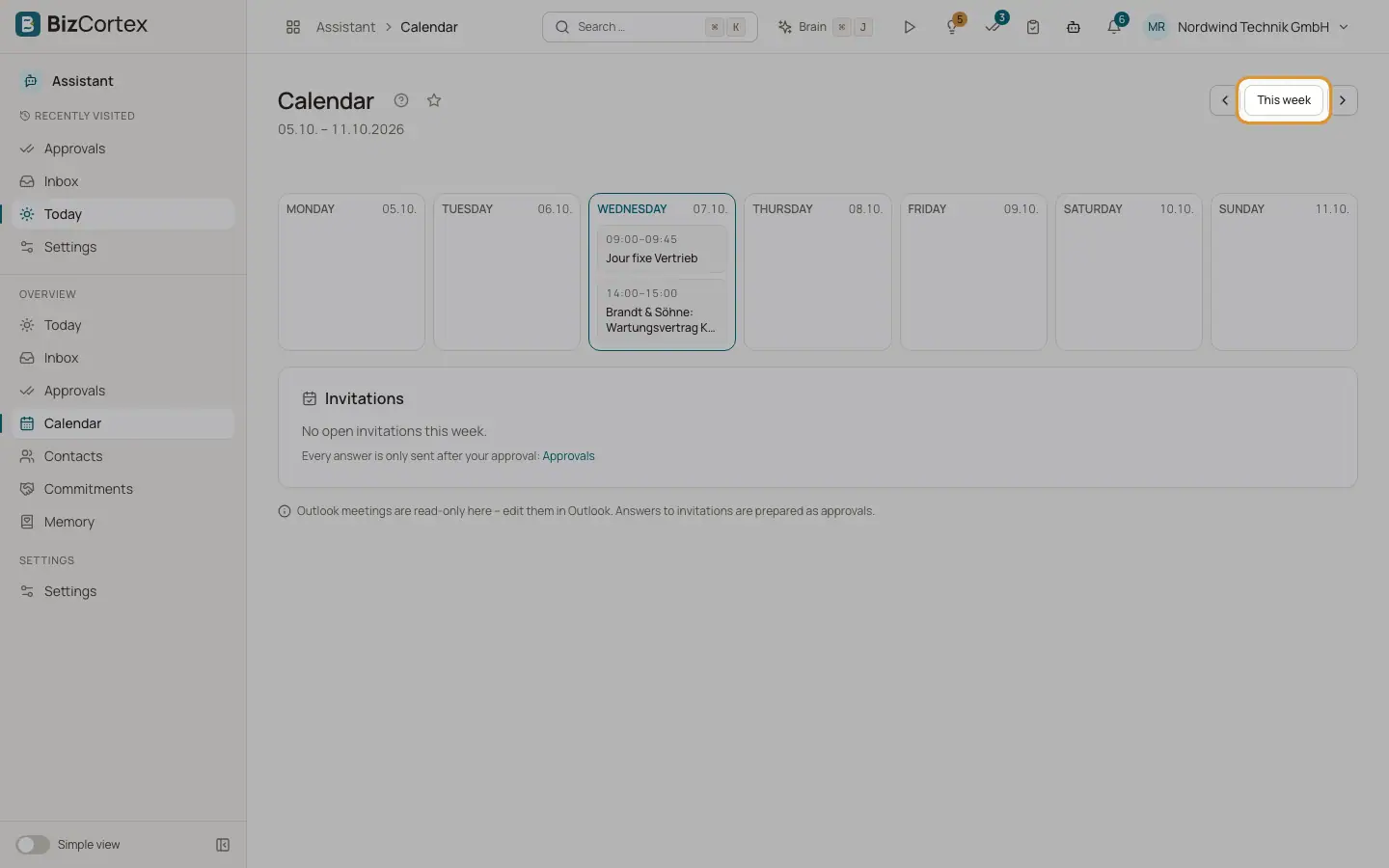
The Calendar shows your Outlook week. Each meeting can carry issue badges. A list of open invitations shows a recommended answer, and each answer becomes an approval.
Meetings from Outlook are read only here. Edit them in Outlook.
Who can use this
- Owner
- Admin
- Sales
- Accountant
Steps
1. Move between weeks
Use "Previous week", "Next week" and "This week".
2. Open a meeting
Click a meeting to see the organiser ("Organised by"), the attendees, "Join online" for online meetings, and the Preparation section.
3. Answer an invitation
In "Invitations", each open invitation shows "Recommended: Accept", "Tentative" or "Decline" and whether it overlaps. Click an answer. The message "Draft A7 is waiting in approvals" appears. Click "Review" to approve it.
Fields and options
- Conflict
The meeting overlaps another one.
- Holiday
The meeting falls on a public holiday of your federal state.
- Outside working hours
The meeting is outside the working hours in your profile.
- No meeting time
The meeting falls in one of your meeting free times.
- No buffer
There is less than your buffer between this and the next meeting.
- Unanswered
You have not answered the invitation yet.
- Preparation
For external meetings, a brief is prepared 45 minutes before the start: the meeting, the external attendees from your contacts, recent CRM entries of the linked lead, open quotes and invoices of the customer (if you may see them), the last three mails, open commitments and what the Assistant remembers about these people.
Good to know
- The preparation brief is also sent to your linked phone, outside quiet hours.
- Suggested meeting times respect your working hours, meeting free times, buffer and public holidays.
Related
- Settings: Profile
Working hours, meeting free times, briefing, quiet hours, salutation, signature and writing style.
- Approvals
Review, edit, approve or reject everything the Assistant wants to send.