Getting started
Connect your mailbox, link your phone and tune your profile in a few minutes.
Before the Assistant can help, it needs access to your mailbox and calendar. Until then, Today shows the message "Mailbox not connected" with a "Connect now" link, and the Inbox shows a "Connect Microsoft 365" button.
An administrator must also have the Assistant switched on for the company (Settings, Company tab, "Assistant active").
Who can use this
- Owner
- Admin
- Sales
- Accountant
Steps
1. Connect Microsoft 365
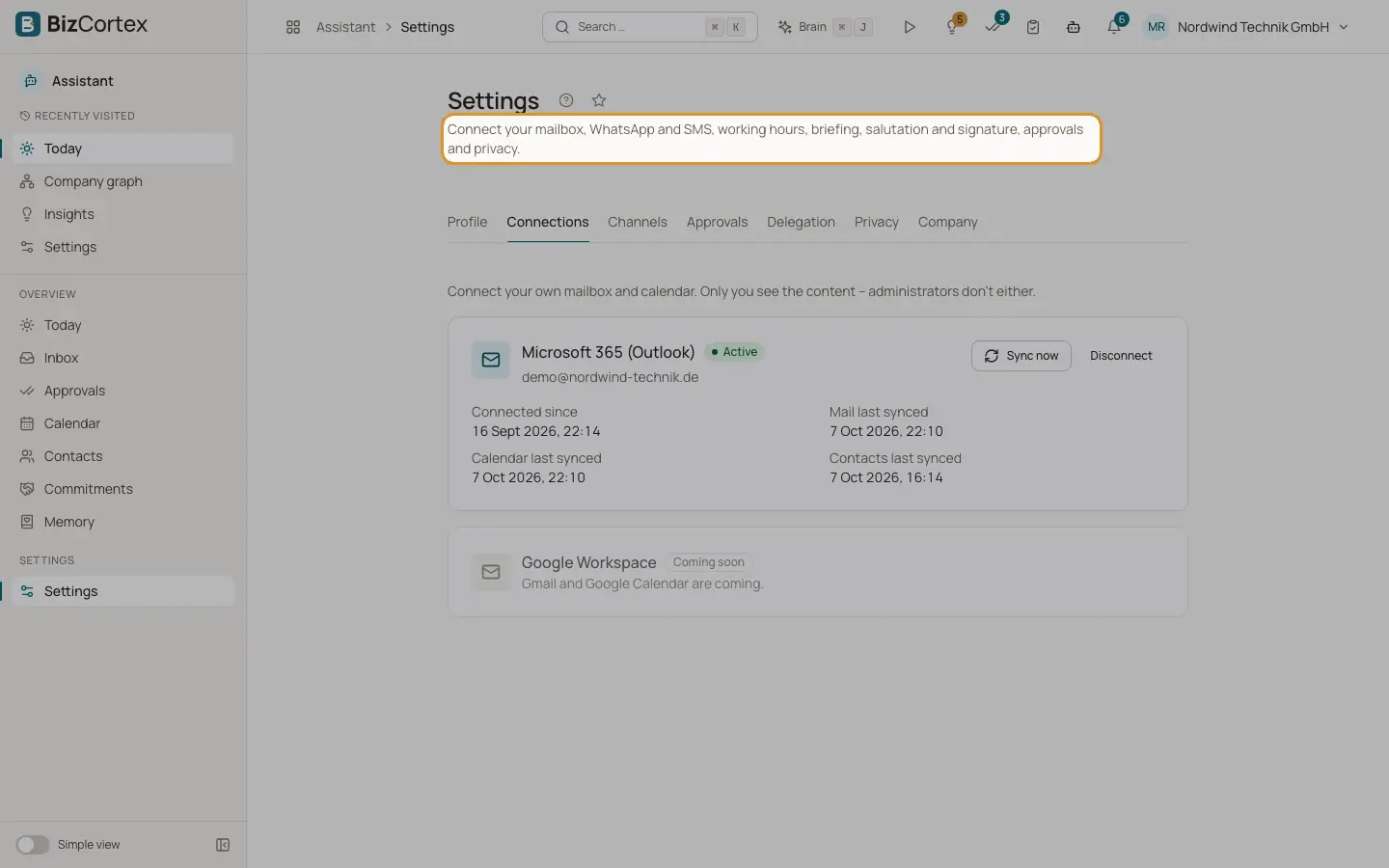
Open Assistant, Settings, Connections tab. Click "Connect" on the Microsoft 365 (Outlook) card. Sign in to Microsoft with your own email address and accept the requested permissions. You return to BizCortex and see the message "Microsoft 365 is connected. The first sync is running."
2. If your IT must approve first
Some organisations do not let members grant apps access themselves. The card then shows "IT approval needed" with an approval link. Click "Copy link" or "Open approval link" and send it to your IT. After your IT has approved once, click "Connect" again.
3. Wait for the first sync
The Assistant reads your recent mail, your calendar and your Outlook contacts. New mail is then sorted automatically. You can see the time of the last sync for mail, calendar and contacts on the Connections tab.
4. Fill in your profile
On the Profile tab, check your working hours, choose your federal state for public holidays, set the briefing time and your default form of address (Sie or du). Click "Save".
5. Link WhatsApp or SMS (optional)
On the Channels tab, click "Link WhatsApp" or "Link SMS" and follow the code steps. These options appear only if your administrator allows the channel.
6. Grant a delegation (optional)
On the Delegation tab you can allow the Assistant to look things up in BizCortex for you, for example open invoices or tasks. This needs a role that is allowed to delegate.
Good to know
- The mailbox you connect must belong to your own BizCortex account. Signing in with another address shows "This mailbox does not belong to your account."
- A mailbox can be connected to only one member. Otherwise you see "This mailbox is already connected to another member's assistant."
Related
- Settings: Connections
Connect, sync, reconnect or disconnect your Microsoft 365 mailbox and calendar.
- Settings: Profile
Working hours, meeting free times, briefing, quiet hours, salutation, signature and writing style.
- Settings: Channels
Link WhatsApp or SMS for briefings, reminders and approvals on your phone.