Contacts
The people you correspond with: salutation, form of address, relationship and timeline.
Contacts are collected from your mail, meetings, Outlook and the CRM once your mailbox is connected. The same person found in several places is merged by email address and phone number.
The list shows Name, Relationship, Last contact, Contact goal and Form of address. Use "Search contacts" and the filters "VIP only" and "Gone cold".
Who can use this
- Owner
- Admin
- Sales
- Accountant
Steps
1. Open a contact
Click a contact. The detail page shows contact details, relationship, the timeline, open commitments and "What the assistant knows".
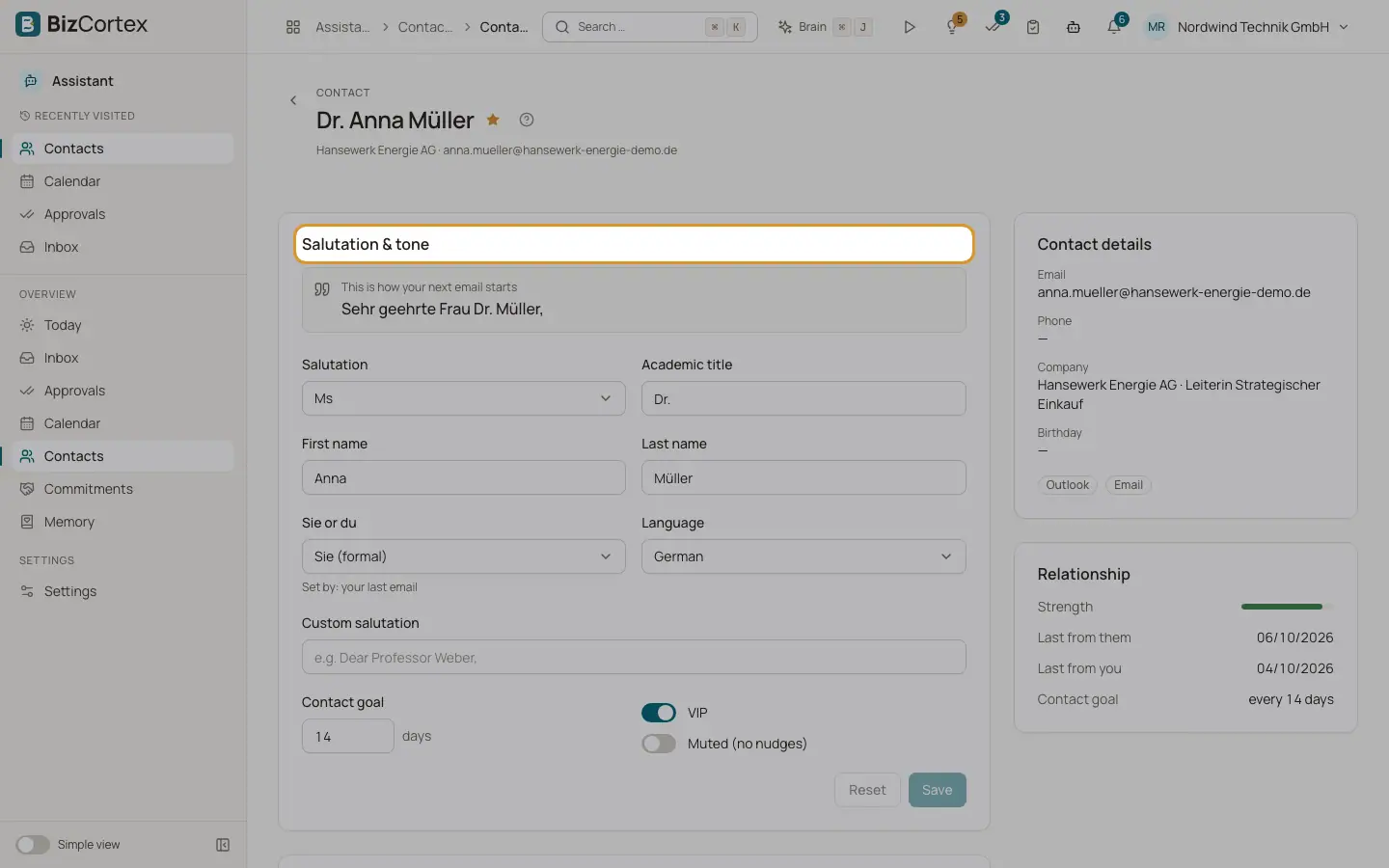
2. Set salutation and tone
Under "Salutation & tone", set Salutation (Ms, Mr, Diverse or Unknown), Academic title, First name, Last name, "Sie or du" (or Automatic), Language and an optional Custom salutation. The preview "This is how your next email starts" updates as you type. Click "Save" or "Reset".
3. Set a contact goal
Enter how often you want to be in touch, in days (1 to 730). The contact is "Gone cold" after 1.5 times this period without contact.
4. Mark as VIP or mute
Switch on VIP for important people. Switch on "Muted (no nudges)" to stop hints about this contact.
Fields and options
- Relationship strength
A percentage from 0 to 100. It grows with mail in and out, meetings and calls and fades over time (half life 45 days). It is lower when only one side writes.
- Contact goal
Your own number of days. Without one, VIPs get 30 days and strong contacts 60 days.
- Form of address source
Shows why Sie or du was chosen: your setting, your last email, CRM, their greeting, or default.
- Salutation rules
Only the academic titles Dr. and Prof. are used. With an unknown or diverse gender the greeting uses first and last name. A custom salutation wins over everything.
- Timeline
Email received, Email sent, Meeting, Call, WhatsApp, SMS, Note.
- Links
CRM lead, Customer contact or Internal, if the contact is linked.
- Sources
Outlook, Email, Calendar, CRM, Lead, Customer, Manual.
- Last from them / Last from you
The last message in each direction.
Related
- Commitments
What you promised and what others owe you, with due dates and evidence.
- Memory
What the Assistant remembers about your preferences and routines, and how to correct it.
- Hints and reminders
Every check the Assistant runs on your data, and when it reminds you.