Expenses
Record and post receipts, travel costs and out of pocket expenses.
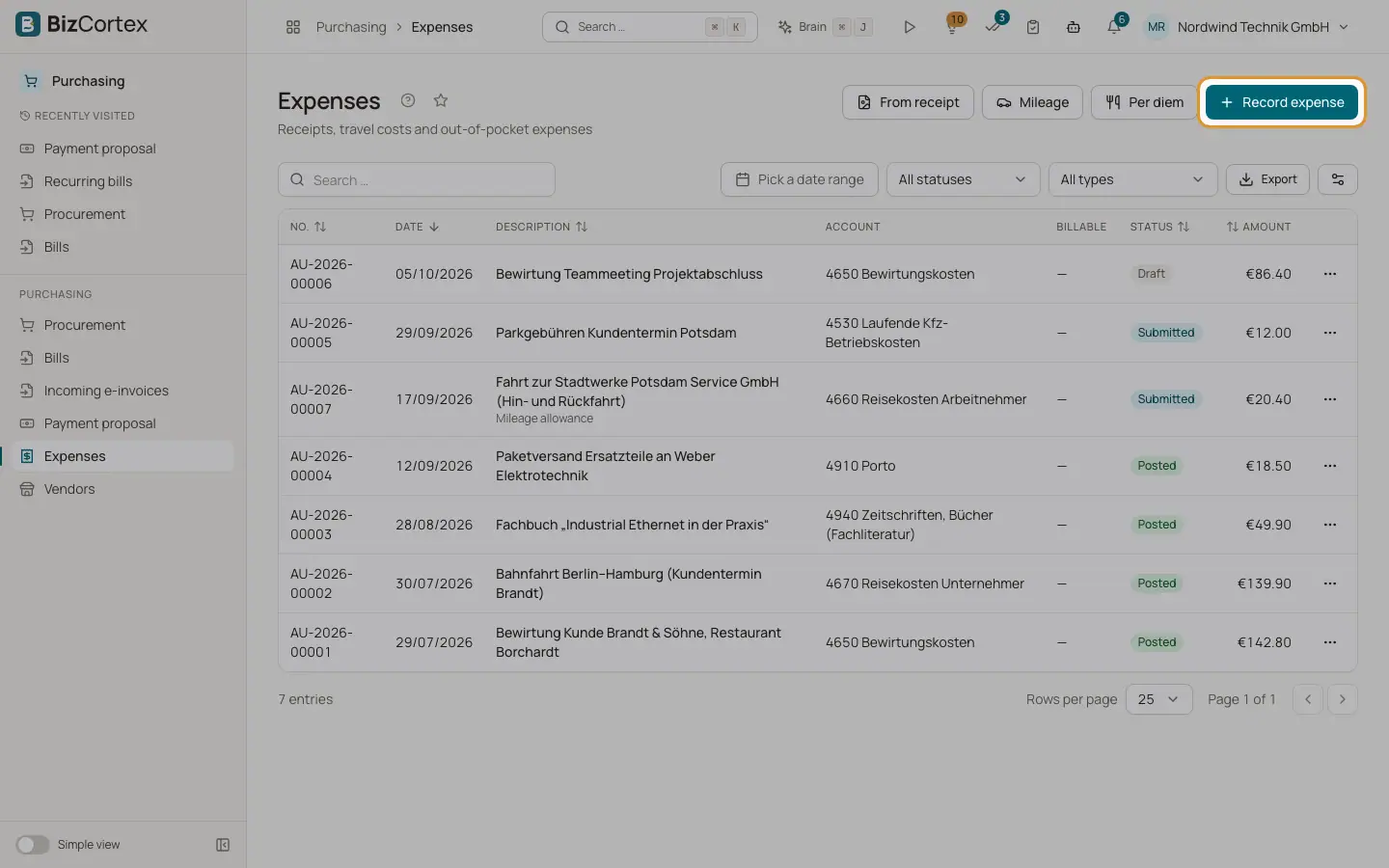
Purchasing, Expenses lists company expenses with number (AU, year and counter), date, description, account, billable status, status and amount. Statuses are Draft, Submitted, Posted and Rejected. Use this for receipts paid by the company or by a person. For employee expense claims with manager approval use Travel and expenses in the People app.
Who can use this
- Owner
- Admin
- Accountant
- Purchase (record, not approve)
Steps
1. Record an expense
Click "Record expense". Enter date, amount (gross), tax code (No input VAT, 19 % or 7 % input VAT), description, expense account, vendor, "Paid through" (Bank, Cash or Private reimbursement), a different contra account, cost center and category. The preview shows net and input VAT.
2. Billable expenses
Turn on Billable and choose the customer to charge the expense to a customer later. Billable expenses can be added to a customer invoice in Sales and are then marked Invoiced.
3. From a receipt
Click "From receipt" and choose a processed receipt from the Receipts module. BizCortex creates a draft with merchant, date, amount and input VAT and matches the vendor by name.
4. Upload a receipt
Use "Upload receipt" in the row menu. Images or PDF up to 25 MB.
5. Submit, approve, reject
Click Submit, then "Approve and post" or Reject with a reason. Approving posts the expense: expense and input VAT against bank, cash or the reimbursement liability.
6. Filter
Filter by date range, status ("All statuses") and type ("All types": Receipt, Mileage allowance, Per diem).
Good to know
- Posted expenses cannot be deleted or reversed yet.
- Uploaded receipts cannot be viewed from the expenses list yet.
- Only one expense can be created from each receipt.
Related
- Mileage allowance and per diem
Calculate travel allowances as expenses without receipts.
- Expense categories
Group expenses for reporting.