Purchasing at a glance
What the Purchasing app contains, how the documents connect and who may use them.
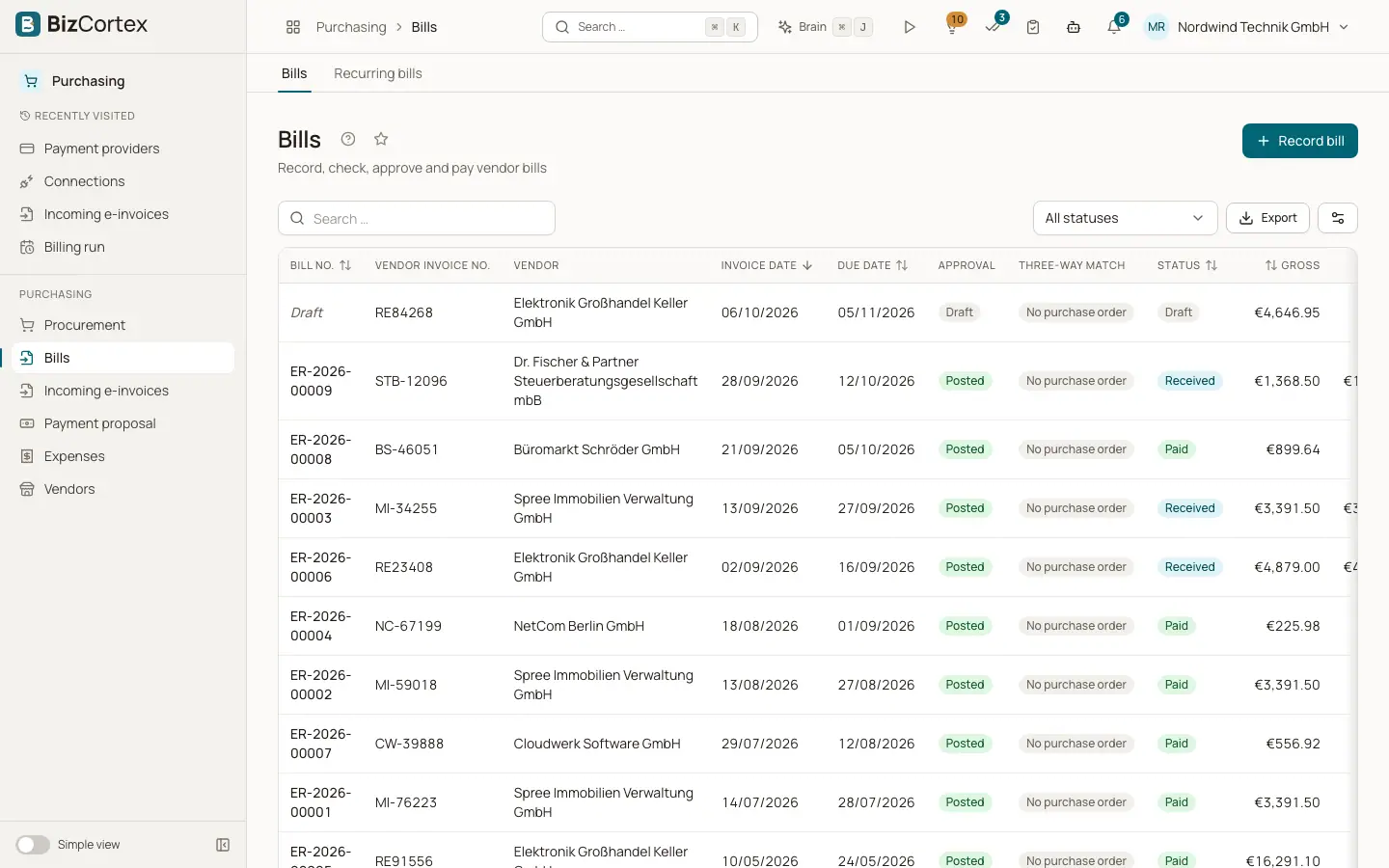
Open the app launcher and choose Purchasing. The sidebar shows Procurement (Requisitions, RFQs, Purchase orders), Bills (Bills, Recurring bills), Payment proposal, Incoming electronic invoices, Expenses, Vendors, Expense categories and Supplier portal. Purchasing settings are in the Settings section. Items marked as advanced appear only when advanced navigation is turned on, but you can always reach them through search.
The Purchasing package contains Purchasing and the Supplier portal. It is part of the Starter, Pro and Enterprise bundles.
The typical flow is: an employee reports a need (requisition), you ask several vendors for quotes (RFQ), you award the best quote and place a purchase order, you record the goods receipt, you record the vendor bill, BizCortex checks it against order and receipt (three way match), you approve and post the bill and finally pay it.
Who can use this
- Owner
- Admin
- Accountant
- Purchase (without approvals)
- Viewer (read only)
Fields and options
- Owner and Admin
Everything.
- Accountant
All purchasing functions including approvals, posting and recording payments.
- Purchase
All purchasing functions except approvals. Cannot approve requisitions, bills or expenses and cannot record or reverse bill payments.
- Viewer
Reads everything, changes nothing.
Tips
- Every list has a search field, a column chooser, pagination with 25 rows and an Export menu with CSV and Excel (XLSX).
- Vendors, requisitions, RFQs, purchase orders and bills have an activity panel with the tabs Comments, Attachments and History. Attachments can be up to 25 MB.
Good to know
- BizCortex does not enforce that two different people create and approve the same bill or expense. Use roles or an approval workflow for separation of duties.
Related
- Vendors
Keep the master data of your suppliers and service providers.
- Purchase orders
Create, place, track and close orders to vendors.
- Bills (incoming invoices)
Record vendor invoices and follow their status.