Customer portal: what customers see
The pages and actions available to your customers in the portal.
The portal shows your company name and the navigation Overview, Invoices, Quotes, Payments, Statement and Billing address. Customers only see documents of their own company, never drafts.
Who can use this
- Customer contacts with portal access
Steps
1. Sign in
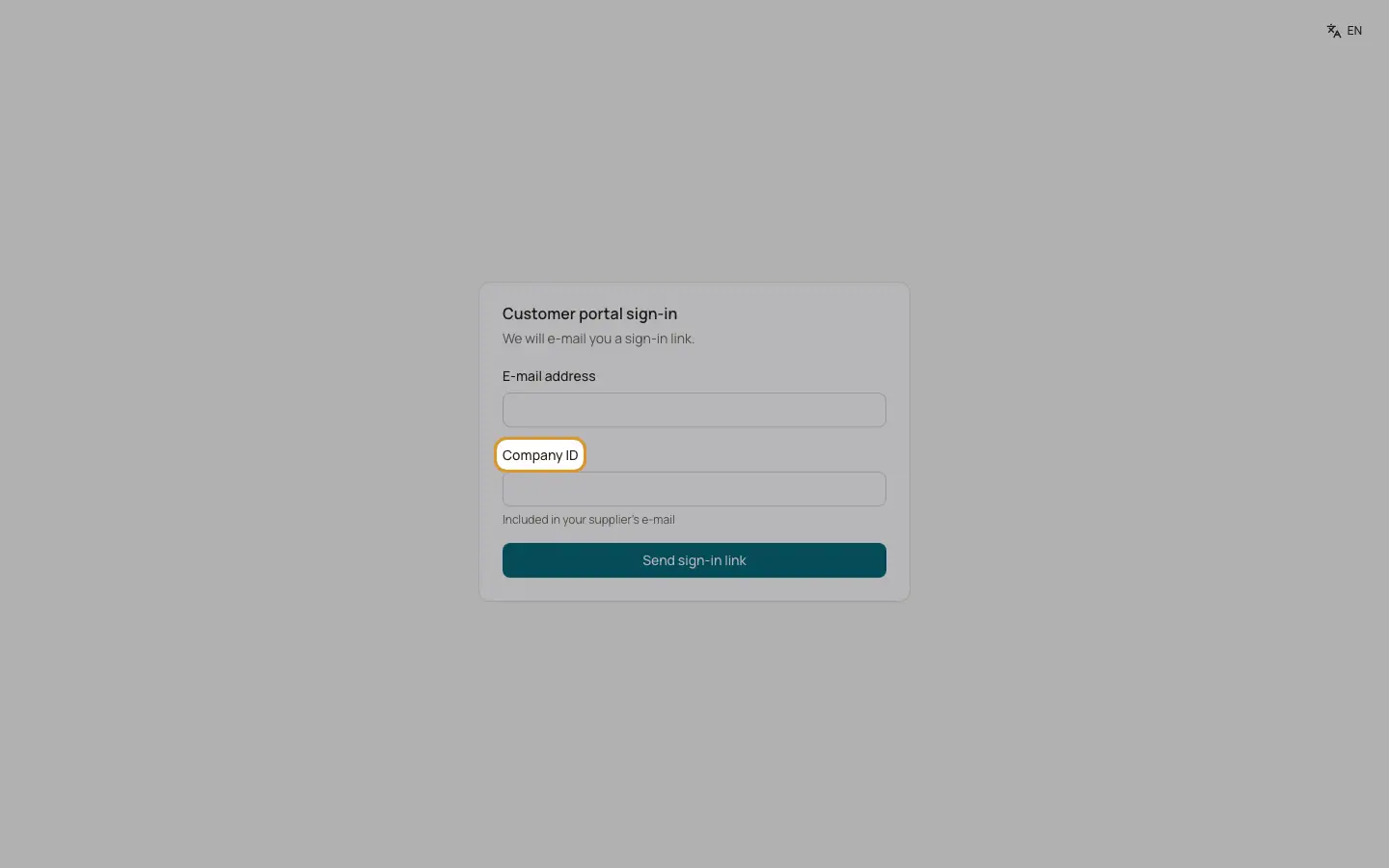
On the sign in page the customer enters their email address and the Company ID (included in your email; links from BizCortex fill it in). They click "Send sign in link" and open the link in the email.
2. Overview
Shows the amount due, the number of open invoices with how many are overdue, the credit balance, the open invoices with due dates and the latest quotes.
3. Invoices
Lists issued invoices and credit notes with number, type, date, due date, open amount and status. The invoice page shows the totals, paid and open amounts, the Pay online card, the items and the PDF with "Download PDF".
4. Quotes
Lists sent quotes. A sent, valid quote can be accepted ("Accept quote", enter "Your name", "Accept (binding)") or declined with an optional reason.
5. Payments
Shows payments and refunds with date, type, method, reference and amount.
6. Statement
Choose a period to see the opening balance, closing balance, credit balance, all entries with running balance, and the statement PDF.
7. Billing address
The customer can change company or name, addition, street, postal code, city and country (two letter code). The new address is printed on future invoices.
8. Log out
The Log out button ends the session.
Good to know
- For privacy the sign in page always shows the same message, whether or not the address is enabled.
- Opening an invoice in the portal sets it to Viewed.
- If no payment provider is active, the portal says "Online payment is currently not available."
Related
- Customer portal
What customers see and do in the portal: invoices, quotes, payments, statement and billing address.
- Customer portal: giving access
Invite customer contacts to the self service portal.
- Payment links and online payments
How customers pay online and how the payment is booked automatically.