Recording customer payments
Post money received, allocate it to invoices, grant cash discounts and keep the rest as credit.
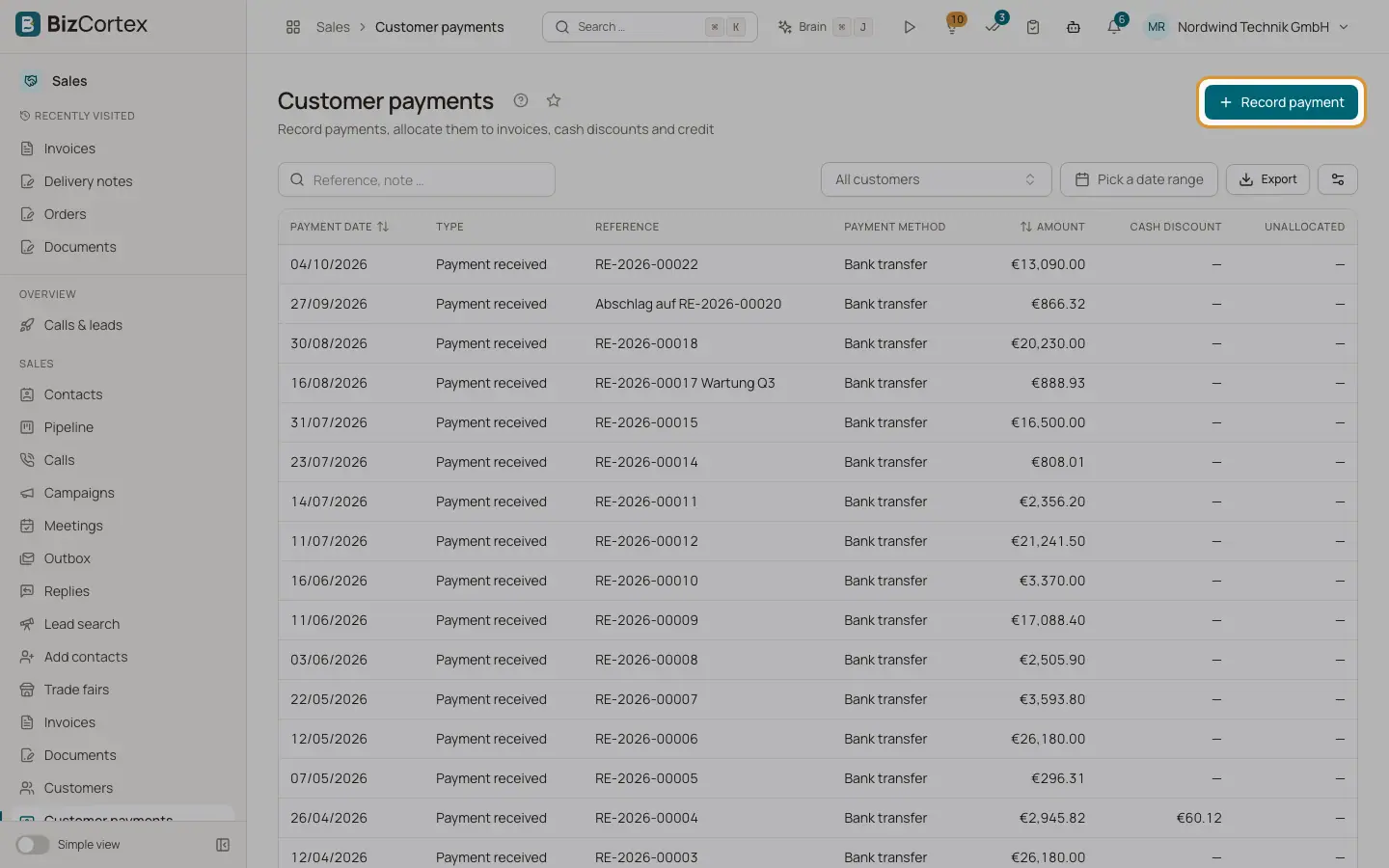
Open Sales, Customer payments. The list shows payment date, type (Payment received or Refund, with a Reversed badge), reference, payment method, amount, cash discount and unallocated amount. Filter by customer and search by reference or note.
One payment can settle several invoices. Anything not allocated is booked as customer credit. The posting is created automatically: bank to receivables, plus a cash discount posting with the VAT correction.
Who can use this
- Owner
- Admin
- Accountant
- Sales
- Viewer (read only)
Steps
1. Open the dialog
Click "Record payment" here, on an invoice, on the customer page or in the invoice list row menu. From an invoice, the amount and allocation are prefilled with the open amount minus an available cash discount.
2. Enter the payment
Choose the customer, enter the amount, payment date, payment method, the bank or cash account (empty = Default bank account) and a reference.
3. Allocate
The open invoices of the customer are listed by due date with open amount and available cash discount. Enter the amount and cash discount per invoice, or click "Allocate automatically".
4. Check the sums
Below the table you see Allocated, Total cash discount and Unallocated (booked as customer credit).
5. Post
Click "Post payment".
Fields and options
- Payment method
Bank transfer, Cash, Credit card, PayPal, Stripe, Other.
- Payment detail page
Customer, method, reference, allocated, total cash discount, unallocated, payment provider with transaction, the journal entry and notes, plus the allocations with invoice, kind (Payment or Credit applied), amount, discount and status.
- Reverse
On the payment page. Enter a reversal date and a reason (for example a returned direct debit). The posting is reversed, the invoices become open again and the credit from this payment is removed.
Good to know
- The allocation must not exceed the payment, and payment plus discount must not exceed the open amount of an invoice.
- A payment must be in the currency of the invoices it settles. For foreign currencies the exchange difference is posted as gain or loss.
- Reversing needs the Sales payment approve permission. A payment whose overpayment credit was already used cannot be reversed until that use is undone.
- Online payments from Stripe and PayPal are recorded here automatically.
Related
- Reconciling bank transactions
Match each bank line with an invoice, a bill, a journal entry or an account, using scored suggestions.
- Customer credit
Use or refund credit from overpayments and credit notes.
- Payment terms
Define due dates and cash discounts for invoices.
- Payment links and online payments
How customers pay online and how the payment is booked automatically.