Contacts and addresses
Add contact persons and separate billing and shipping addresses to a customer.
A customer can have many contacts and many addresses. Documents take a snapshot of the default billing and shipping address when they are created, so a later change does not alter documents that already exist.
Who can use this
- Owner
- Admin
- Accountant
- Sales
Steps
1. Add a contact
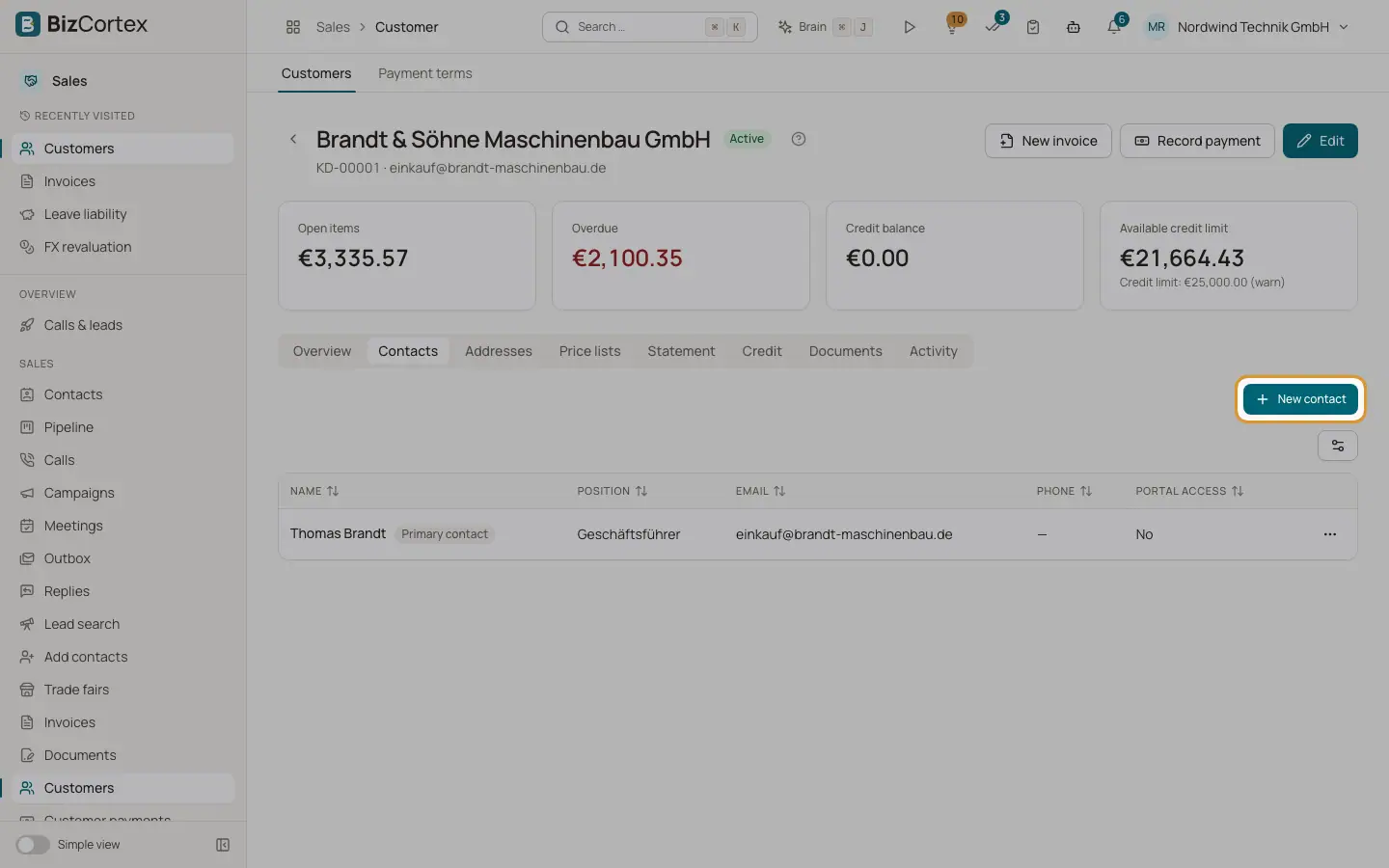
On the customer page, open the Contacts tab and click "New contact". Enter at least the last name.
2. Choose the primary contact
Switch on "Primary contact". Only one contact can be primary; the previous one loses the flag.
3. Give portal access
Switch on "Portal access" or use "Invite to the customer portal" in the row menu. The invitation sets portal access and emails a sign in link. The contact needs an email address.
4. Add an address
Open the Addresses tab and click "New address". Choose Billing address or Shipping address, fill in street, postal code, city and the two letter country code, and switch on "Default address of this type" if documents should use it.
Fields and options
- Salutation, First name, Last name
Last name is required.
- Email, Phone, Mobile
Contact channels. The email is used when you pick this contact on a document.
- Position, Department
Shown in the list for orientation.
- Receives invoices
Marks contacts that should get invoices.
- Portal access
Allows this contact to sign in to the customer portal.
- Recipient / company, Department / c/o
The first two lines of an address.
- Street, Address line 2, Postal code, City, State / region, Country
Street, postal code and city are required. Country is a two letter code such as DE.
Tips
- When you pick a contact on a quote or invoice, emails go to that contact first, then to the customer email.
Related
- Customer portal: giving access
Invite customer contacts to the self service portal.
- The customer page
Key figures, tabs and quick actions for one customer.