Email templates and email log
Customize the emails for each document type and check what was sent.
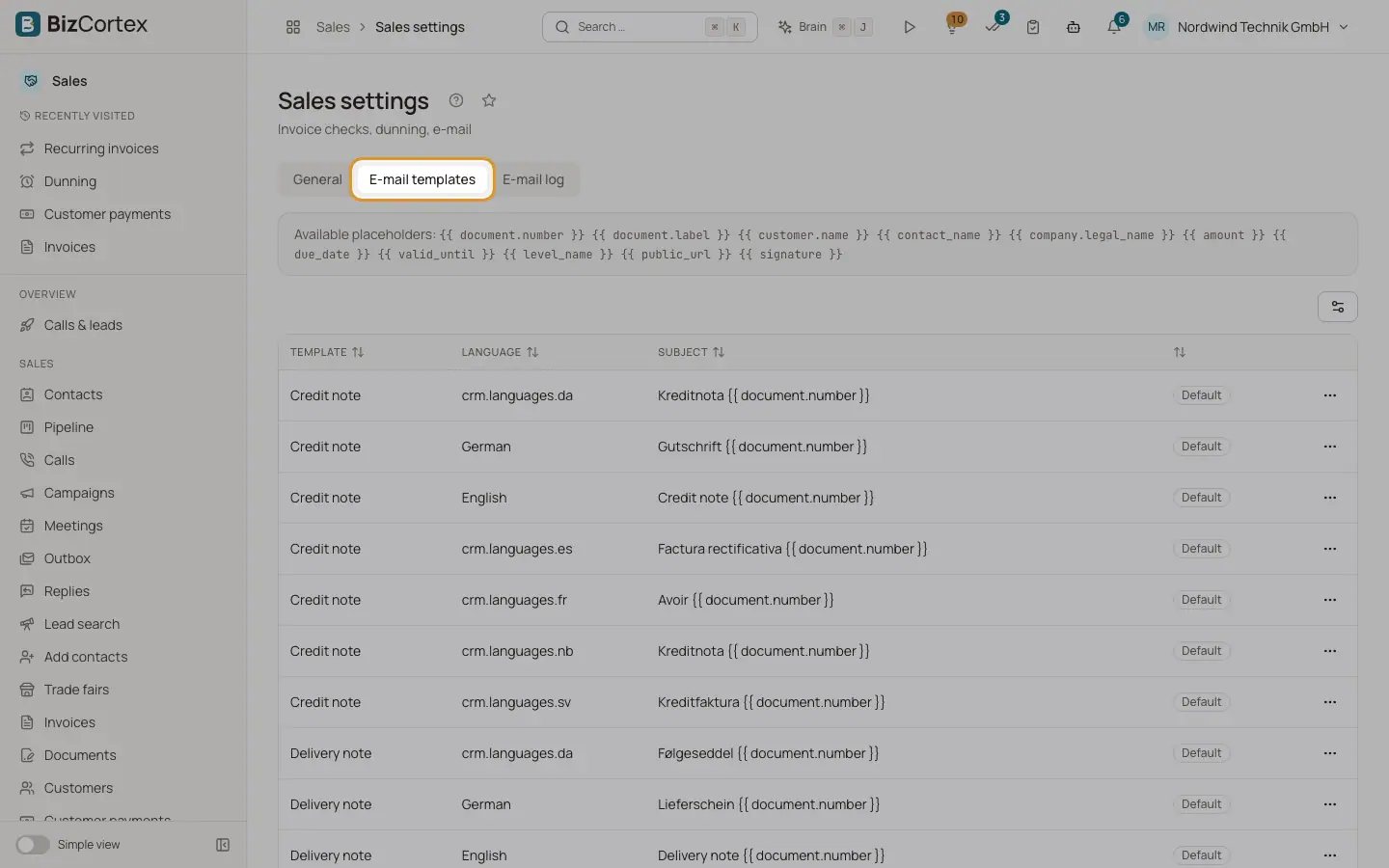
In Sales settings, open the Email templates tab. There is one template per key and language: Invoice, Credit note, Quote, Order confirmation, Delivery note, Dunning notice, Statement and Customer portal link, each in German and English. The badge shows Default or Customized.
Who can use this
- Owner
- Admin
- Accountant
- Sales
Steps
1. Edit a template
Use the row menu, Edit. Change Subject and Text and save. The template becomes Customized.
2. Use placeholders
Placeholders are listed above the table, for example {{ document.number }}, {{ document.label }}, {{ customer.name }}, the amount, due date, validity date and the public link.
3. Reset
Use "Reset to default" and confirm. The customized template is deleted and the default text applies again.
Fields and options
- Email log tab
Every document email with date, document type (Invoice, Document, Customer, Dunning notice, Statement), recipient, subject, attachments and status (Queued, Sent, Failed). Needs the Sales invoice read permission.
Good to know
- A template with a syntax error in a placeholder cannot be saved.
Related
- Sending documents by email
Email quotes, orders, delivery notes and invoices with PDF, electronic invoice and public link.
- Sales settings
Every setting that controls invoices, dunning, fees, links and email delivery.