Payment links and online payments
How customers pay online and how the payment is booked automatically.
Customers pay online from the public invoice link in your email or from the invoice in the customer portal. They click "Pay with Card (Stripe)" or "Pay with PayPal", pay the open amount at the provider and come back to a thank you message. The provider then notifies BizCortex, which records a customer payment, posts it and updates the invoice.
Who can use this
- Owner
- Admin
- Accountant
- Sales
- Viewer (read only)
Steps
1. Customer opens the invoice
The Pay online card shows the amount due and one button per active provider.
2. Customer pays
A payment link for the current open amount is created and the customer is sent to the provider.
3. Payment is booked
After the provider confirms, a customer payment is recorded and allocated to the invoice. It appears in Customer payments with the provider and transaction.
4. Check the links
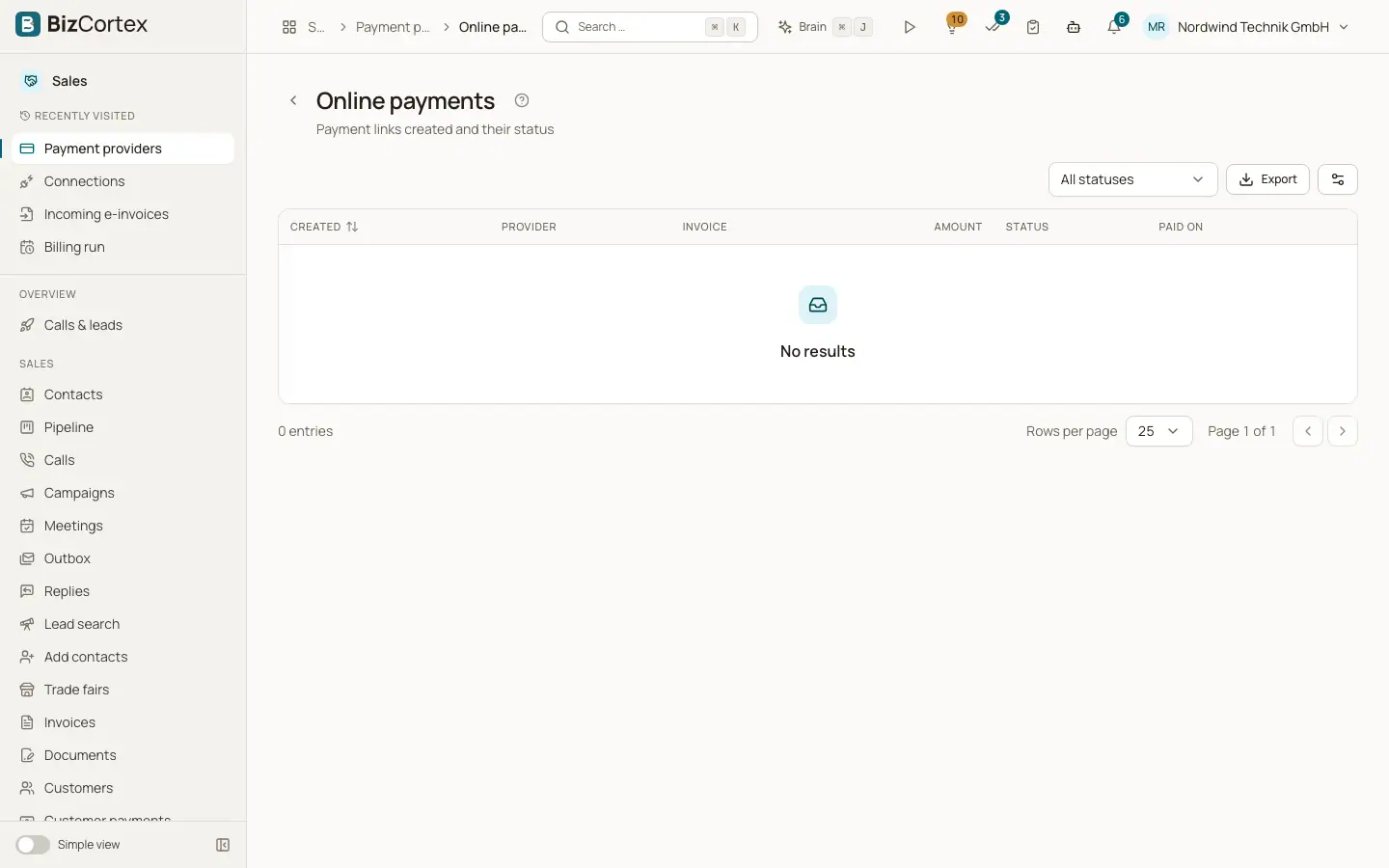
On the Payment providers page, click Online payments. The list shows creation date, provider, invoice, amount, status (Open, Paid, Expired, Failed), paid on and the link. Filter by status.
Good to know
- A payment link cannot be created for a draft, a cancelled invoice or an invoice with nothing open.
- Each provider event is processed once, so a repeated notification never books a payment twice.
- Staff cannot create a payment link from the invoice page yet. Links are created when the customer clicks Pay.
Related
- Connecting Stripe or PayPal
Let customers pay invoices online by card or PayPal.
- Public document links
What customers see when they open the link in a document email.
- Customer portal: what customers see
The pages and actions available to your customers in the portal.