Recurring invoices
Create invoices automatically at a fixed interval.
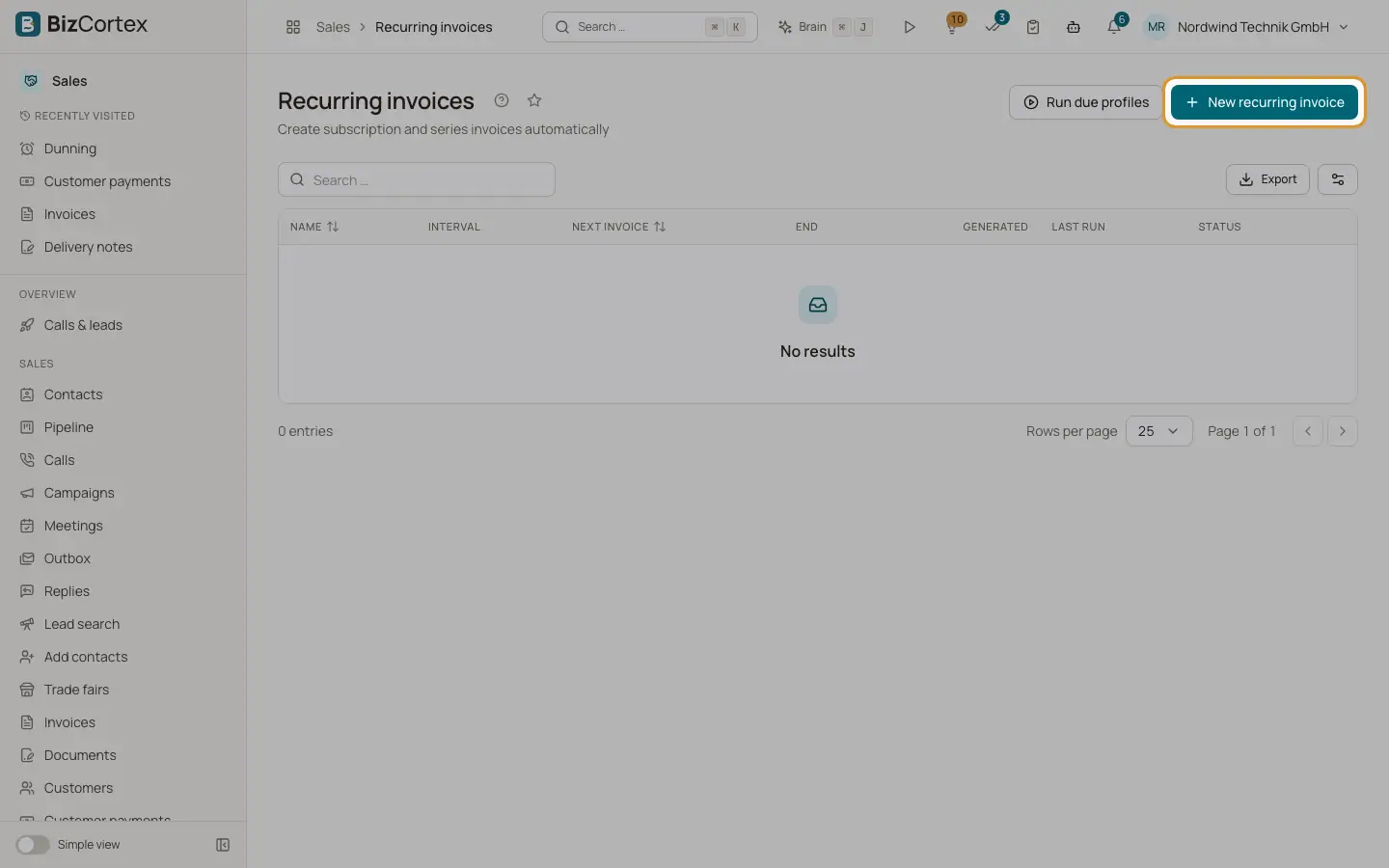
Open Sales, Recurring invoices. A recurring profile creates one invoice per interval for one customer. The list shows name, interval, next invoice, end, number generated, last run (or the last error) and status (Active, Paused, Ended). A background job runs every morning at 5:00 and creates all due invoices.
Who can use this
- Owner
- Admin
- Accountant
- Sales
- Viewer (read only)
Steps
1. Create a profile
Click "New recurring invoice". Enter a name, the customer, interval, "Every n intervals" and Start.
2. Set the limits
Optionally set End or "Max. count". Set "Due in (days)" (default 14).
3. Choose automation
Switch on "Finalize automatically" to issue and post each invoice, and "Send by email automatically" to email it. With finalize off, drafts are created for you to check.
4. Add lines
Enter the line items, gross prices switch, Discount, Notes and Payment terms. Save.
5. Run or pause
Use the row menu: Run now (issues the next invoice immediately), Pause, Resume, Edit, Delete. "Run due profiles" at the top creates all due invoices now.
Fields and options
- Interval
weekly, monthly, quarterly, half yearly, yearly.
- Next invoice
The date of the next invoice. Each invoice has this date as invoice date and covers the period until the day before the following date.
- Customer, Start, Currency
Cannot be changed after creation.
Good to know
- Monthly intervals keep the start day. A profile starting on the 31st uses the last day of shorter months.
- Missed periods are caught up, at most 24 invoices per profile per run.
- A profile ends automatically when the end date or the maximum count is reached.
- Deleting a profile keeps the invoices it created.
- Run now works only for active profiles.
Related
- Subscriptions and usage billing
How plans, subscriptions, usage, coupons and wallets turn into invoices.
- Finalizing an invoice
Check the mandatory details, finalize, and understand why an issued invoice is locked.