Subscriptions: create, change and cancel
Subscribe customers, change plans with proration and cancel.
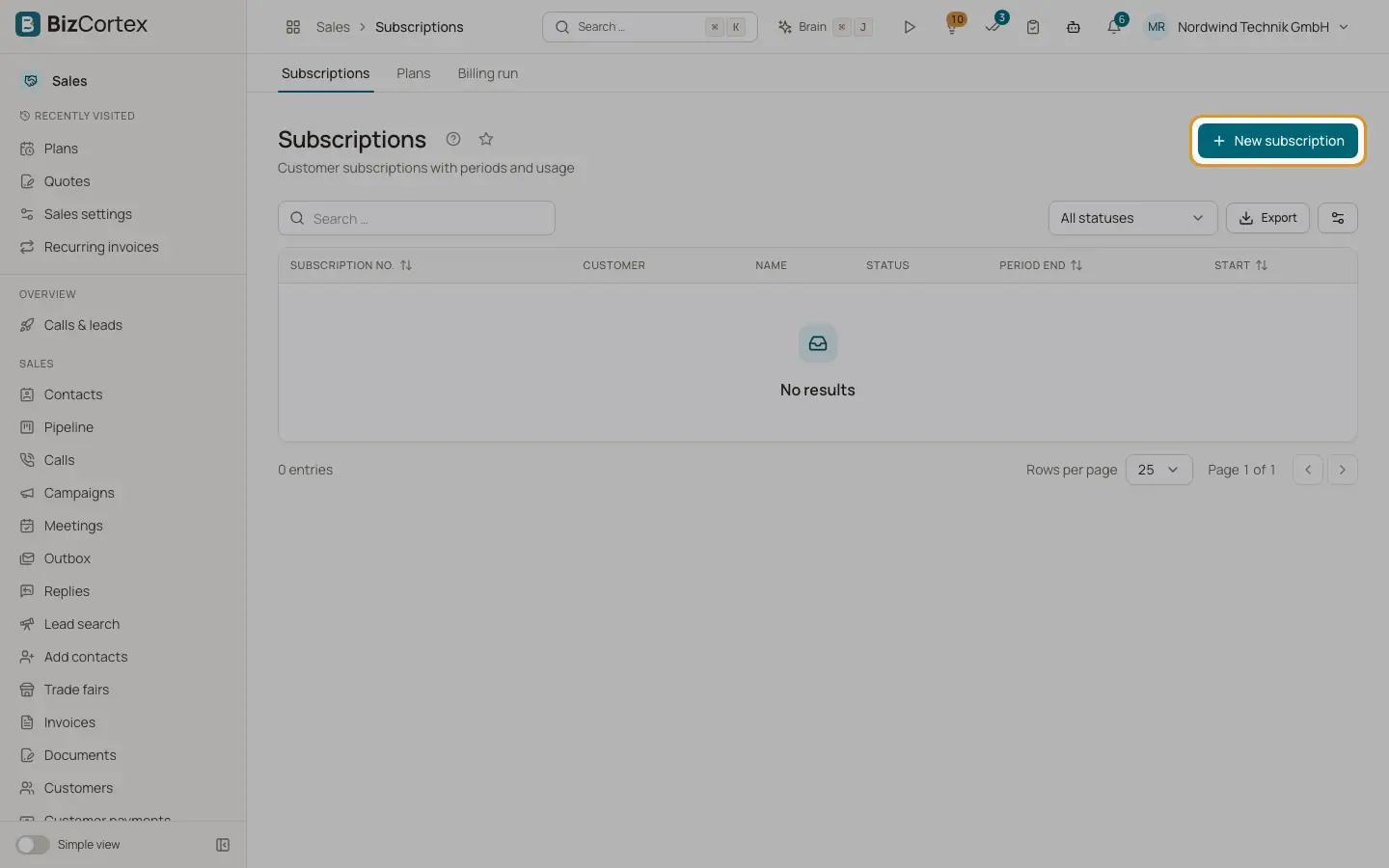
Open Sales, Subscriptions. The list shows subscription number, customer, name, plan, status (Scheduled, Active, Canceled, Terminated), start and period end. Filter by status.
Who can use this
- Owner
- Admin
- Accountant
- Sales
- Viewer (read only)
Steps
1. Create
Click "New subscription". Choose the customer and plan, the start date, and optionally a "Subscription no." (empty = next number) and a name. A start in the future creates a Scheduled subscription. Plans charged in advance are invoiced immediately.
2. Watch usage
The subscription page shows the current period, trial end and "Current usage" per metric with units, events and amount, plus base price and "Total (net)".
3. Change the plan
Click "Change plan", choose the new plan, the timing (Automatic, Immediately (prorated), At period end) and the effective date.
4. Cancel
Click Cancel, choose "At period end" or Immediately and confirm with "Cancel subscription".
Fields and options
- Automatic timing
Upgrades apply now, downgrades at period end.
- Immediate change
Credits the unused part of the old base price and charges the new plan pro rata. For plans charged in advance an invoice or a credit note is issued at once. The new plan needs the same interval and billing mode.
- Immediate cancellation
The used time and usage are invoiced right away. For plans charged in advance, a credit note covers the unused days.
- Invoices
The billing history with period, kind (In advance, Period invoice, Proration, Termination, Add on), total and a link to each invoice.
Good to know
- Usage of a plan that was switched away from in the middle of a period is not billed.
Related
- Add ons, coupons and wallets
One off charges, discounts and prepaid credits for subscription customers.
- Usage events and the billing run
Record usage and invoice every ended subscription period.