Send a quote for signature
Let the customer sign a quote electronically; signing accepts the quote.
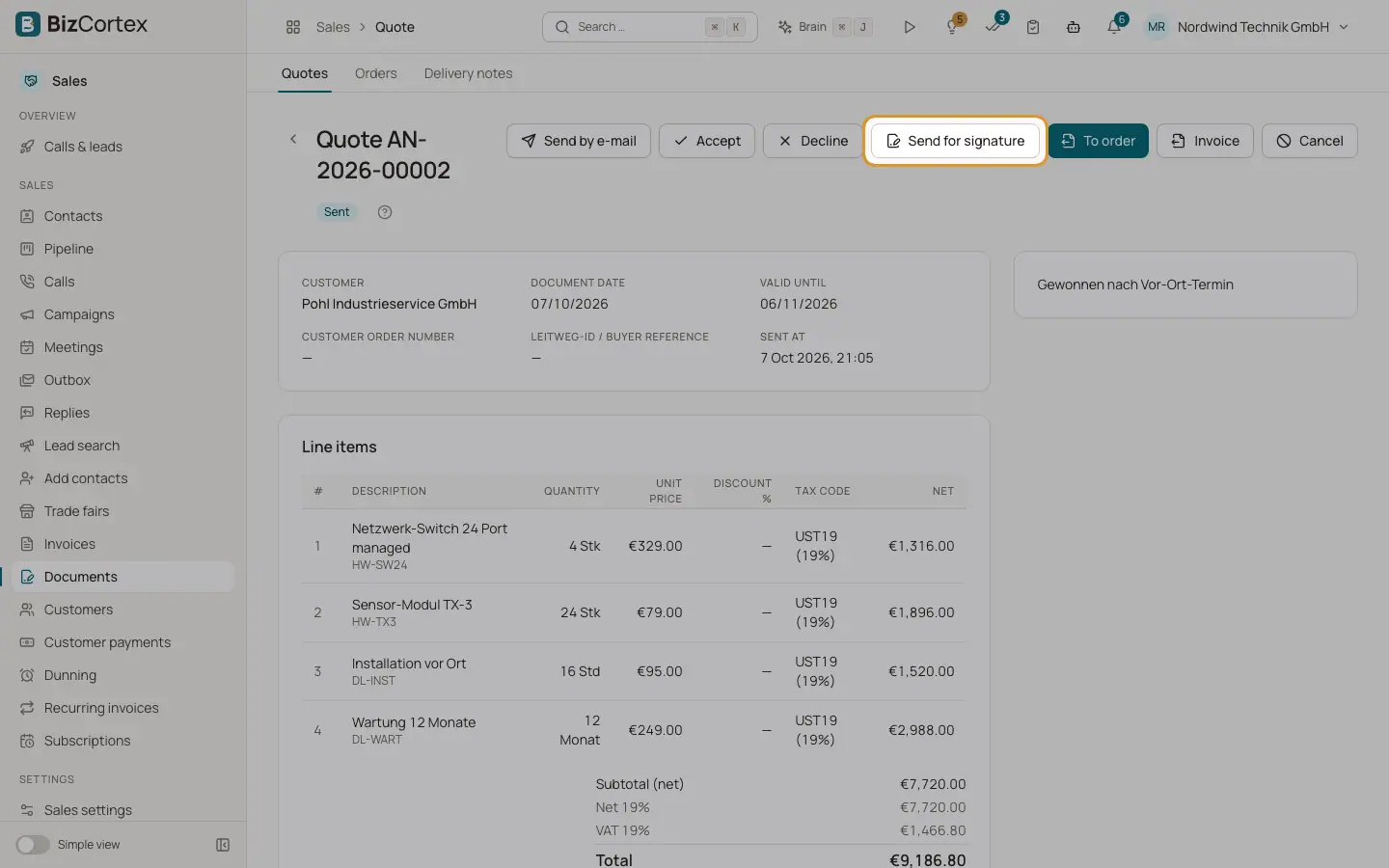
A sent quote has the button "Send for signature". It starts an electronic signature request with the quote PDF. When the customer has signed, the signed PDF is attached to the quote and the quote is accepted automatically with the name of the signer.
Who can use this
- Owner
- Admin
- Accountant
- Sales
Steps
1. Send the quote first
The button appears only on quotes with status Sent.
2. Click "Send for signature"
The signature wizard opens with the quote PDF and a suggested signer: the quote contact, or else the customer with their email.
3. Check signers and settings
Adjust the message, order (All at once or One after another), language of the emails, Valid until and the reminder interval. Add or remove signers.
4. Place fields
Click on the page to place signature, initials, date, text or checkbox fields. Without fields the signature appears on the audit certificate only.
5. Send
Click Send and confirm. Each signer gets a link and confirms with a one time code by email or text message.
6. Completion
After the last signature everyone receives the signed PDF. You find the request in the Workspace app under E signature.
Good to know
- You need the electronic signature write permission (Owner, Admin, Accountant and Sales have it).
- If the quote can no longer be accepted (for example because it has expired), the signatures are kept but the quote is not accepted.
- Orders, delivery notes and invoices cannot be sent for signature from their page.
Related
- Electronic signature: the send wizard
Upload the document, add signers, place fields and send.
- Handwritten signature and initials
Draw or upload your signature and initials for documents and electronic signatures.
- Quotes
Create, send and follow up quotes until they are accepted.
- From quote to invoice
How quotes, orders, delivery notes and invoices connect, including partial quantities.