Quotes
Create, send and follow up quotes until they are accepted.
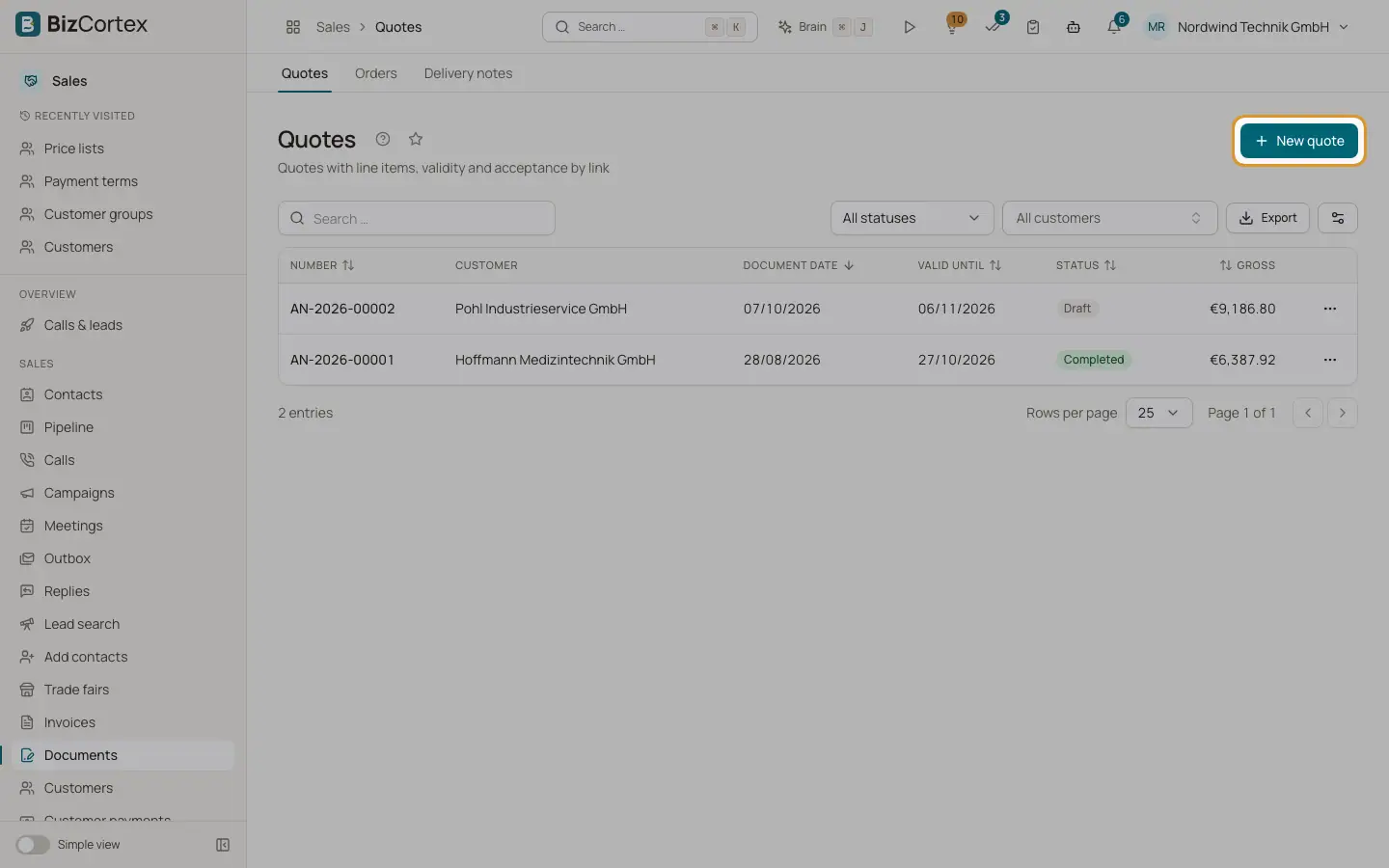
Open Documents, Quotes. The list shows number, customer, date, Valid until, status and gross total. Filter by status and customer. Click "New quote" to create one in the editor.
On the quote page the buttons depend on the status. Draft: Edit, Delete, "Send by email", Accept, Decline, "To order", Invoice. Sent: "Send by email" again, Accept, Decline, "Send for signature", "To order", Invoice, Cancel.
Who can use this
- Owner
- Admin
- Accountant
- Sales
- Viewer (read only)
Steps
1. Send the quote
Click "Send by email". The PDF and a public link are emailed, and the quote becomes Sent.
2. Record the decision
Click Accept and enter "Accepted by (name)", or Decline and enter a reason. Accepting is only possible before the quote has expired.
3. Continue
Click "To order" or Invoice to take over the lines.
Fields and options
- Accepted at, Declined at
Shown on the quote with the name or the reason.
- PDF tab
Preview and download of the quote PDF.
- Emails tab
Every email sent for this quote with recipients, subject, attachments and status.
- History tab
All changes.
Tips
- Customers can accept or decline themselves on the public link or in the customer portal. Their name is stored with the acceptance.
Related
- Send a quote for signature
Let the customer sign a quote electronically; signing accepts the quote.
- From quote to invoice
How quotes, orders, delivery notes and invoices connect, including partial quantities.
- Sending documents by email
Email quotes, orders, delivery notes and invoices with PDF, electronic invoice and public link.