Add ons, coupons and wallets
One off charges, discounts and prepaid credits for subscription customers.
These pages are visible in All functions under Subscriptions.
Who can use this
- Owner
- Admin
- Accountant
- Sales
- Viewer (read only)
Steps
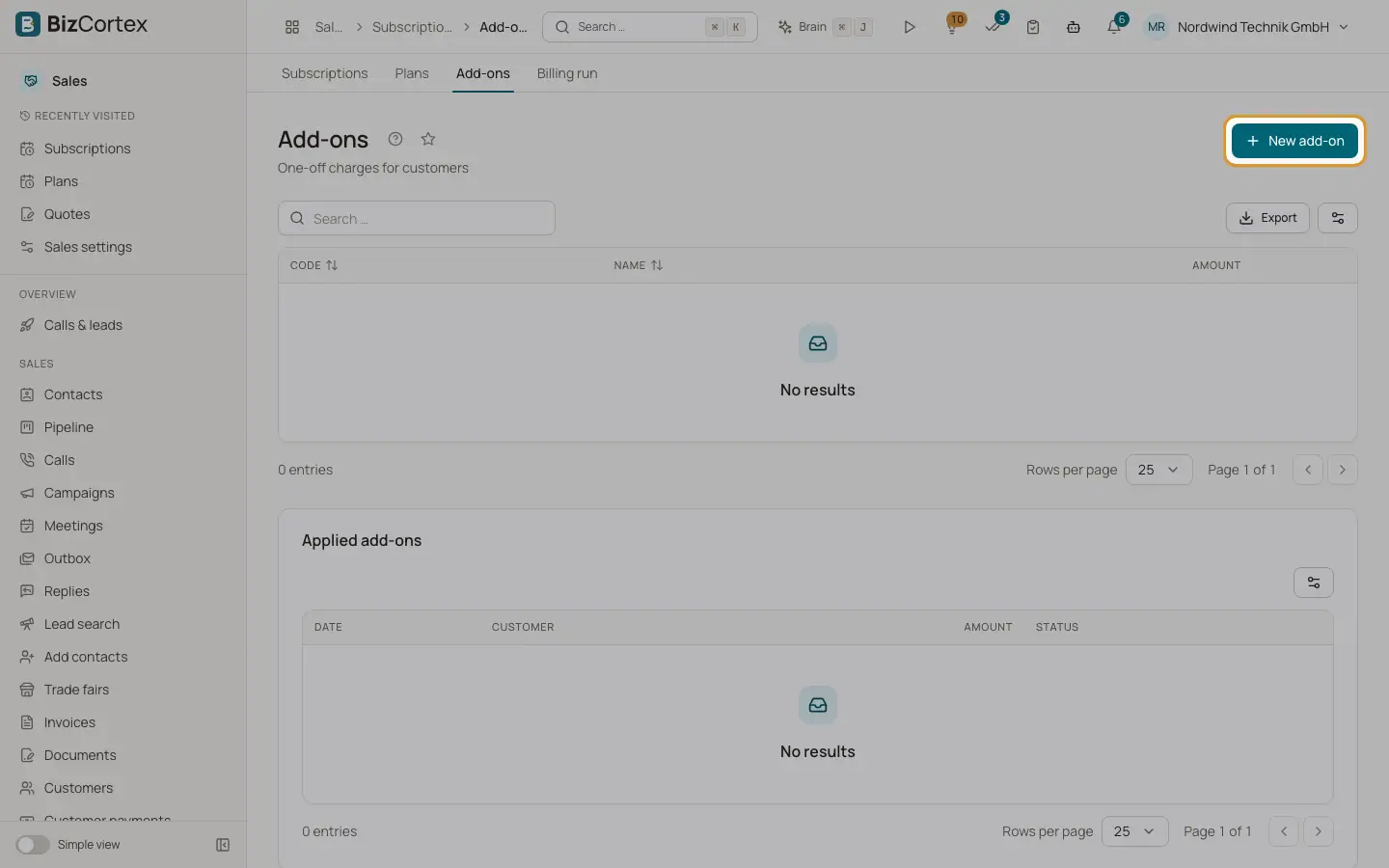
1. Add ons
Click "New add on" and enter code, name, "Amount (net)", currency, tax code and description. Use "Apply to customer" to charge it: optionally enter a different amount and switch on "Invoice now" (otherwise it goes on the next subscription invoice). The Applied add ons table shows status Pending or Invoiced.
2. Coupons
Click "New coupon": code, name, type (Fixed amount or Percentage), amount or percent, Duration (Once, Recurring with a number of periods, Forever), Valid until, currency, "Reusable per customer" and Active. Use "Apply to customer". The Applied coupons table shows used amount, remaining periods and status; Terminate ends an assignment.
3. Wallets
Click "New wallet": customer, name, currency, "Value per credit", Valid until, Paid credits and Granted credits. On the wallet page use "Top up" (paid and granted credits, payment date, reference) or Close.
Fields and options
- Coupon effect
Coupons appear as negative lines after the charges and never make an invoice negative. A fixed coupon used once is carried over until used up.
- Paid credits
Money received. A top up is booked as a customer payment and applied to invoices like a prepayment, so VAT stays on the full amount.
- Granted credits
A promotion without payment. They reduce the invoice like a discount.
- Wallet transactions
Top up (paid), Granted (promotion), Consumed, Voided.
- Close wallet
Granted credits expire. The paid remainder stays customer credit.
Good to know
- Applied add ons and coupons cannot be deleted from the catalogue.
- Coupon and wallet lines use the tax code of the first invoice line.
Related
- Subscriptions: create, change and cancel
Subscribe customers, change plans with proration and cancel.
- Customer credit
Use or refund credit from overpayments and credit notes.