Credit notes and cancellations
Cancel an invoice completely or correct single lines with a credit note.
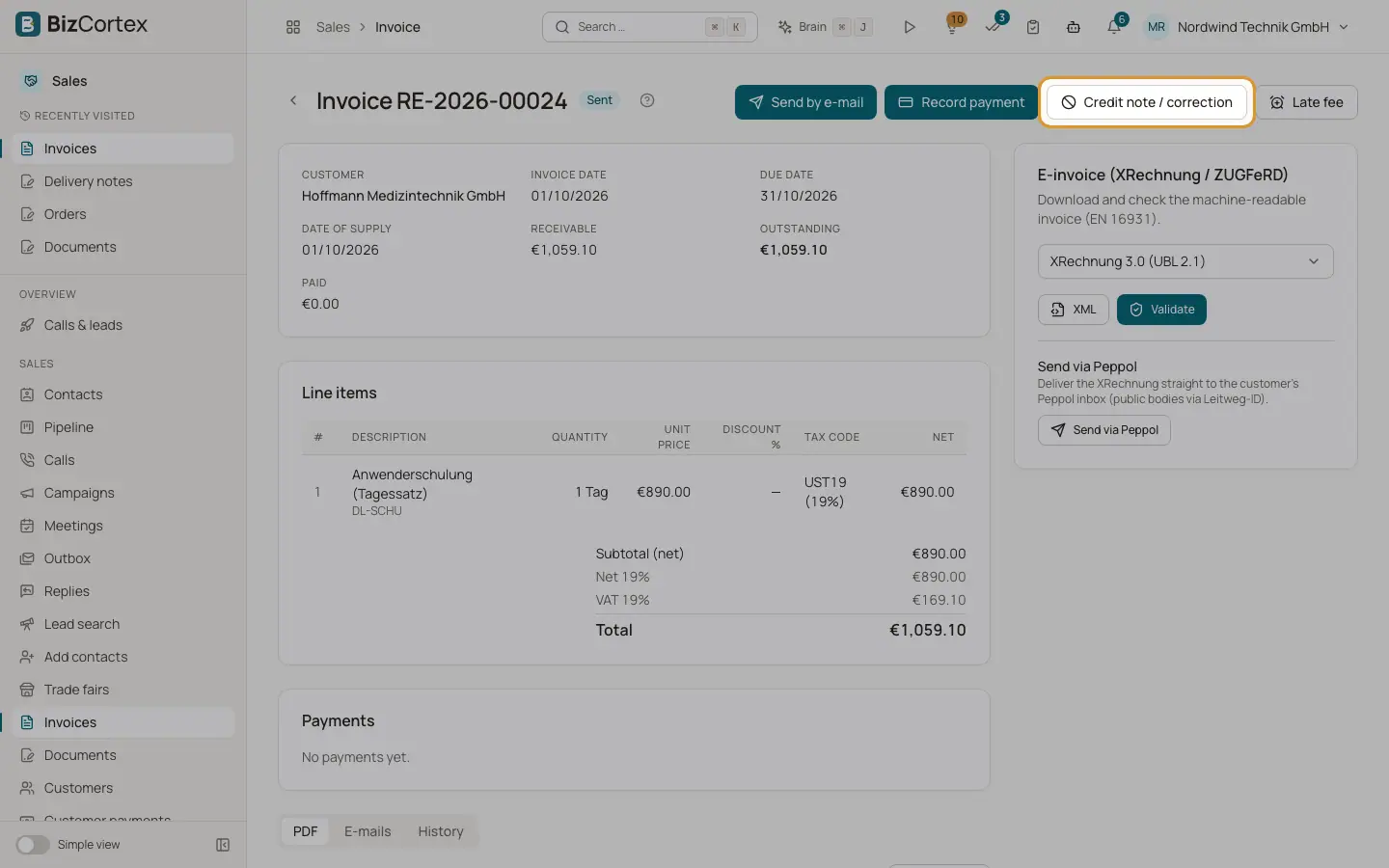
Issued invoices are never changed or deleted. To cancel or correct one, open the invoice and click "Credit note / correction". The credit note gets its own GS number and reduces the open amount of the invoice. If the credit is larger than the open amount, the excess becomes customer credit.
Who can use this
- Owner
- Admin
- Accountant
- Sales
Steps
1. Open the dialog
On an issued invoice, click "Credit note / correction".
2. Choose the scope
"Cancel completely" reverses the whole invoice exactly. "Correct partially" lets you choose per line: None, Quantity returned, or Price reduction per unit, and enter the quantity or the amount per unit.
3. Reason and date
Enter a reason and the date of the credit note.
4. Create
Click "Create credit note". The credit note opens; it shows a link to the original invoice.
Good to know
- A full cancellation sets the original invoice to Cancelled.
- An invoice that was settled with a cash discount cannot be cancelled completely. Use a partial credit note instead.
- If your company uses an approval workflow for credit notes, the request first goes to the approvers. The approval panel on the invoice shows the state. The credit note is created only after approval; a rejection creates nothing.
- Credit notes cannot be sent by email from the invoice page yet, and the E invoice card is not shown for credit notes.
Related
- Customer credit
Use or refund credit from overpayments and credit notes.
- Finalizing an invoice
Check the mandatory details, finalize, and understand why an issued invoice is locked.