Customers
Create and maintain customers with tax treatment, credit limit, language and electronic invoice settings.
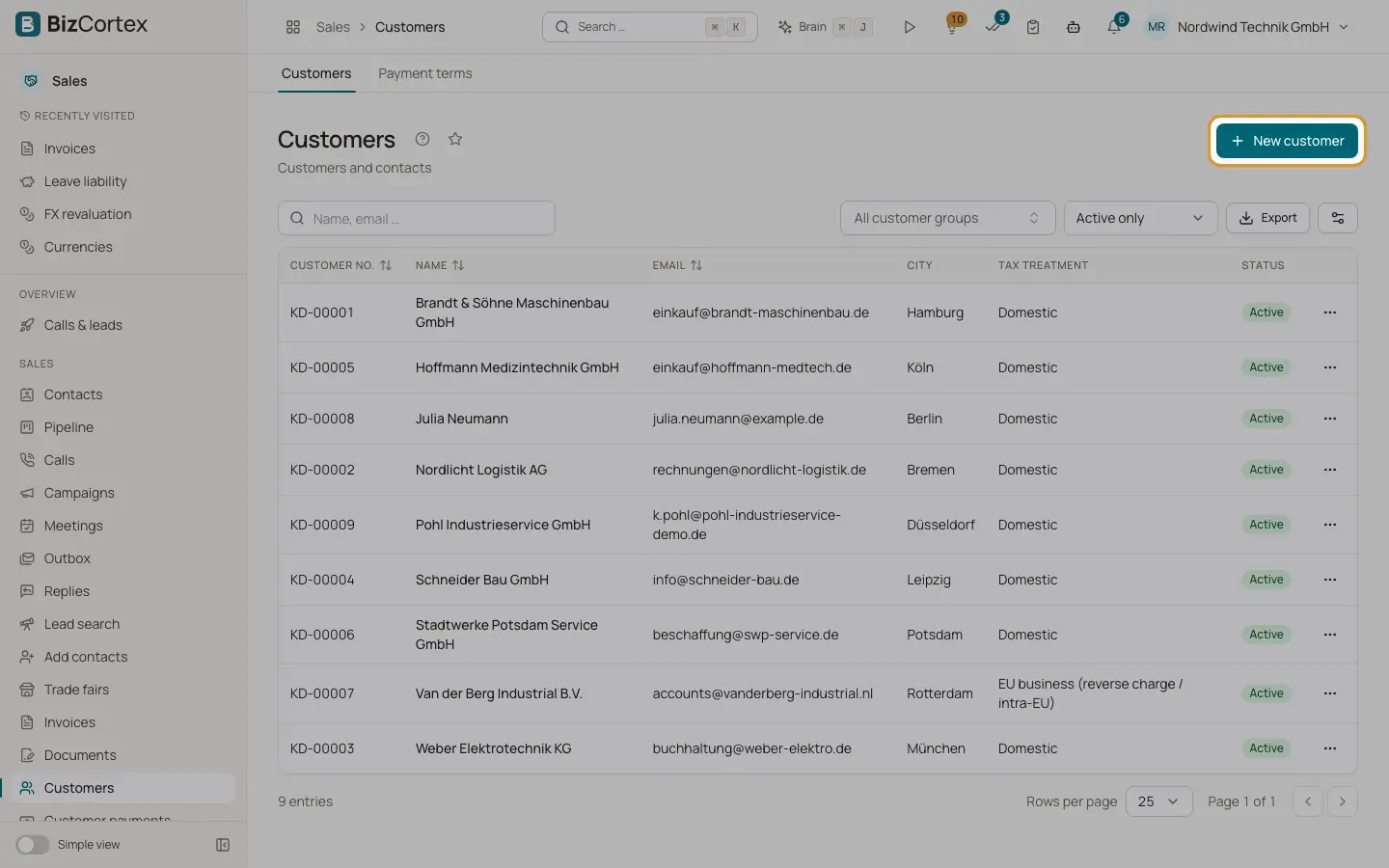
Customers are the basis of every quote and invoice. Open Sales, Customers. The list shows the customer number, name (with a "Dunning block" badge when the customer is blocked), email, city, tax treatment and status. Filter by customer group and by status (Active only, Inactive only, All), and search by name or email.
Each new customer gets a gapless customer number: KD followed by a running number. You can type your own number instead; it must be unique.
Who can use this
- Owner
- Admin
- Accountant
- Sales
- Viewer (read only)
Steps
1. Open the customer list
In the Sales app, open Customers in the sidebar.
2. Create a customer
Click "New customer". Enter at least the name. Fill in the address, because invoices above 250 euros gross need the recipient address.
3. Set the tax treatment
Choose Domestic, EU business (reverse charge or intra EU), EU consumer or Non EU. The tax treatment decides the default tax code of each invoice line.
4. Save
Click Save. The customer opens in the list and you can start writing documents for them.
Fields and options
- Name
Company or person name. Required.
- Customer no.
Leave empty for the next automatic number. A number you type must be unique.
- Customer type
Business or Consumer. In Germany this decides the statutory default interest rate in dunning (base rate plus 9 points for businesses, plus 5 points for consumers).
- Email, Phone, Website
Contact data. The email is the fallback recipient when you send documents.
- Street, Zip, City, Country
The main address. It is printed when the customer has no default billing address.
- Tax treatment
Domestic, EU business, EU consumer or Non EU. EU business requires a VAT ID. For EU business lines with a product get the intra EU supply tax code, service lines get reverse charge. Non EU gets export or not taxable in Germany.
- VAT ID
Checked for a valid format. Required for EU business customers. Users with the VAT ID permission can confirm it in the VAT ID panel on the customer page.
- Tax number
The national tax number of the customer, if you need it.
- Customer group
Inherits the group discount, price list and payment term.
- Payment term
The default payment term for this customer.
- Price list
The customer price list, used first when a product price is looked up.
- Credit limit
The maximum of open receivables you accept.
- When exceeded
do not check, warn, or block. With warn you get a warning when you finalize an invoice or confirm an order above the limit. With block the invoice or order is refused.
- Currency
Three letter currency code. New invoices and payments of this customer use it.
- Language
German or English. Decides the language of PDFs and emails.
- Leitweg ID (buyer reference)
For German public sector customers. Printed in the XRechnung as buyer reference and used as Peppol address (scheme 0204).
- E invoice address
The electronic address of the customer, for example a Peppol ID like 9930:DE123456789.
- E invoice format
The electronic invoice format for this customer. Default (settings) uses the format from Sales settings. The list shows only the formats of your country.
- Dunning block and Reason
A blocked customer is skipped in dunning runs. Note the reason for your colleagues.
- Notes, Active
Internal notes. Inactive customers are hidden by the Active only filter.
Tips
- To edit a customer, use the row menu (Edit) in the list or the Edit button on the customer page.
Good to know
- Customer language currently offers German and English for documents.
Related
- The customer page
Key figures, tabs and quick actions for one customer.
- Contacts and addresses
Add contact persons and separate billing and shipping addresses to a customer.
- Customer groups
Give groups of customers a common discount, price list and payment term.